Paying for your website: invoices, subscription and balance
Paying for a WebFora website is a monthly subscription per website; invoices, balance and documents live in the “Billing” section of your dashboard. An invoice can be paid by card on AgentaOS's secure page (VAT is added for your country) or instantly from your wallet balance. You can cancel any time — the website works until the end of the paid period — and within 24 hours of the first payment, as long as the brief isn't sent, the payment is refunded in full.
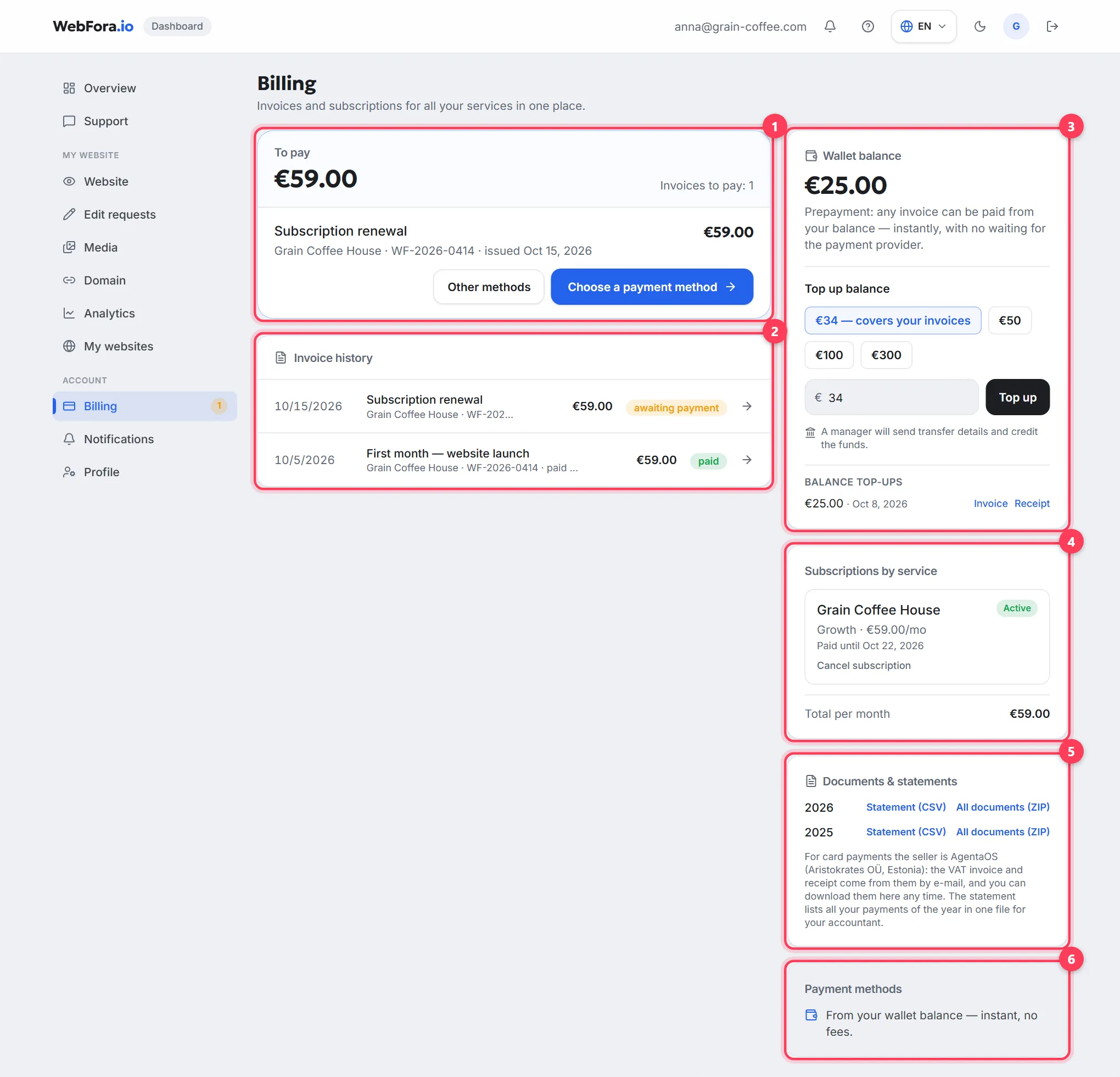
What's in the Billing section
| Block | What it holds |
|---|---|
| To pay | Unpaid invoices with the amount, pay buttons and an “Other methods” link. When nothing is due — “All paid” |
| Invoice history | All invoices with statuses: “paid”, “awaiting payment”, “payment failed”, “refunded”. Click an invoice to open its page |
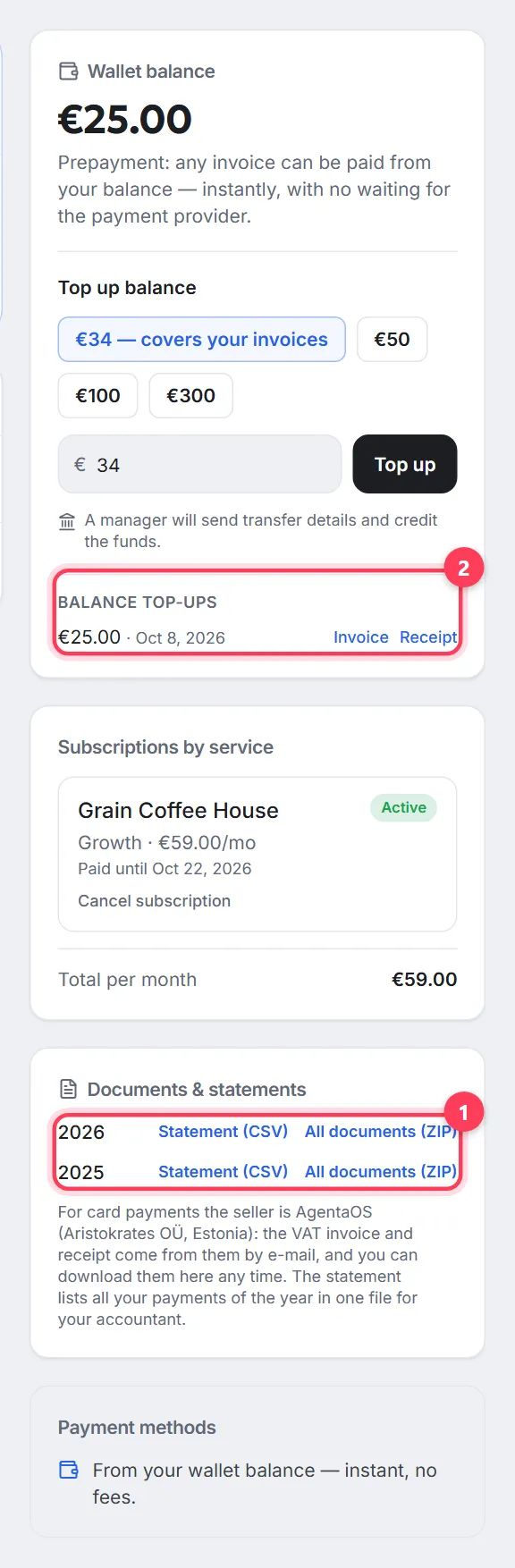
| Wallet balance | Prepayment: your balance and the “Top up balance” form |
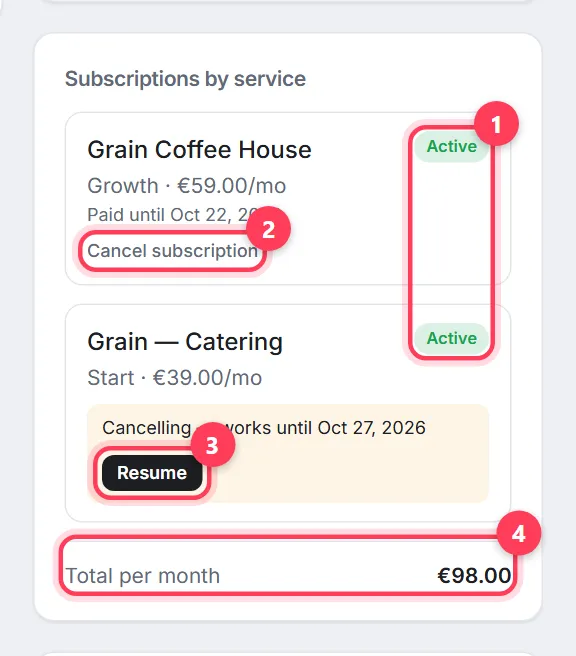
| Subscriptions by service | Per website: plan, monthly (or yearly) price, status, “Paid until …”, the “Cancel subscription” link |
| Documents & statements | Per year: “Statement (CSV)” and “All documents (ZIP)”; invoice and receipt for every top-up |
| Payment methods | A reminder of what works: card via AgentaOS and the wallet balance |
How to pay an invoice
Step 1
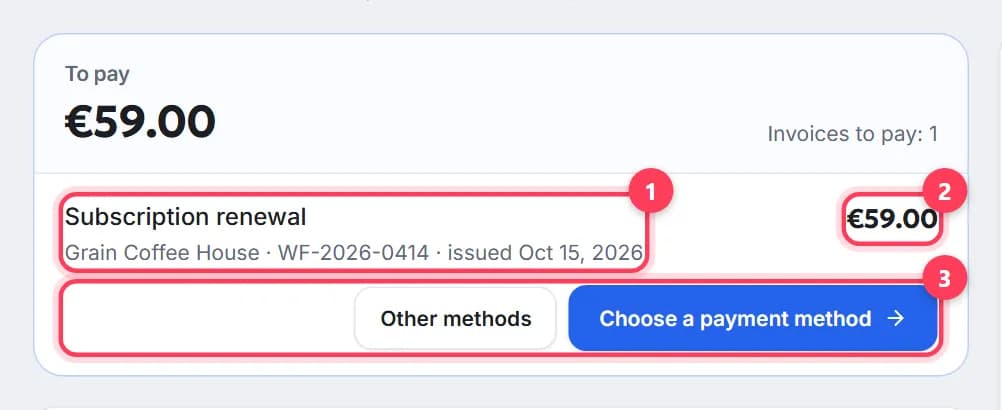
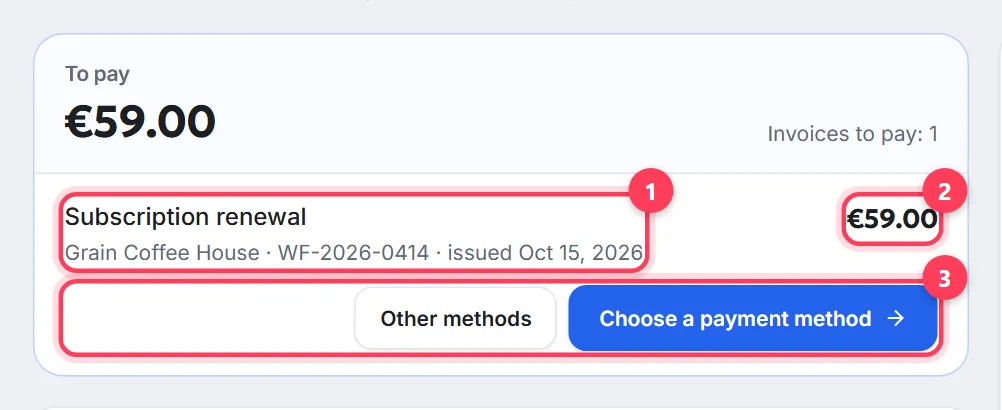
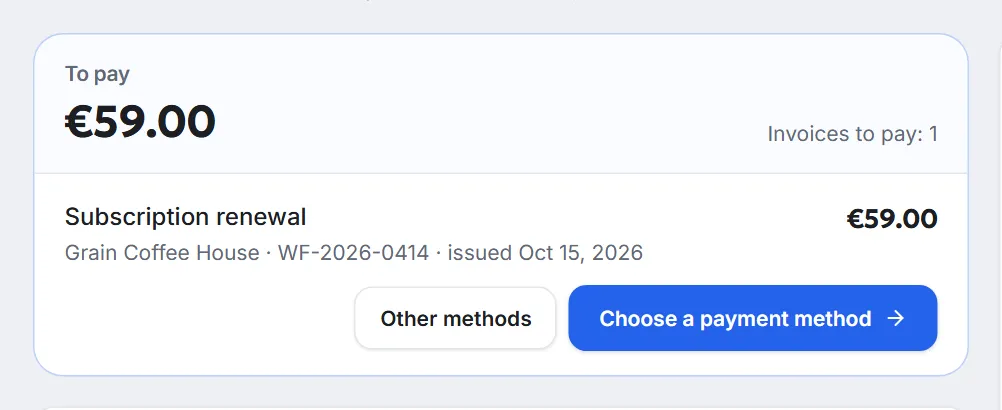
Find the invoice in “To pay”
Each row shows the period, the website and the issue date, with the amount on the right. For card payments an estimate with VAT is shown under the amount: prices exclude VAT, which depends on your country and is added on the payment page.
Step 2
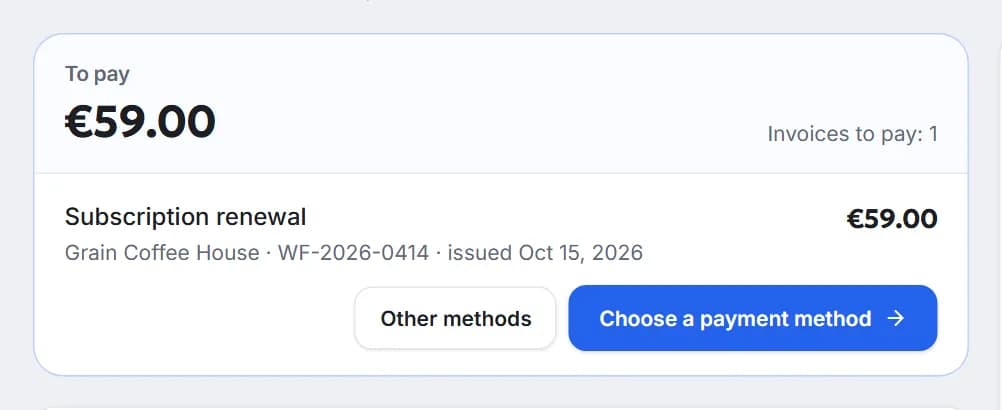
Choose a method
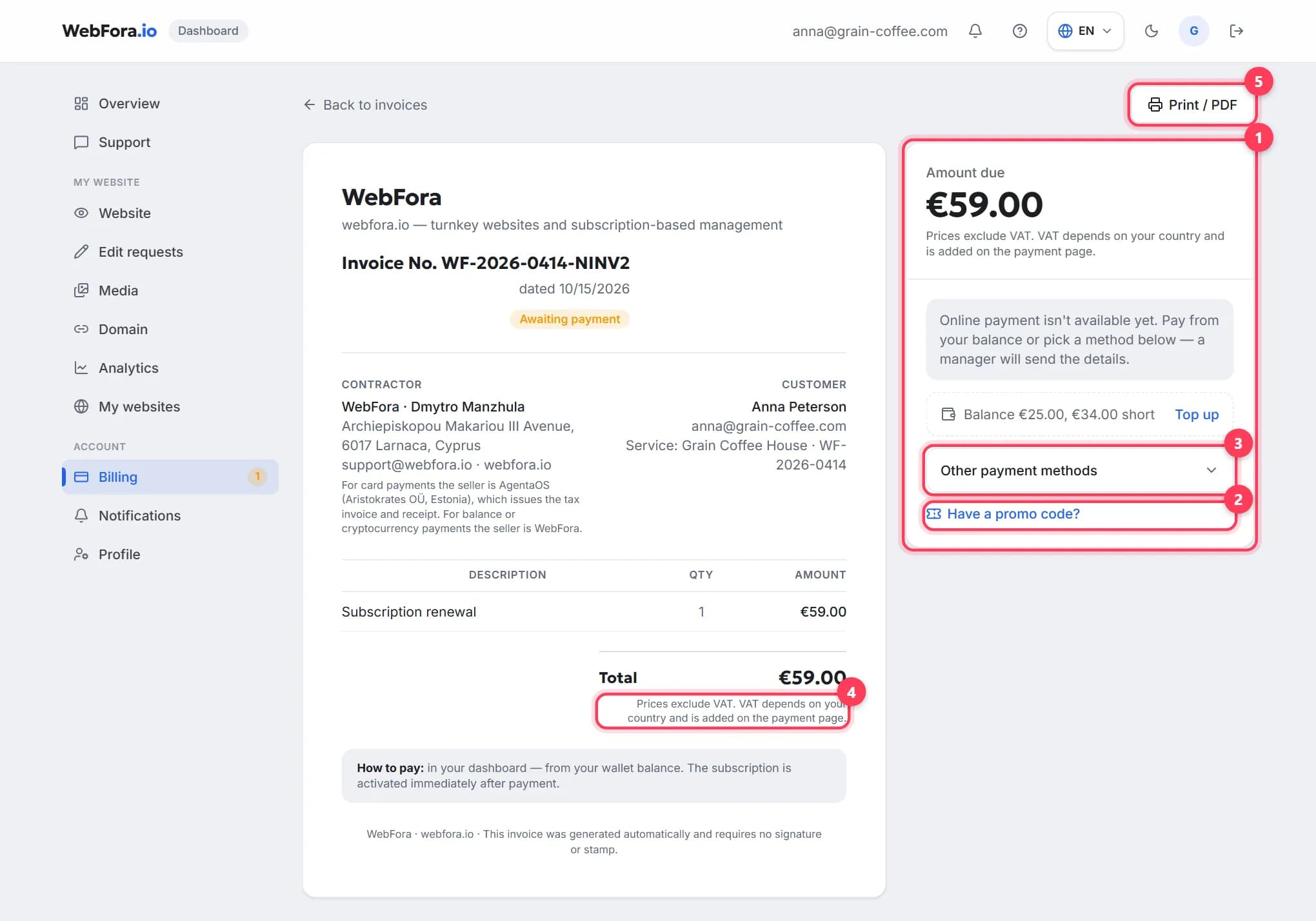
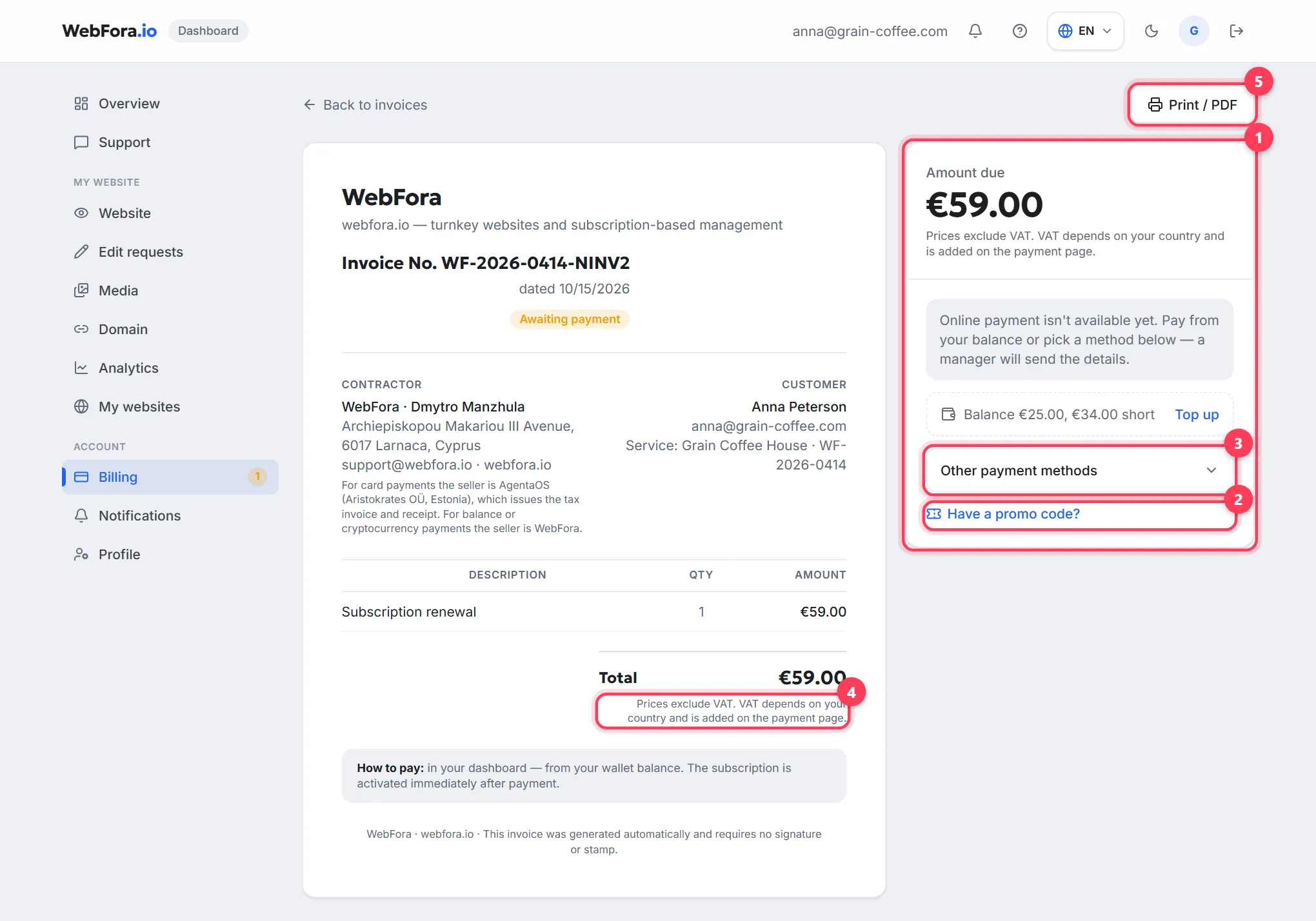
“Pay …” (with the amount) — by card on AgentaOS's secure page: card, Apple Pay, Google Pay or bank transfer; WebFora never sees your card details. “Pay from balance” appears when your balance covers the amount — the invoice is settled instantly. “Other methods” opens the invoice page with a “Have a promo code?” field and an option where a manager sends payment details in the chat and confirms the payment manually.
Step 3
Wait for confirmation
Back from the AgentaOS page, the dashboard shows that AgentaOS is confirming the payment and the page refreshes by itself. An invoice counts as paid only after the provider confirms it, not just because you returned to the site. The receipt arrives by e-mail. If it was your first invoice, a “Next: fill in the brief →” button appears — here's how to fill in the website brief.
Wallet balance and top-ups
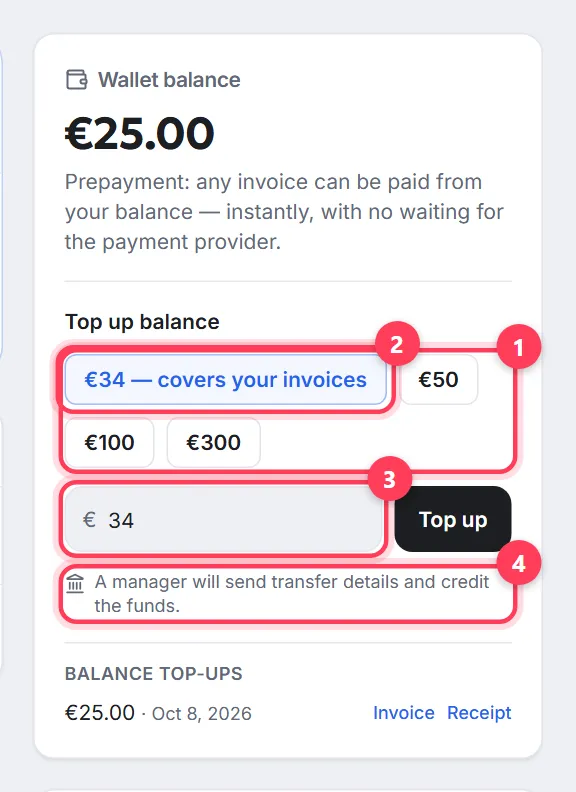
The balance is a prepayment: any invoice can be paid from it at once, with no waiting for the provider. The “Top up balance” form offers quick amounts (€50, €100, €300), an “Other amount” field and, when invoices are due, a “… — covers your invoices” chip. “Top up by card” opens the same AgentaOS page; the minimum and maximum top-up are shown under the button. After confirmation you'll see “Balance topped up — the funds are available to pay invoices”, and “Documents” gets an “Invoice” and a “Receipt” for the top-up.
One subscription per website and auto-renewal
Each website has its own subscription: “Subscriptions by service” shows the plan, the price (“€…/mo” or “€…/year · 12 months for the price of 10”), the status (Active, Overdue, Cancelled, Inactive, Paused) and “Paid until …”. At the bottom — “Total per month” across active subscriptions.
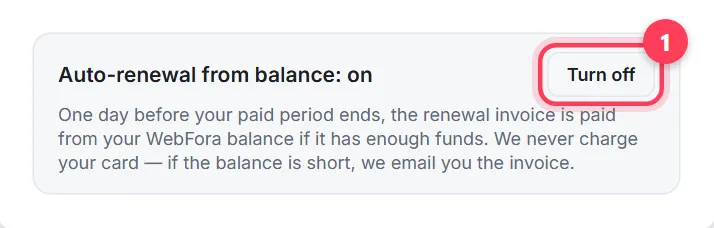
Auto-renewal is set on the website's page: “My websites” → the website → “Subscription” → “Auto-renewal from balance: on/off”. When it's on, one day before the paid period ends the renewal invoice is paid from your WebFora balance if it has enough funds; your card is never charged — if the balance is short, the invoice is emailed to you. When it's off, the renewal invoice is emailed 7 days before the period ends — pay it by card or from your balance.

Documents for your accountant
In “Documents & statements” each year offers a “Statement (CSV)” — all payments in one file — and “All documents (ZIP)”. For card payments the seller is AgentaOS (Aristokrates OÜ, Estonia): the VAT invoice and receipt come from them by e-mail and can be downloaded here as well. Every invoice page has a print button — the WebFora invoice can be saved as PDF for your records.
How to cancel a subscription
Step 1
Press “Cancel subscription” next to the website
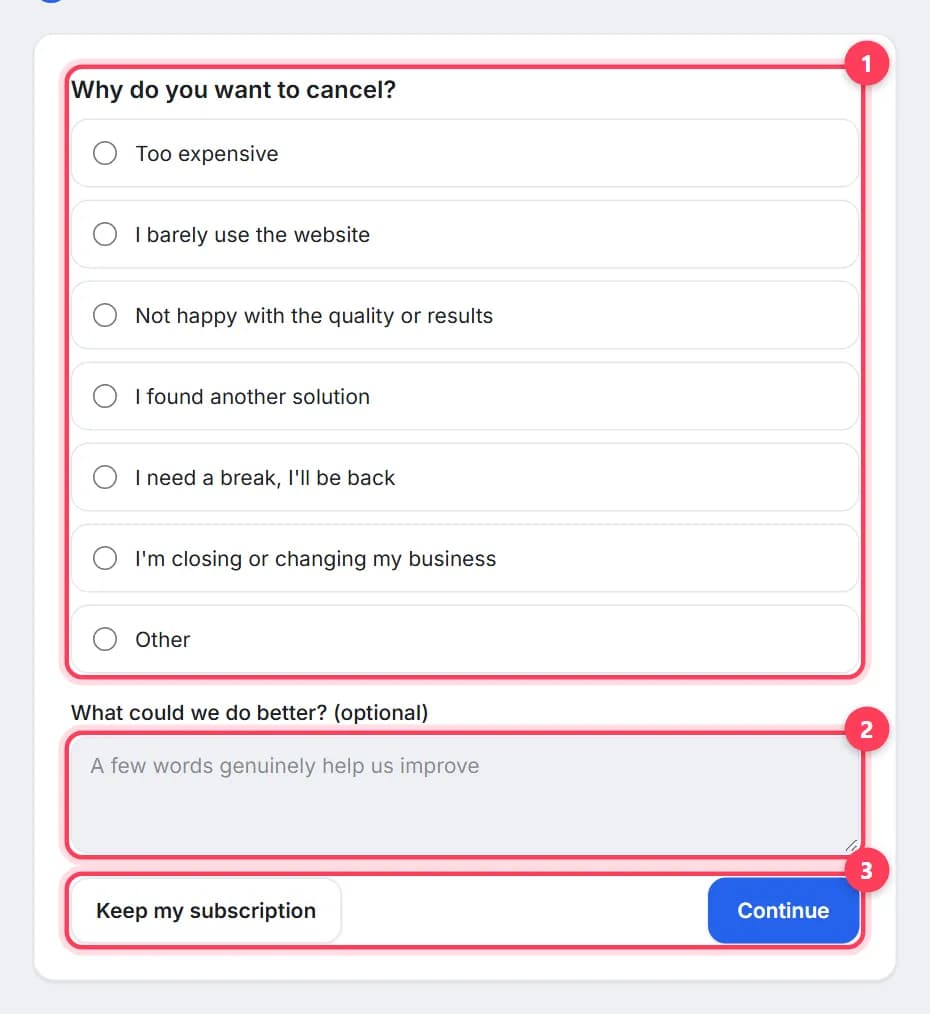
The link is in “Subscriptions by service”. The “Cancel subscription” page opens with a few steps: Reason → Offer → Confirm.
Step 2
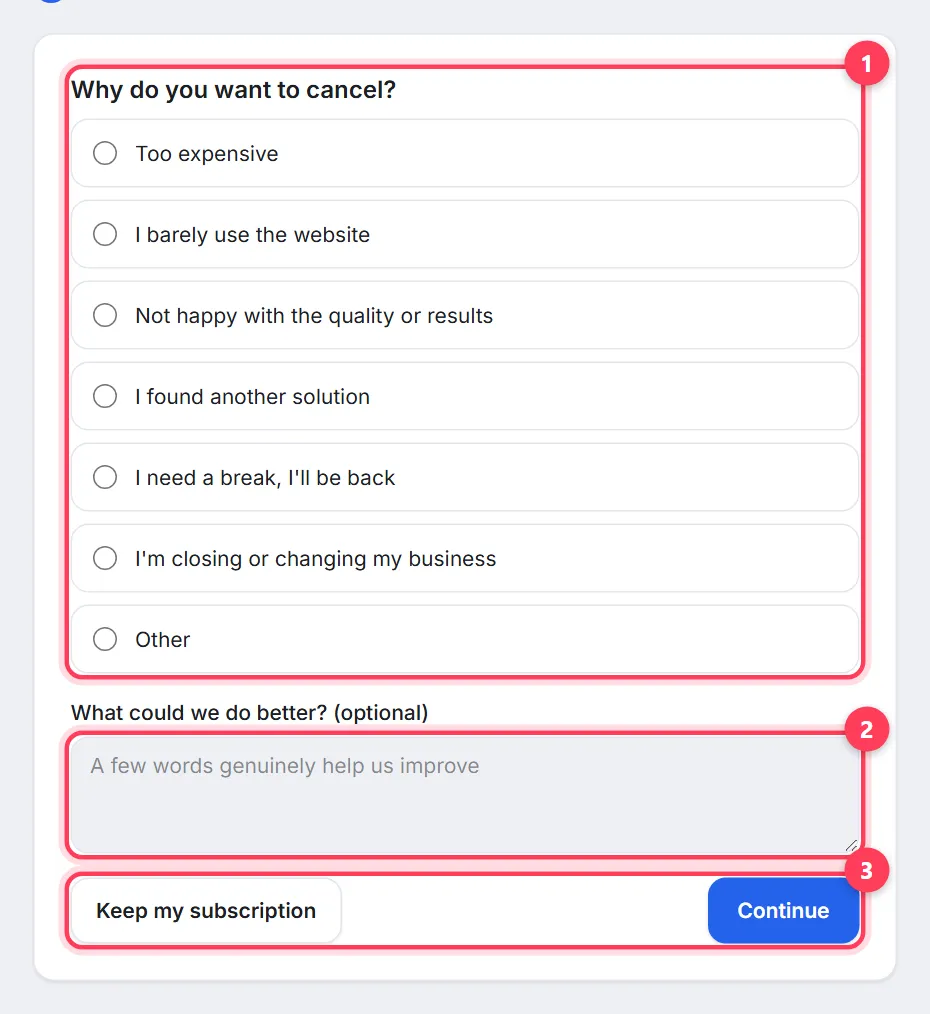
Give a reason
Pick an option (“Too expensive”, “I barely use the website”, “I need a break, I'll be back” and others) and optionally say what we could do better. “Keep my subscription” takes you back to Billing at any point.
Step 3
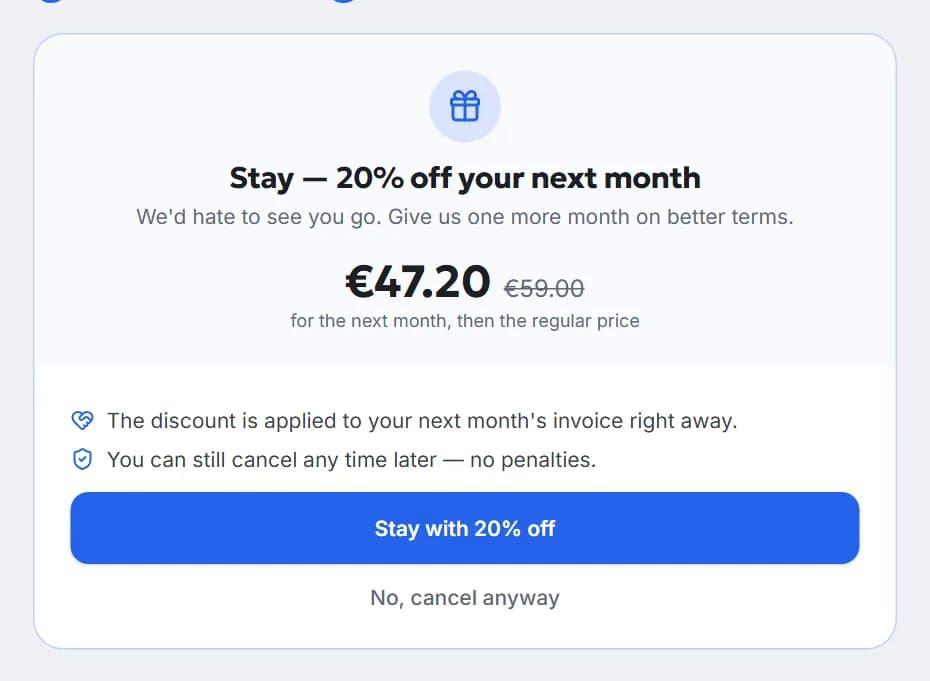
Look at the offer (if there is one)
The dashboard may offer a discount on the next month — accept it or press “No, cancel anyway”.
Step 4
Confirm
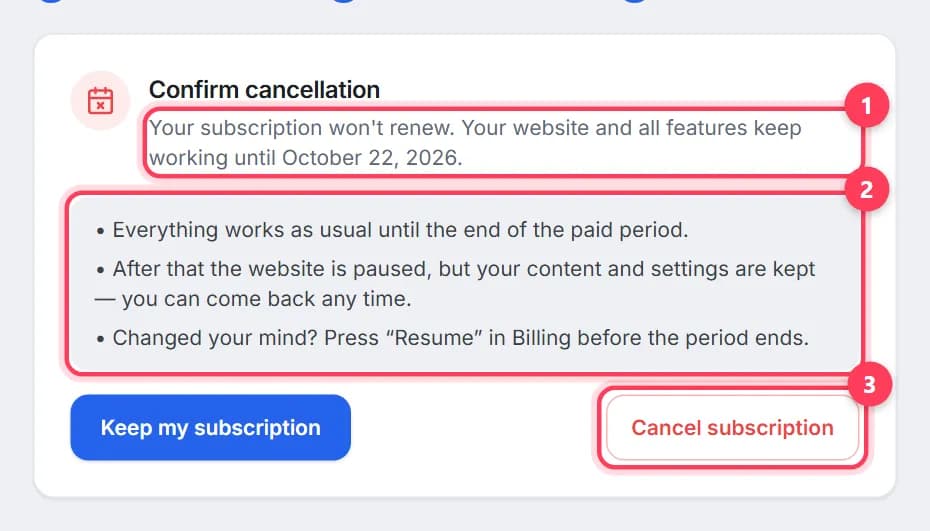
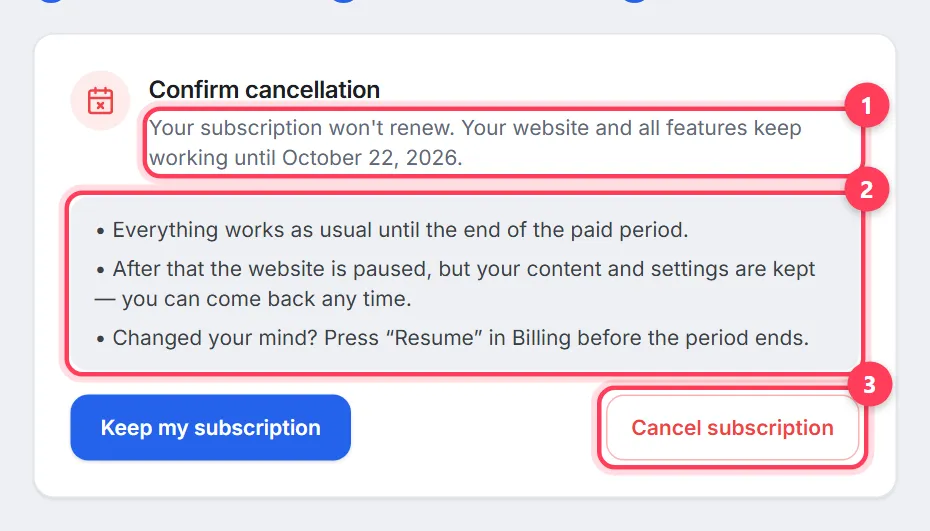
The “Confirm cancellation” step shows until which date everything keeps working. The subscription won't renew; until the end of the paid period the website and all features work as usual, after that the website is paused but your content and settings are kept. In Billing the subscription shows “Cancelling — works until …” with a “Resume” button.
Refunds: the 24-hour rule
If you change your mind within 24 hours of the first subscription payment and have not yet sent the brief, write to us in the support chat — the subscription payment is refunded in full. Work on your website starts when you send the brief (and no later than the end of the 3rd business day after payment), and from then on payments for a period that has started are not refunded. Erroneous and duplicate charges are refunded in full. Details and how to request one — in the refund policy.
FAQ
How do I pay for my website by card?+
In Billing, press “Pay …” next to the invoice — AgentaOS's secure page opens with card, Apple Pay, Google Pay or bank transfer. WebFora never sees your card details; the receipt arrives by e-mail.
Why is the amount on the payment page higher than in the dashboard?+
Dashboard prices exclude VAT. VAT depends on your country and is added on the AgentaOS payment page; the dashboard shows an estimate with VAT under the invoice amount.
What is the wallet balance for?+
It's a prepayment. Any invoice can be paid from it instantly with “Pay from balance”, and with auto-renewal on, the renewal invoice is settled from the balance by itself.
Is my card charged automatically?+
No. Auto-renewal works from the wallet balance only. If it's off or the balance is short, the renewal invoice is emailed to you and you pay it yourself.
How do I cancel my subscription?+
Billing → “Subscriptions by service” → “Cancel subscription” → give a reason and confirm. The website works until the end of the paid period; you can change your mind with “Resume” before it ends.
Can I get a refund?+
In full — within 24 hours of the first payment, as long as the brief hasn't been sent. Once work has started, the payment for the current period isn't refunded; erroneous and duplicate payments are. See the refund policy for details.
Where do I get documents for my accountant?+
In Billing, under “Documents & statements”: “Statement (CSV)” and “All documents (ZIP)” per year. The VAT invoice and receipt for card payments are issued by AgentaOS — they arrive by e-mail and can be downloaded there too.
What happens if I pay late?+
The website keeps running for a few days with the “Payment overdue” status, then the service is suspended. Your data is kept — access is restored once the invoice is paid.
Was this guide helpful?
Related guides

How to fill in the website brief
The website brief in your WebFora dashboard: when it opens, sections, address/phone/hours pickers, drafts, the 3-business-day deadline and what comes next.
7 min read
The WebFora client dashboard: what is where
A tour of the WebFora client dashboard: each menu item, the website status block, what the team did, 30-day enquiries and where to message your manager.
6 min readHow to request changes to your website
Get text, photos, prices or opening hours changed on your website: send an edit request, see your free edits left, get quotes for custom work, track it.
5 min read