How to request changes to your website
To request changes to your website, send an edit: a new text, photo, price or phone number. You describe it in your own words in the “Edits” section, the team makes it by hand, and you follow the status in your dashboard. A few edits a month are included in your plan; anything beyond that, or anything custom, is quoted first — and you decide whether to go ahead.
How to send a website change request
Step 1
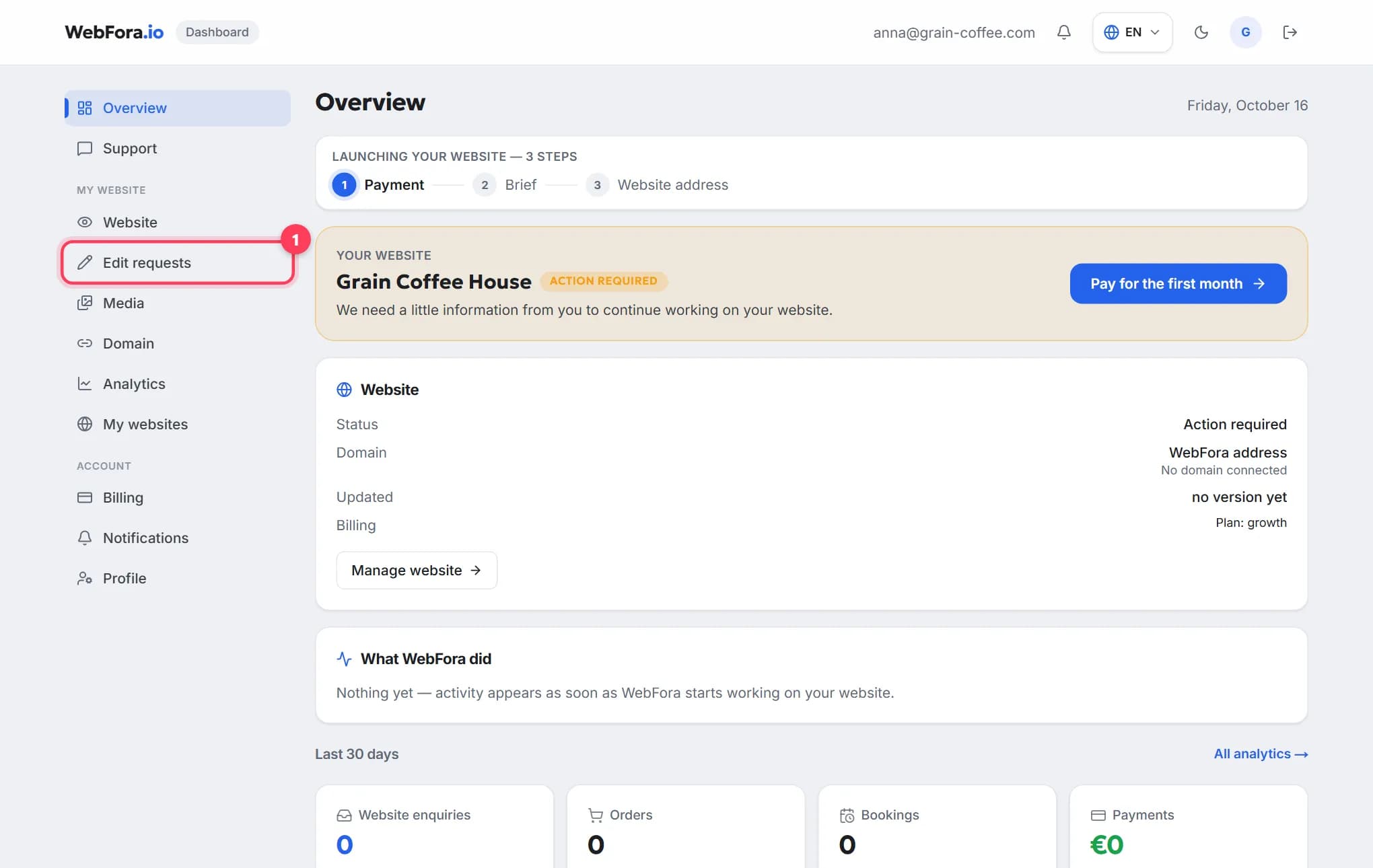
Open “Edits” in the dashboard menu
It's in the “My website” block. If you have several websites, pick the one you need first.
Step 2
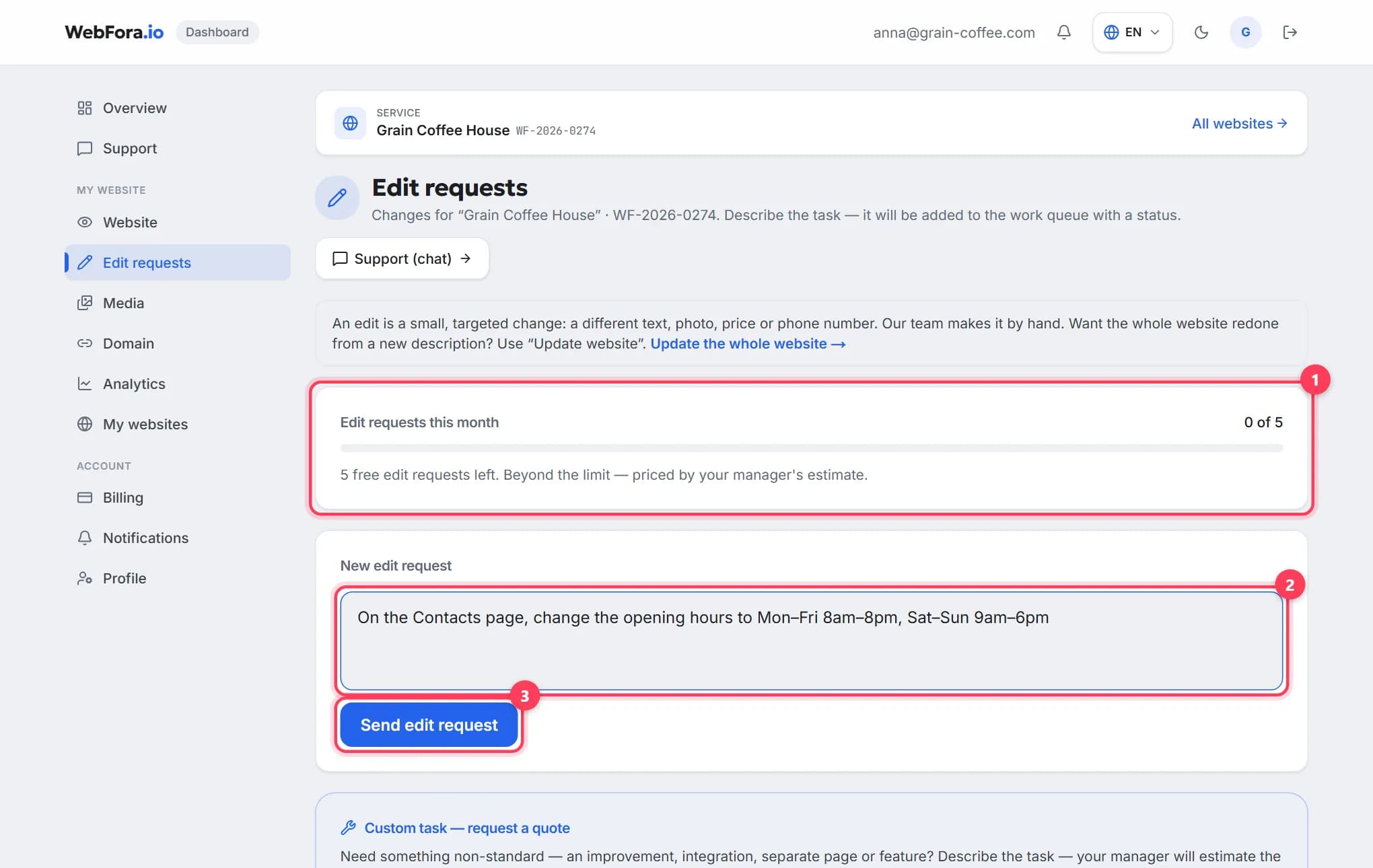
Check your allowance and describe the task
At the top you see how many free edits are left this month (1 in the screenshot) — the number depends on your plan. In the “New edit” field (2) describe what to change and where, then click “Send edit request” (3).
Step 3
Follow the status
The edit appears in the history as “New”, then “In progress” and “Done”. Every edit has its own chat — use it to clarify details or send files, such as new photos.
What counts as an edit (and what doesn't)
| Task | How to send it |
|---|---|
| Change a text, price, phone number, opening hours, photo | Edit — counts towards the monthly allowance |
| Rebuild the whole website from a new description | The “Update the whole website” link above the form |
| A new feature, integration or separate page | Custom task — request a quote |
New features and custom tasks: quoted first
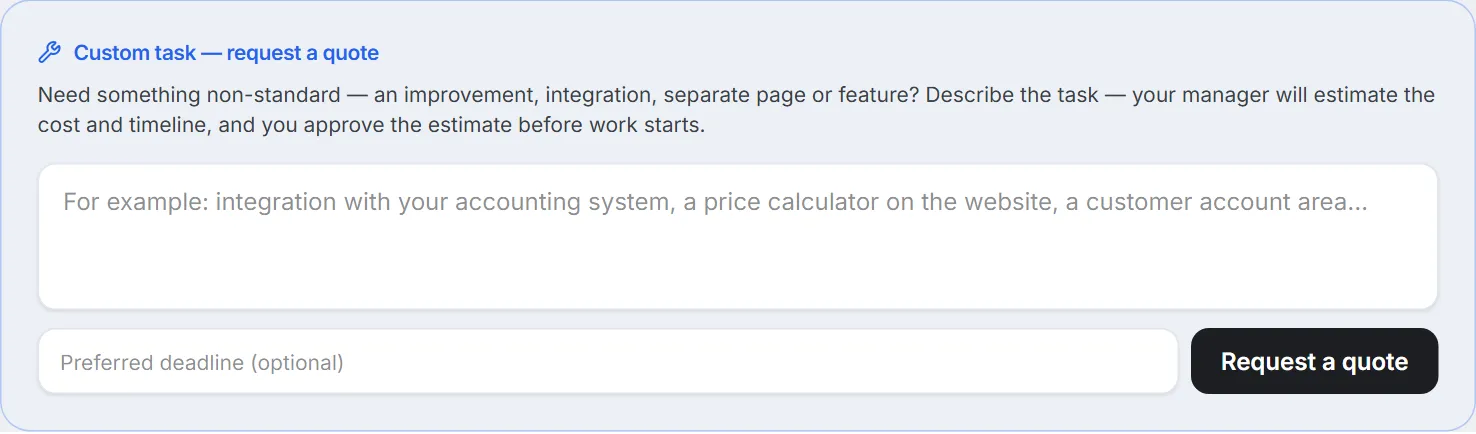
Need something beyond regular edits — a price calculator, an integration with your booking or accounting system, a client area? Describe it in “Custom task — request a quote” and add a deadline if you have one. Your manager sends the price and timeline, and work starts only after you agree.
When your free edits run out: paid edits
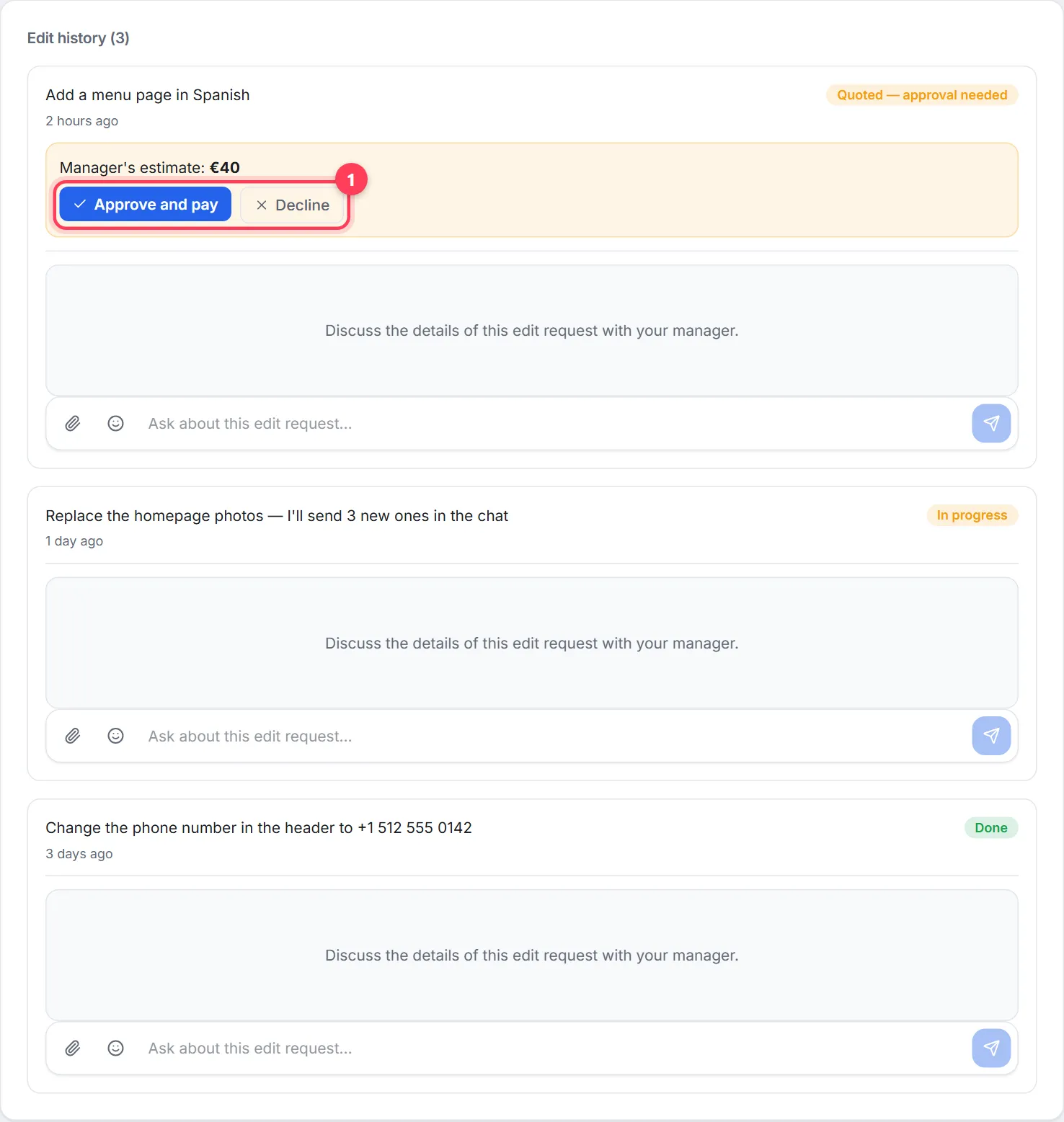
Edits beyond the allowance and custom tasks are quoted by your manager: the history shows “Quoted — approval needed” with the price. Click “Approve and pay” to get a one-time invoice — your subscription doesn't change (how invoices are paid). Or “Decline” if you changed your mind: nothing is charged.
FAQ
How many edits does my plan include?+
It depends on the plan: the exact number and what's left this month are shown at the top of the Edits section. Edits beyond the allowance are quoted by your manager — you see the price in advance.
How fast are edits done?+
Regular edits are picked up during business hours on weekdays. The status updates in your dashboard, and you can ask questions in the chat under each edit.
Can I send several changes in one edit?+
It's better to split them: one edit, one task. That way each is easier to make, check and discuss, and you see each status separately.
How do I send photos or files for an edit?+
Through the chat under the edit — the paperclip button. Only your manager sees the files.
Who makes the changes to my website?+
The WebFora team makes each edit by hand. Your manager is your contact: they answer in the chat under the edit and confirm details if something is unclear.
What if I'm not happy with the result?+
Write in the chat under that edit what exactly to adjust — the team will correct it there.
Will a paid edit change my subscription?+
No. An approved paid edit or custom task is a one-time invoice; your subscription and its price stay the same. If you decline the quote, nothing is charged.
Was this guide helpful?
Related guides
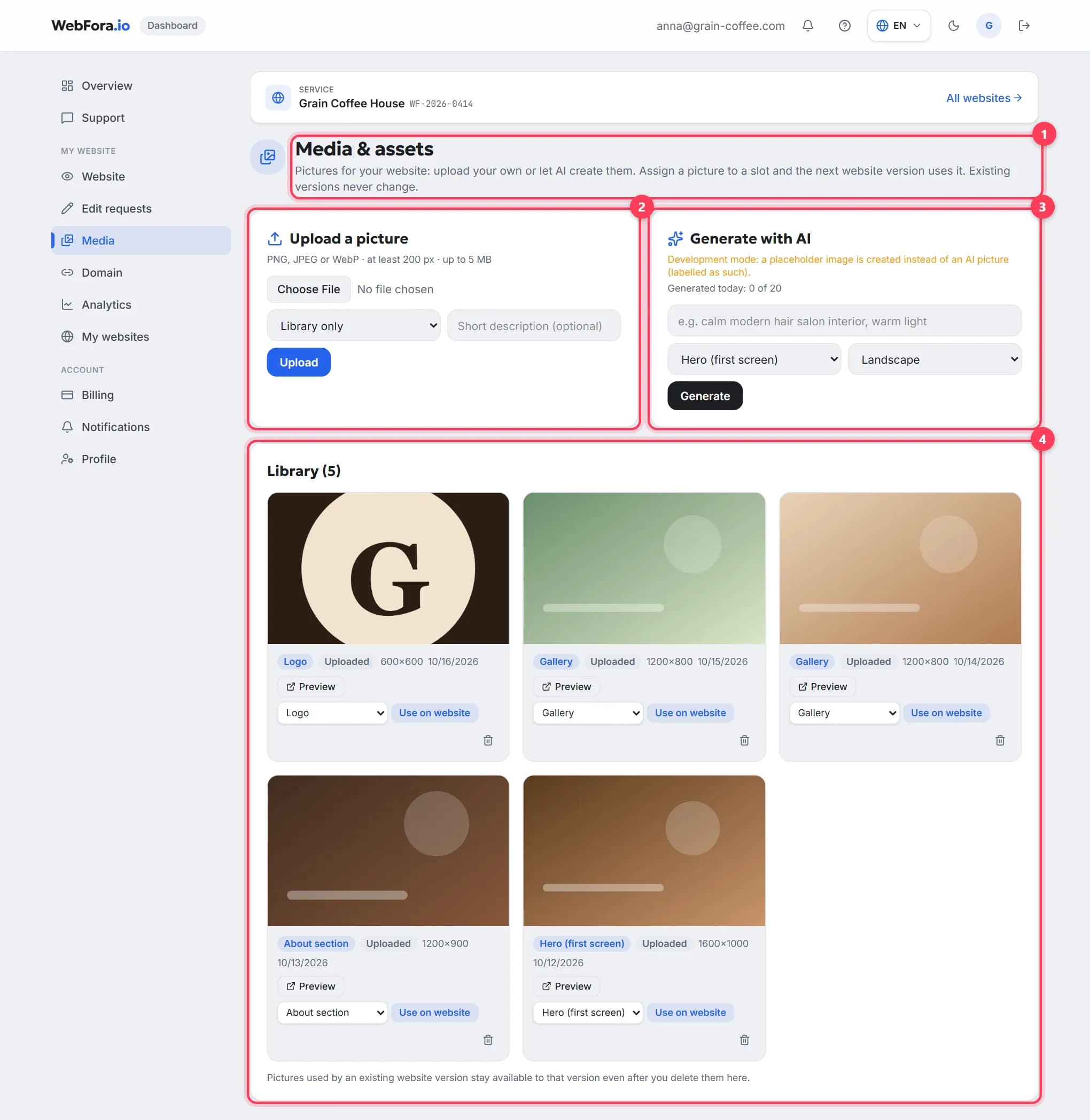
How to upload photos and a logo for your website
How to upload photos to your website in the WebFora dashboard: formats and sizes, hero, gallery and logo slots, AI images and files for your manager.
5 min read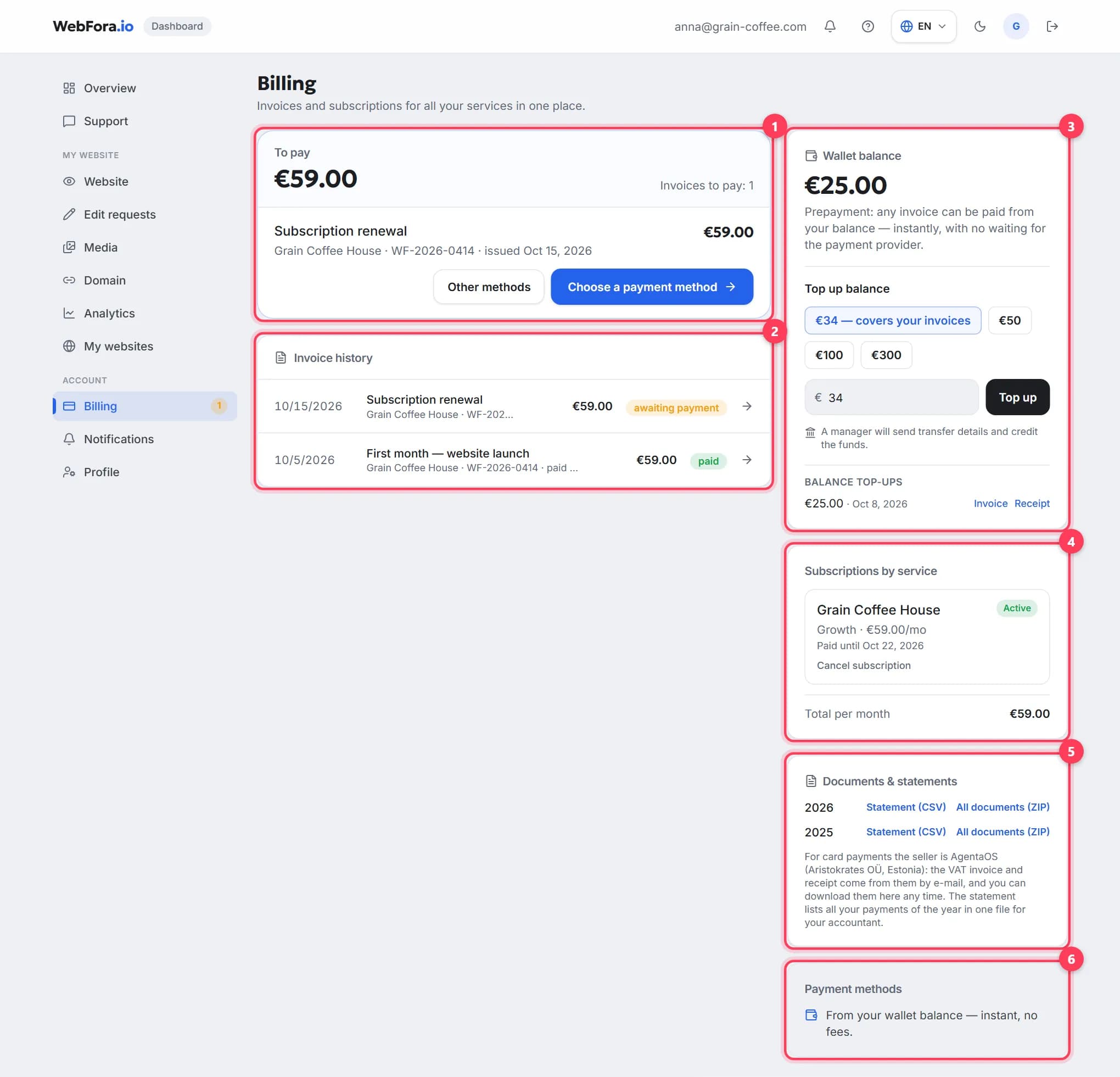
Paying for your website: invoices, subscription and balance
Billing in the WebFora dashboard: pay by card via AgentaOS or from balance, one subscription per website, auto-renewal, documents, cancelling, 24-hour refund.
7 min read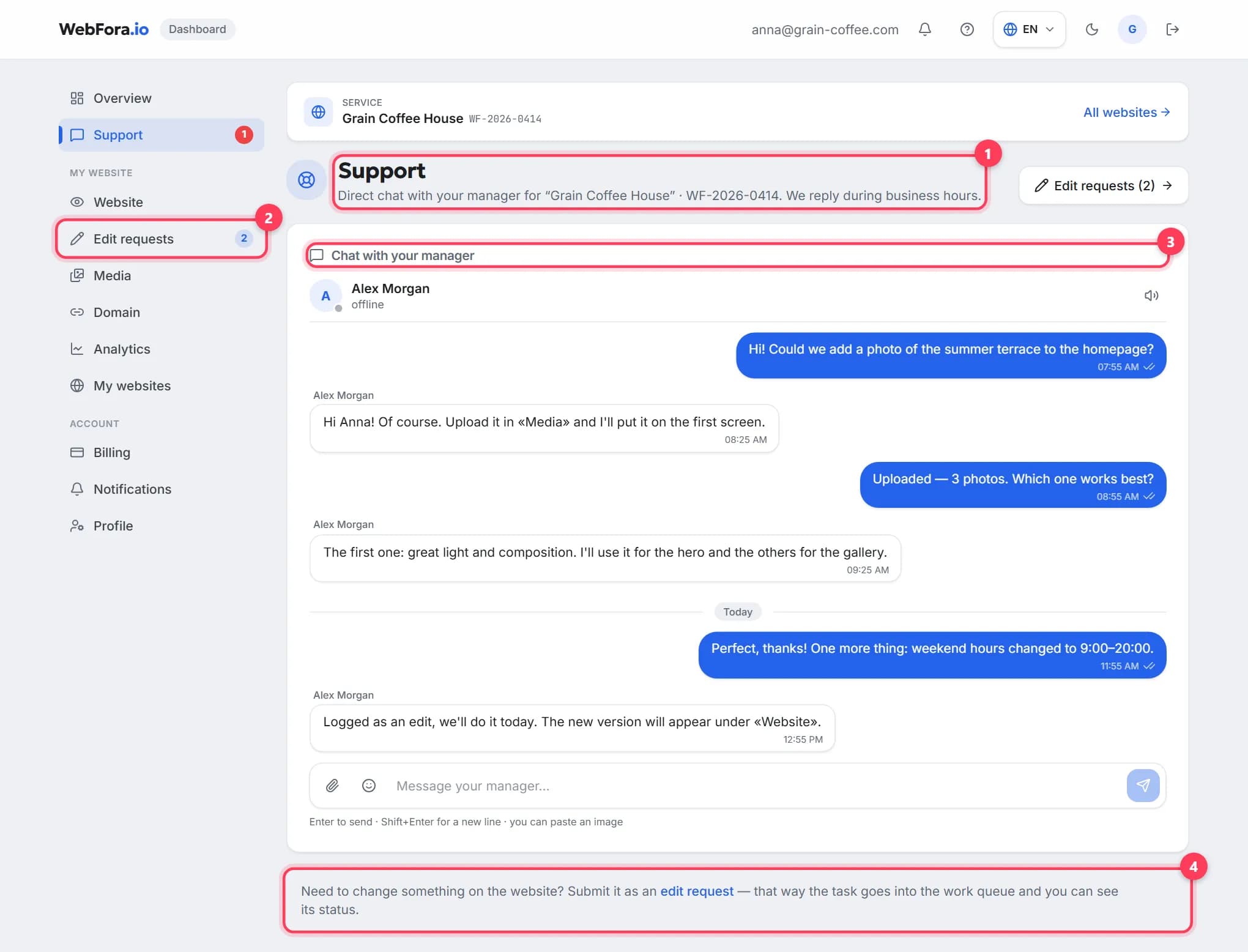
How to message your manager in the chat and get a quick reply
Messaging your WebFora manager: the Support chat, who replies and when, attachments up to 10 MB, chats under edits, what to write for a fast answer.
5 min read