What to do after buying a domain name: a checklist
After buying a domain, do four things right away: confirm the owner's email (otherwise the domain gets suspended), turn on auto-renew, check that WHOIS privacy is on, and point the domain at a website by changing the nameservers. Then add email, make sure the `www` version redirects, and put the address on your Google Business Profile and social pages. Everything below takes about 20 minutes.
Short answer: the domain is not working yet, and that's normal
A freshly bought domain shows a RegistrarA registrar is the company you buy and renew a domain from (GoDaddy, Namecheap, IONOS…). Its control panel is where you change nameservers, DNS records and renewal settings.→ parking page or an error — it isn't connected to anything. A domain is an address; the website, email and the padlock (SSL) are separate services you attach to it. The checklist below goes in the order that saves you trouble: first protect the domain, then connect it, then tell people about it.
Which situation are you in?
- You have a domain but no website yet. Do steps 1–3 now; steps 4–9 when the website is ready (or hand it to whoever builds it — with WebFora that's your manager).
- You have a domain and a website at another provider (a builder, hosting, an agency). Do all steps; step 4 is the one that makes the website open.
- You bought a domain together with hosting at the same company (GoDaddy, IONOS, Hostinger…). Steps 4 and 6 are often pre-configured — check them rather than redoing them.
- You bought a second domain (another extension, a typo version, a
.comnext to a local one). Do steps 1–3 and 7 — the second domain simply redirects to the main one.
The checklist, step by step
Step 1
Confirm the owner's email (ICANN verification)
For generic extensions (
.com,.net,.org,.shop…) the registrar must verify the registrant's email. Look for a message like “Verify your contact information” and click the link; if you don't within 15 days, the domain is suspended and the website stops opening. How to know it worked: the domain's status in the registrar panel shows no “pending verification” warning.Step 2
Check WHOIS privacy and the owner details
Open the domain's contacts in the registrar panel. The owner (registrant) must be you or your company — not your designer. Then make sure WHOISWHOIS is the public lookup that shows who registered a domain, when it expires and which nameservers it uses. Most registrars hide personal details with free privacy protection.→ privacy is on, so your phone and home address aren't public. Many registrars include it free (Porkbun, Namecheap, IONOS, Hostinger, Cloudflare); some country extensions (
.de,.uk,.ca,.eu…) don't allow it, which is fine — the registry hides personal data itself. How to know it worked: look up your domain atlookup.icann.org— your name and phone should be redacted.Step 3
Turn on auto-renew and save a reminder
An expired domain breaks the website and email, and after a grace period anyone can register it. Enable Auto-renew in the registrar panel and check the card on file won't expire before the renewal date. Add the expiry date to your calendar anyway. How to know it worked: the domain shows “Auto-renew: on” and the expiry date is at least a year away.
Step 4
Connect the domain to the website
There are two ways. Nameservers (Nameservers (NS)Nameservers are the servers that hold your domain's DNS records. Changing them (usually two addresses like ns1.example.net) hands the whole DNS setup to a new provider — the simplest way to connect a domain to a website.→) — you replace the two or four server names in the registrar panel with the ones your website provider gives you; the provider then manages all records for you. This is what WebFora uses: connect your domain to WebFora. A record — you leave the nameservers alone and add one DNSDNS is the internet's phone book: it turns your domain name into the addresses of the servers that host your website and email. «Changing DNS» means editing those entries at your registrar.→ record pointing to the hosting; the detailed guide for any provider is how to connect a domain to a website. How to know it worked: within an hour (sometimes up to a day) the website opens at
yourdomain.com.Step 5
Make sure www and non-www both open
People type both
example.comandwww.example.com(wwwis a SubdomainA subdomain is a name in front of your domain: shop.graincoffee.com or www.graincoffee.com. It's free, created in DNS, and can point to a different site or service than the main domain.→). One should be the main version and the other a Redirect (301/302)A redirect automatically sends visitors from one address to another — old page to new, http to https, second domain to main. A 301 is permanent (tells Google to move rankings); a 302 is temporary.→ to it. Website builders and WebFora do this automatically once the domain is connected; on self-managed hosting you add awwwrecord and a redirect rule. How to know it worked: type both versions — you land on the same page, and the address bar shows one of them.Step 6
Check the padlock (SSL)
An SSL certificate (TLS)An SSL (TLS) certificate proves a website is genuinely yours and encrypts the connection — that's the padlock and https:// in the browser. Modern hosts issue it free and renew it automatically.→ is what makes the site open over
https://with a padlock. It's free (Let's Encrypt) and issued automatically by most builders, hosts and by WebFora after the domain is connected. Don't buy one in the registrar's cart. How to know it worked:https://yourdomain.comopens with a padlock and no “not secure” warning.Step 7
Redirect second domains to the main one
If you own
example.co.ukandexample.com, pick one main address and redirect the other at the registrar (most have a “Redirect domain” / “URL forwarding” option) or via DNS. Don't put two copies of the site on two domains — search engines treat it as duplicate content. How to know it worked: the second domain lands on the main one.Step 8
Set up email on your domain (optional)
[email protected]is a separate service: Google Workspace, Zoho Mail, Proton or your registrar's mailbox. You add the MX records they give you in the same place where the domain's DNS is managed (at WebFora — ask your manager, we add them). How to know it worked: send a test message from another address and reply to it.Step 9
Put the address everywhere customers look
Add the domain to your Google Business Profile (Maps), Instagram/Facebook bios, WhatsApp Business, booking tools, invoices and the door sticker. For a local business this matters more than any SEO trick: the profile with a website link gets more calls. How to know it worked: searching your business name shows the website link next to the map pin.
Where these settings are at popular registrars
Menus get renamed, so here are the sections rather than exact clicks; the registrar's own help pages have the current path.
| Registrar | Owner / privacy / auto-renew | Nameservers and DNS |
|---|---|---|
| Namecheap | Domain List → Manage → Domain tab (Auto-renew, Domain Privacy, contacts) | Domain tab → Nameservers; Advanced DNS for records |
| Porkbun | Domain Management → the domain → Details (auto-renew, WHOIS privacy) | The domain → Nameservers / DNS Records |
| Cloudflare Registrar | Domain Registration → Manage Domains → the domain (auto-renew, contacts) | DNS → Records; nameservers can't be changed away from Cloudflare |
| GoDaddy | My Products → Domains → the domain → Domain settings | Domain settings → Manage DNS / Nameservers |
| IONOS | Domains & SSL → the domain (contacts, private registration, renewal) | Domains & SSL → the domain → DNS / Nameserver |
| Hostinger | Domains → Domain portfolio → Manage (privacy, renewal) | Manage → DNS / Nameservers |
How long it takes and how to check
- Email verification, privacy, auto-renew: immediate.
- Nameserver change: usually under an hour, sometimes up to 24–48 hours while DNSDNS is the internet's phone book: it turns your domain name into the addresses of the servers that host your website and email. «Changing DNS» means editing those entries at your registrar.→ changes spread. Our domain check tool shows where the domain points right now.
- SSL: issued within minutes after the domain starts pointing at the website.
- Google Business Profile link: appears after the profile is saved; the website itself appears in Google search within days to a few weeks.
Common mistakes after buying a domain
- Ignoring the verification email — the most common reason a new domain “stops working” two weeks later.
- Buying hosting, email and SSL from the registrar's cart just because they were pre-selected. Decide what you need first; most of it is included wherever the website lives.
- Entering a server IP from a random tutorial into the A record. Use only what your website provider gives you — WebFora, for example, asks you to set two nameservers and never an IP.
- Two live copies of the website on two domains instead of a redirect.
- Notifications going to an old mailbox — renewal and verification emails are missed.
Have a domain but no website yet?
That's the exact point where most domains sit idle for a year. If you don't want to pick hosting and builders, WebFora builds the website for your business, connects the domain, issues SSL and keeps it running — you set the two nameservers (or tell your manager the registrar login) and that's your part. Not sure about the name you picked? See how to choose a domain name.
FAQ
I bought a domain — why doesn't the website open?+
Because nothing is connected to it yet. A domain is only an address; you have to point it at a website by changing the nameservers or adding an A record. If you already did, wait up to a day for DNS to update and check the verification email — an unverified domain is suspended.
Do I need hosting after buying a domain?+
You need somewhere for the website to live: hosting, a website builder, or a service like WebFora where hosting is included. It doesn't have to be the registrar's hosting.
What is the ICANN verification email and can I ignore it?+
For generic extensions the registrar must verify the registrant's email. If you don't confirm within 15 days, the domain is suspended until you do. It's real — click the link in the email from your registrar, not from strangers.
Should I use nameservers or an A record?+
Nameservers if your website provider gives you theirs (WebFora, Cloudflare, most builders): one change and they manage everything. An A record if you want to keep DNS at the registrar and only point the website elsewhere.
How do I get email on my new domain?+
Email is a separate service — Google Workspace, Zoho Mail, Proton or your registrar's mailbox. Sign up, then add the MX records they give you where your domain's DNS is managed.
Do I need to buy an SSL certificate?+
No. Free certificates (Let's Encrypt) are issued automatically by most website providers and by WebFora once the domain is connected. Paid SSL from a registrar's cart is unnecessary for a small-business website.
I bought two domains — what do I do with the second one?+
Pick one as the main address and redirect the other to it, either at the registrar (URL forwarding) or via DNS. Don't run two copies of the site.
Can I transfer the new domain to another registrar right away?+
Usually not: generic domains can't be transferred for 60 days after registration (ICANN rule). You can still change nameservers and connect a website at any time.
Was this guide helpful?
Related guides
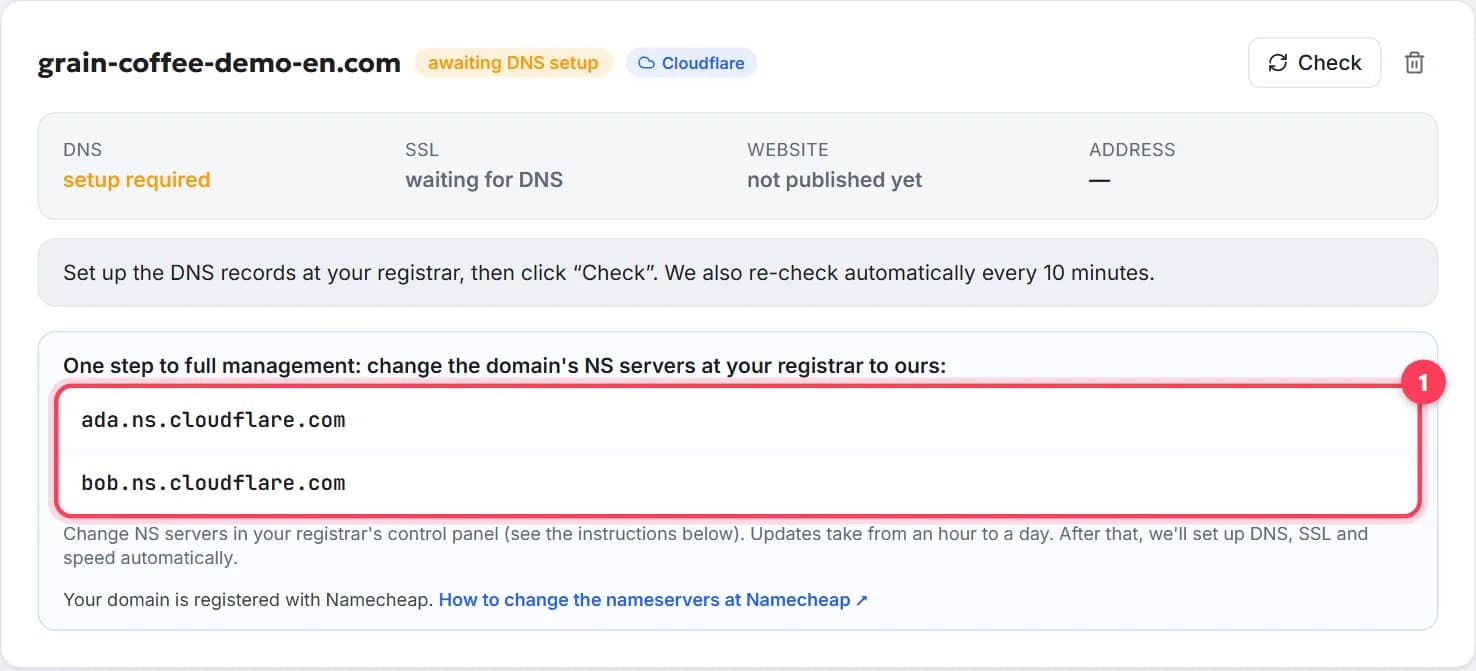
How to connect a domain to a website, step by step
Point your domain to your website in 5 minutes, free: nameservers or A record, where to click at GoDaddy or Namecheap, how long it takes, how to check.
8 min read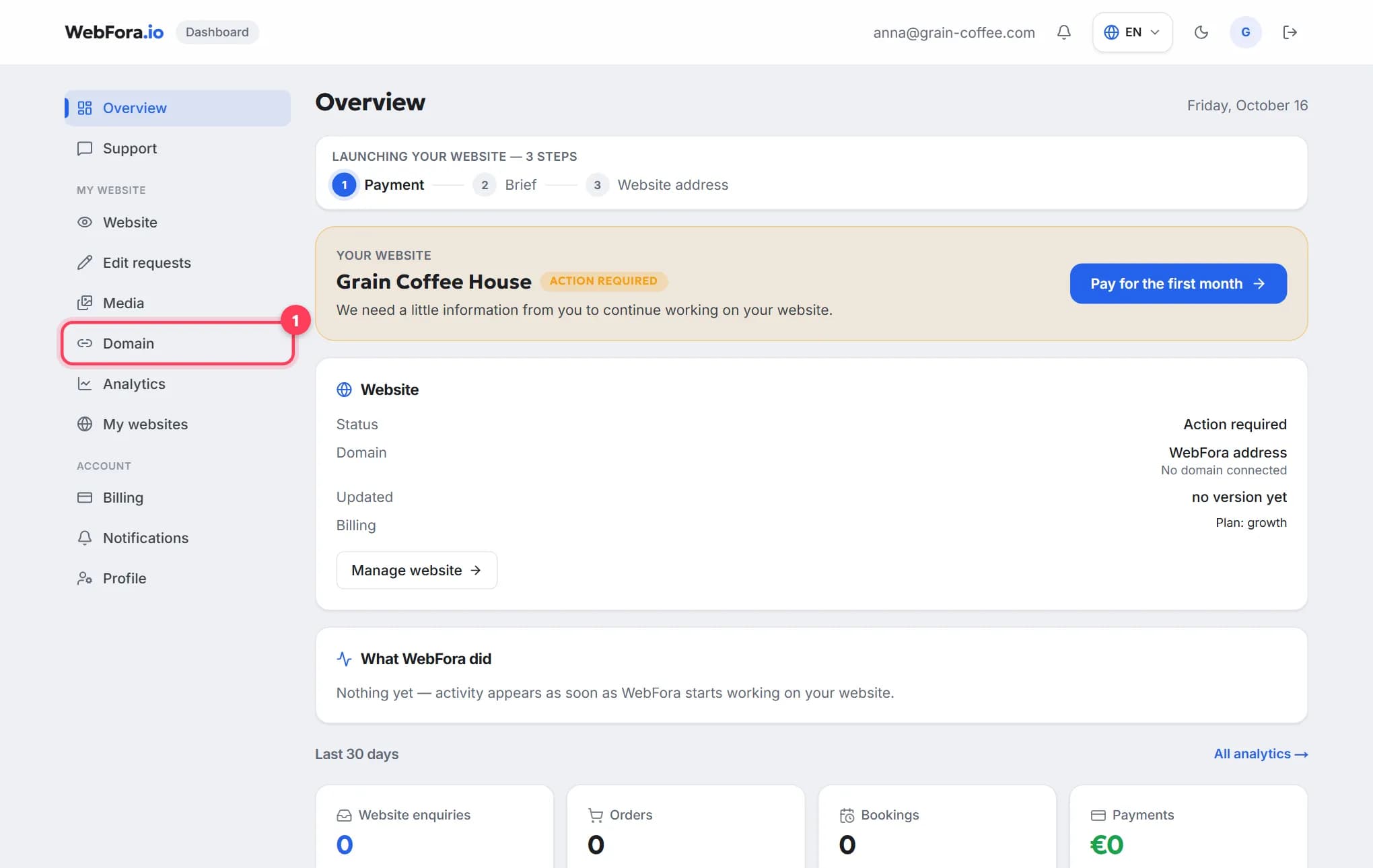
How to connect your own (custom) domain to your WebFora website
Connect your own domain to your WebFora website in 5 minutes: enter it in the dashboard, set two nameservers at your registrar — we do DNS, SSL and HTTPS.
6 min read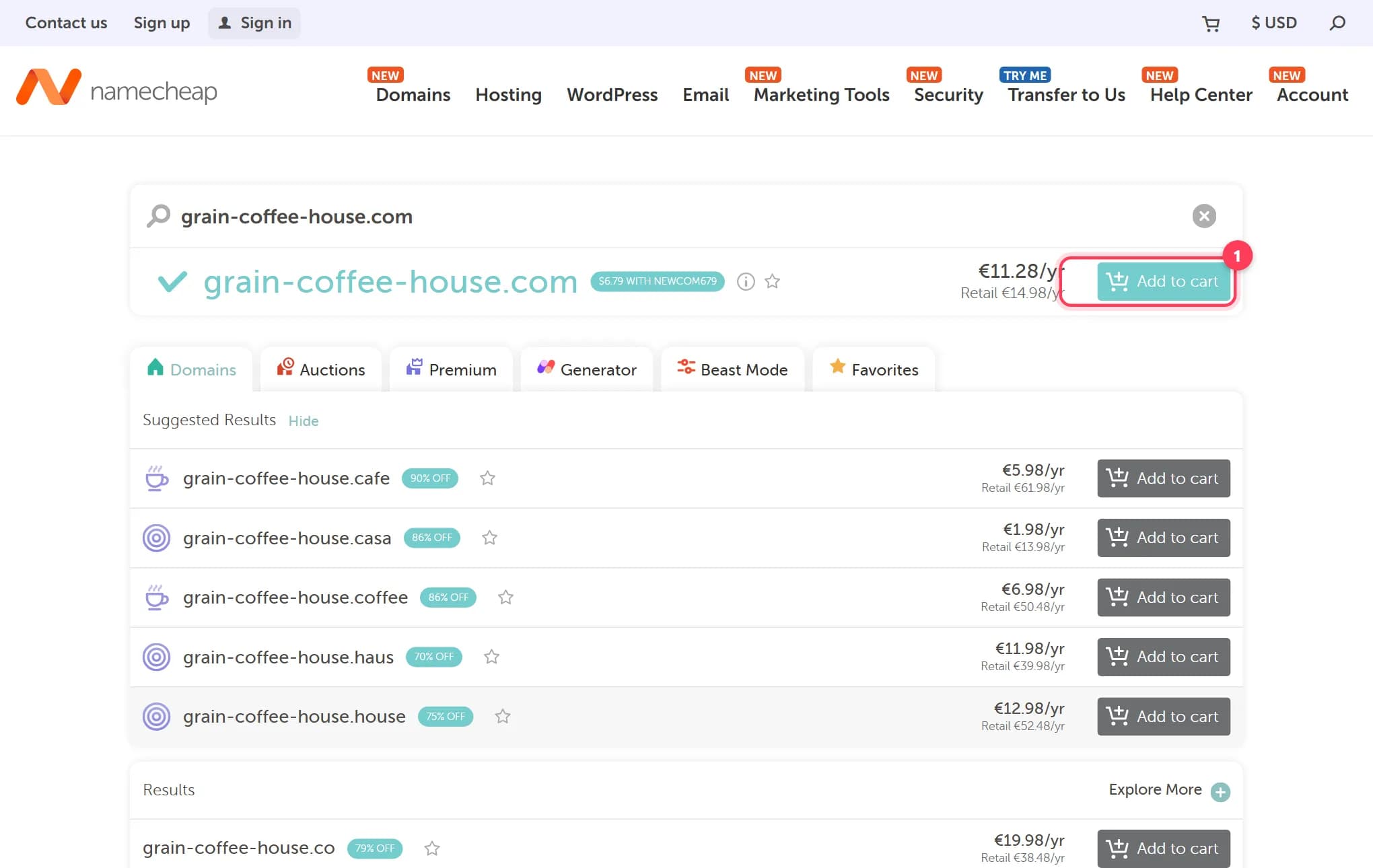
How to buy a domain name for your website, step by step
Buy a domain name in 15 minutes: where to buy, what it costs per year, how to dodge renewal traps and upsells. Real registrar screenshots, checked 2026.
9 min read