How to fill in the website brief
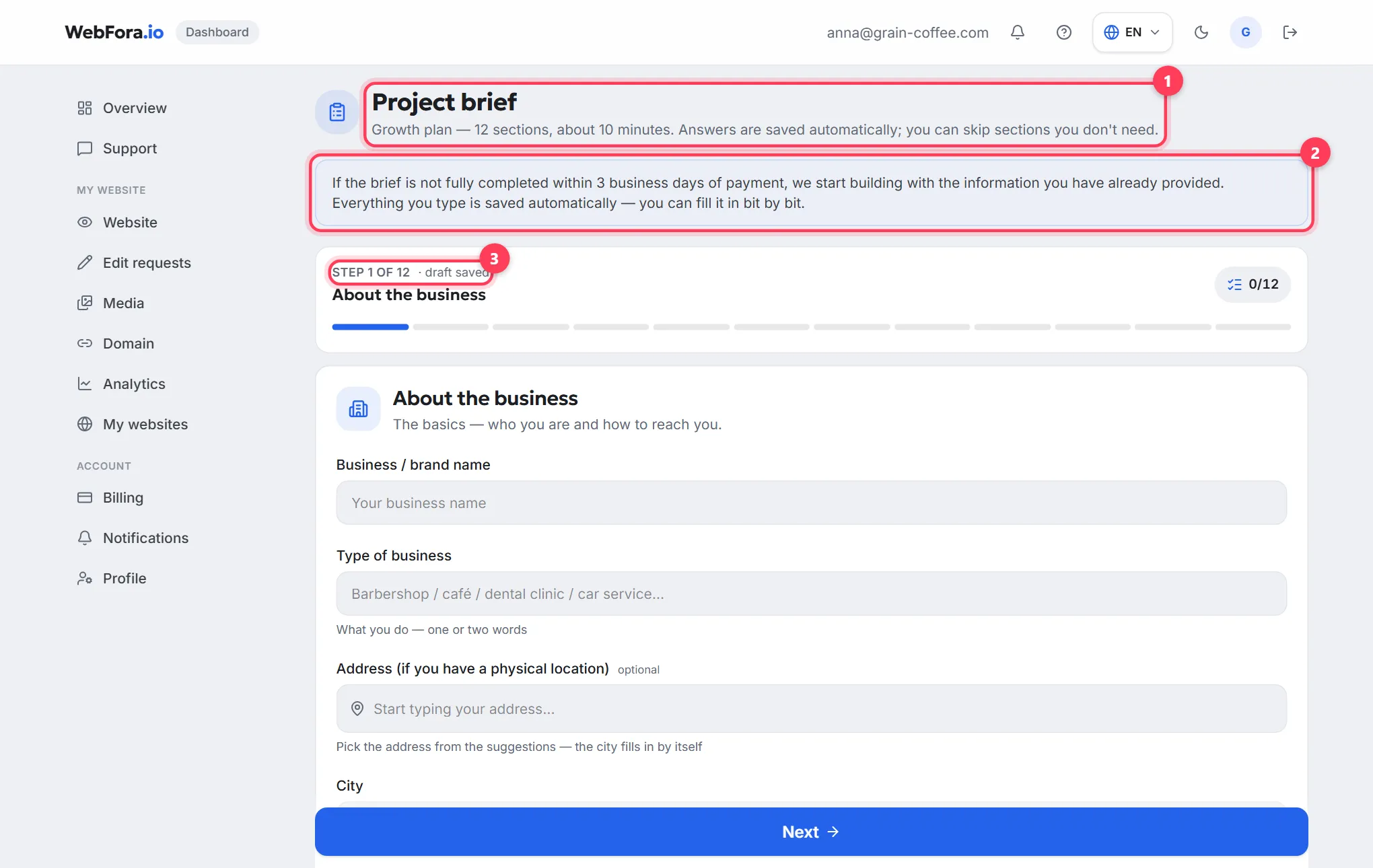
The website brief is a questionnaire in your WebFora dashboard (“Project brief”) from which the team builds the first version of your website. It opens after the first invoice is paid, takes about 10 minutes, saves your answers automatically, and lets you skip sections you don't need. If the brief isn't completed within 3 business days of payment, work starts with whatever you've already entered.
When the brief opens
The brief becomes available once the first invoice is paid and the payment is confirmed. If you open the section earlier, the dashboard takes you to “Billing” with the note “The brief opens as soon as the first invoice is paid and the payment is confirmed”. After payment, the Brief step in “Launching your website — 3 steps” on Overview becomes active, and the “Fill in the brief (≈10 min)” button leads straight into the questionnaire.

Filling in the brief, step by step
Step 1
Open “Project brief”
From Overview via the “Fill in the brief” button, or at
/dashboard/brief. Under the title you'll see how many sections your brief has: the number depends on your plan and active modules.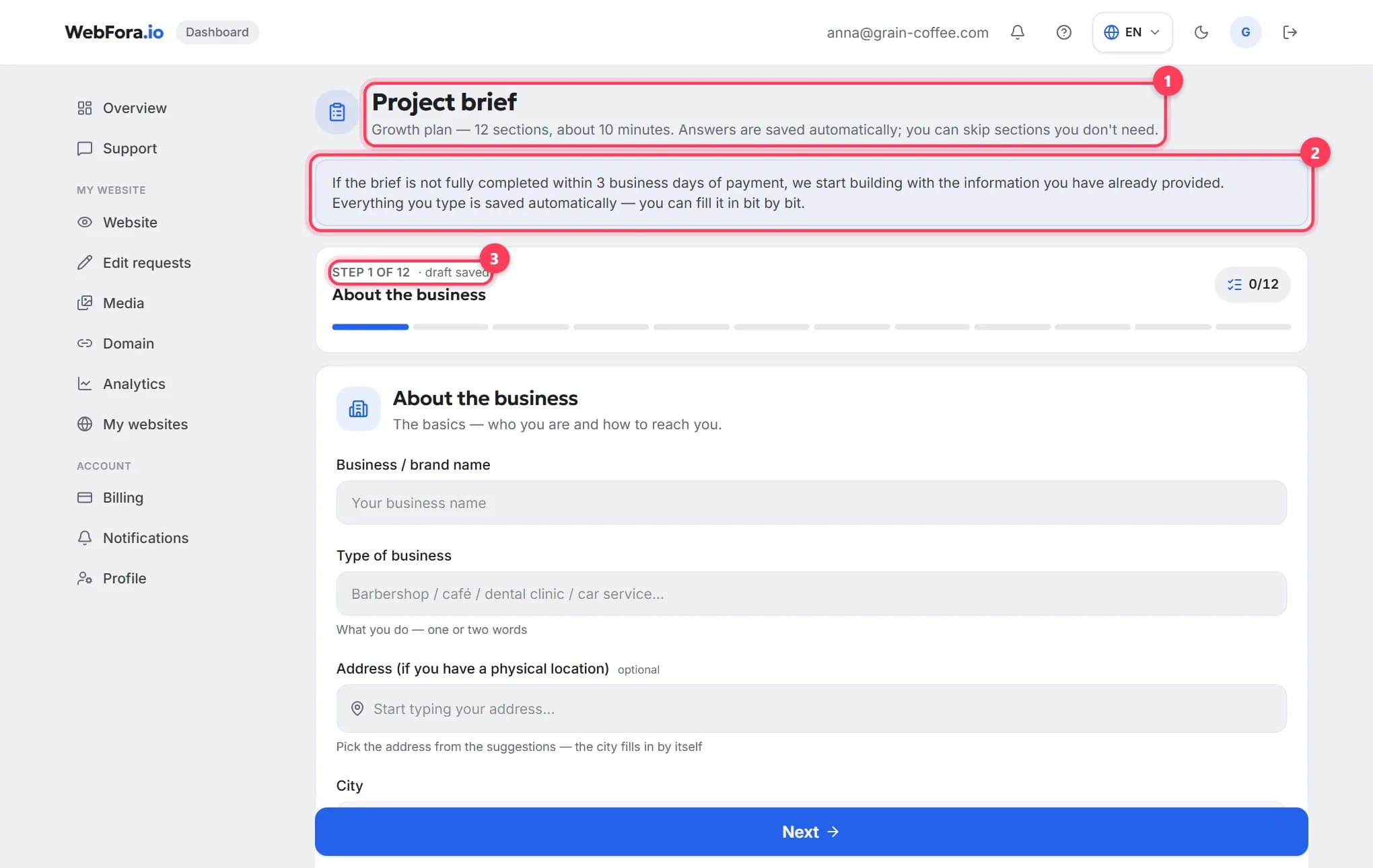
Step 2
Go through the sections one by one
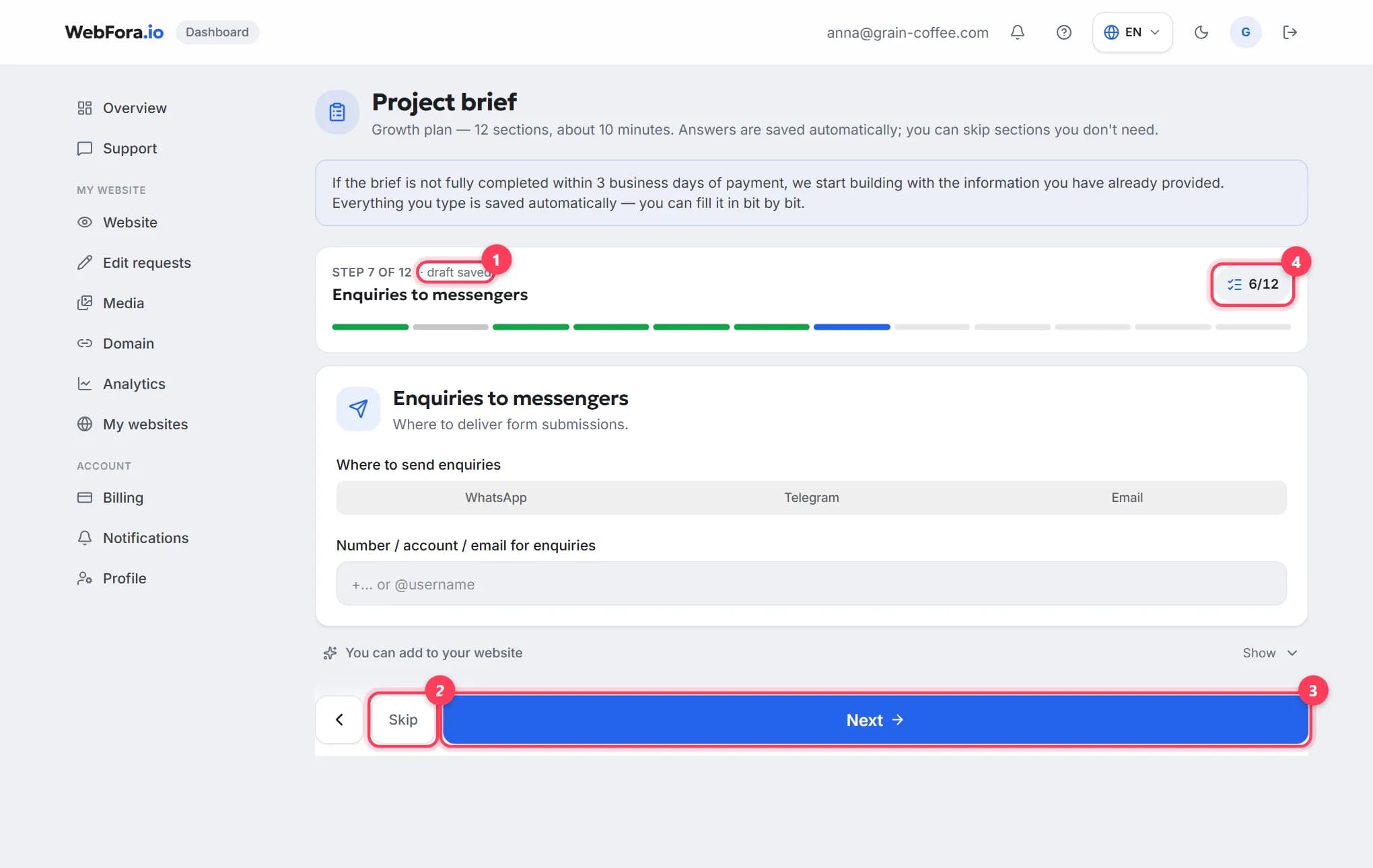
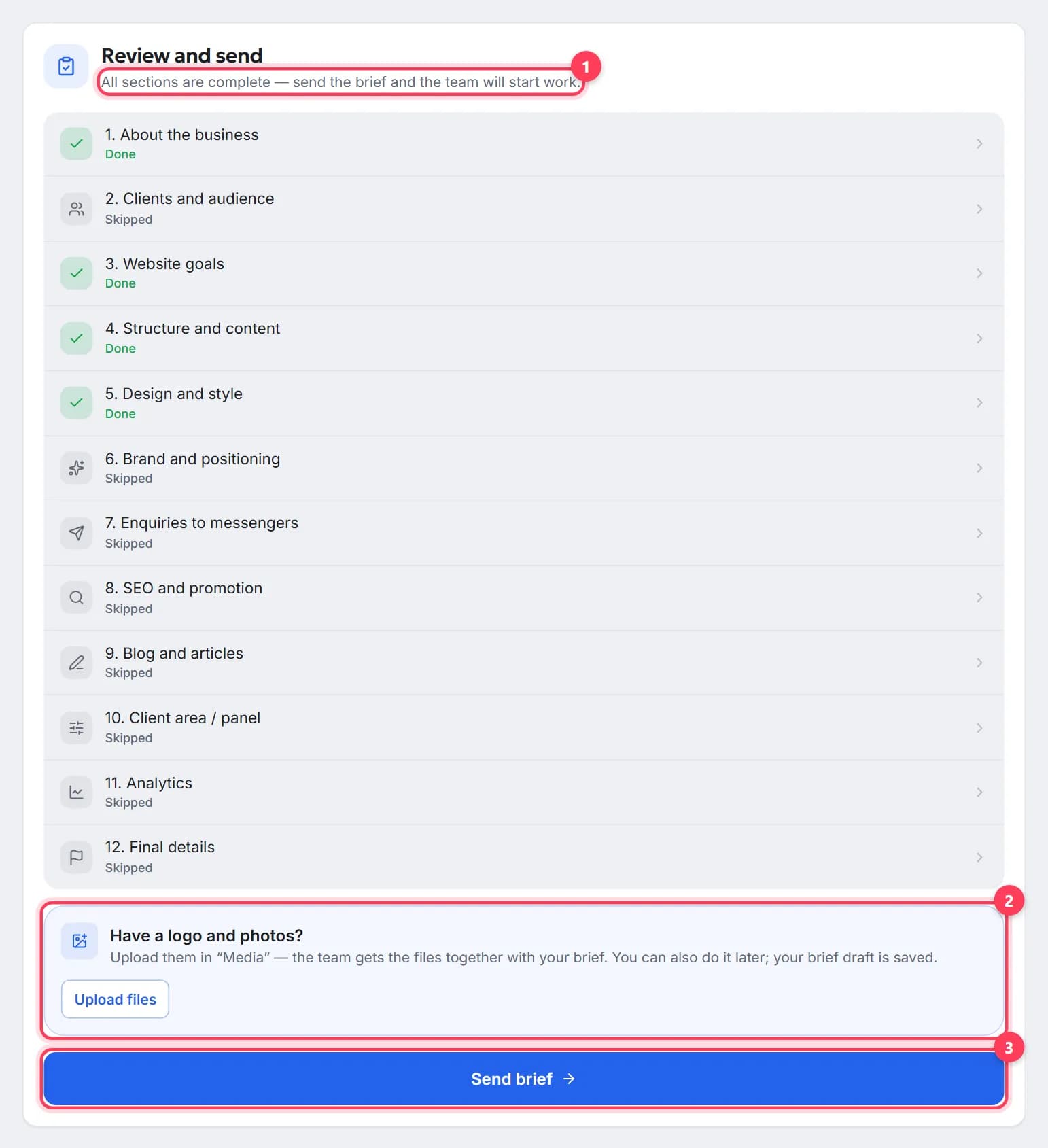
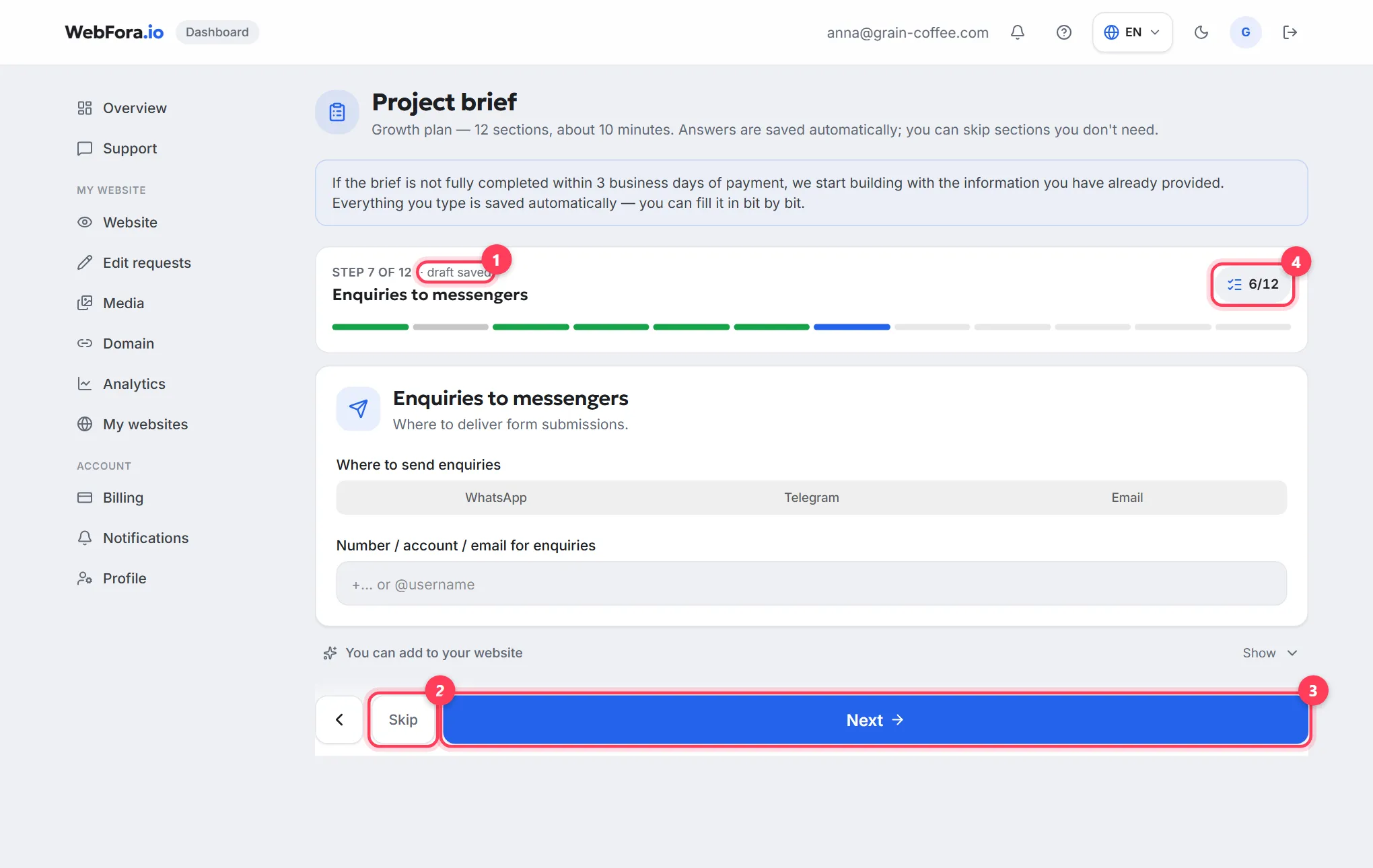
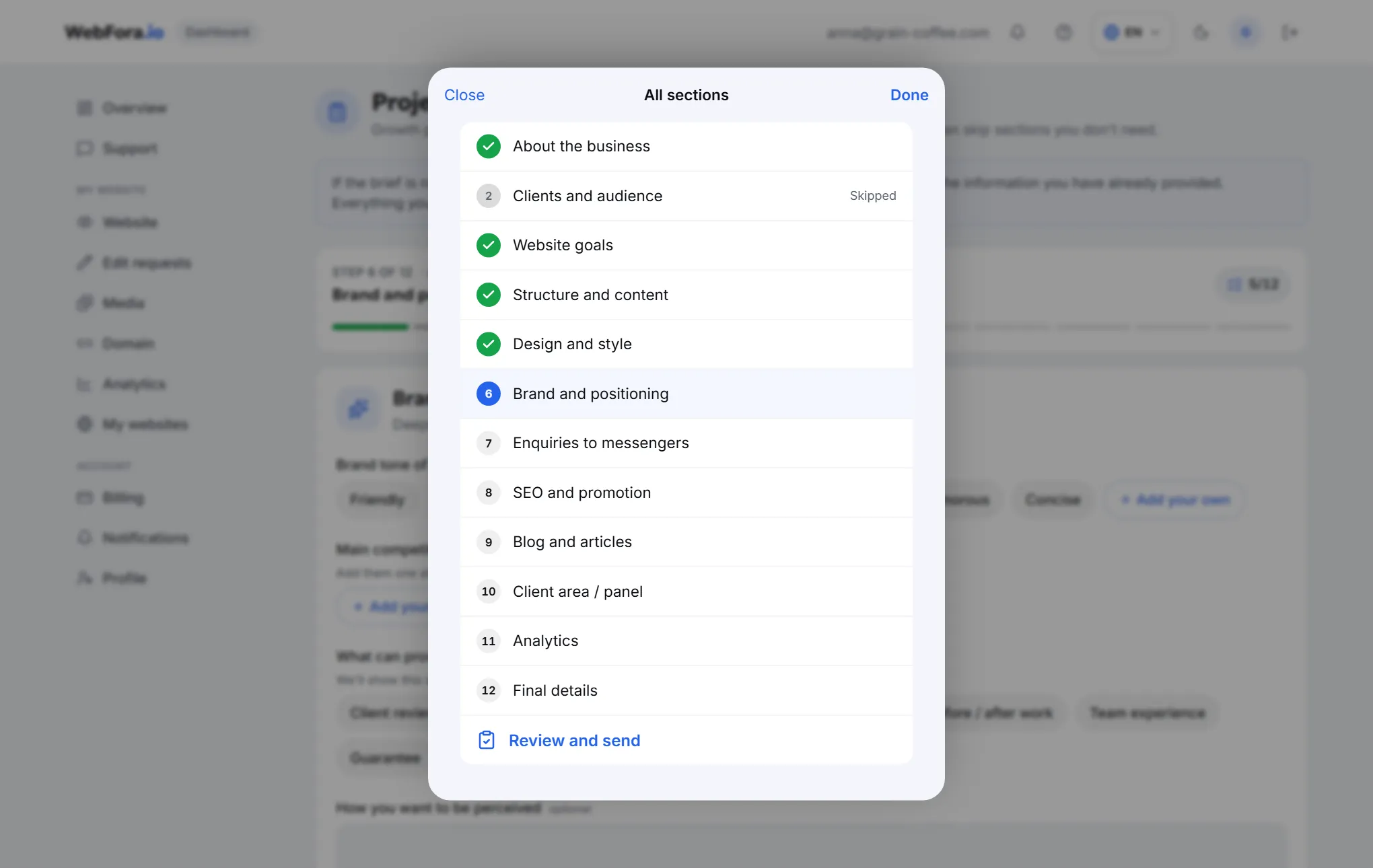
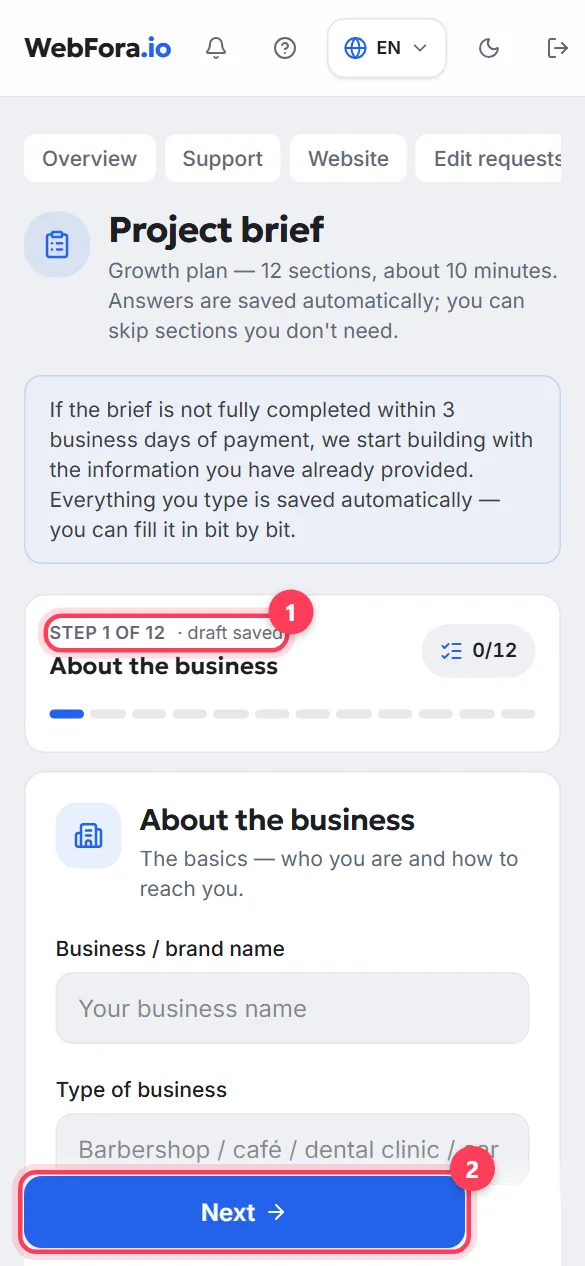
The questionnaire runs in steps: “Step 1 of N”, with “Next” and “Back” buttons. A section that doesn't apply to you (say, “Shop / catalogue” if you don't sell products) can be closed with “Not relevant — skip”. The “All sections” button opens the list with “Done”, “Skipped” and “Not filled in” marks.
Step 3
Upload your logo and photos
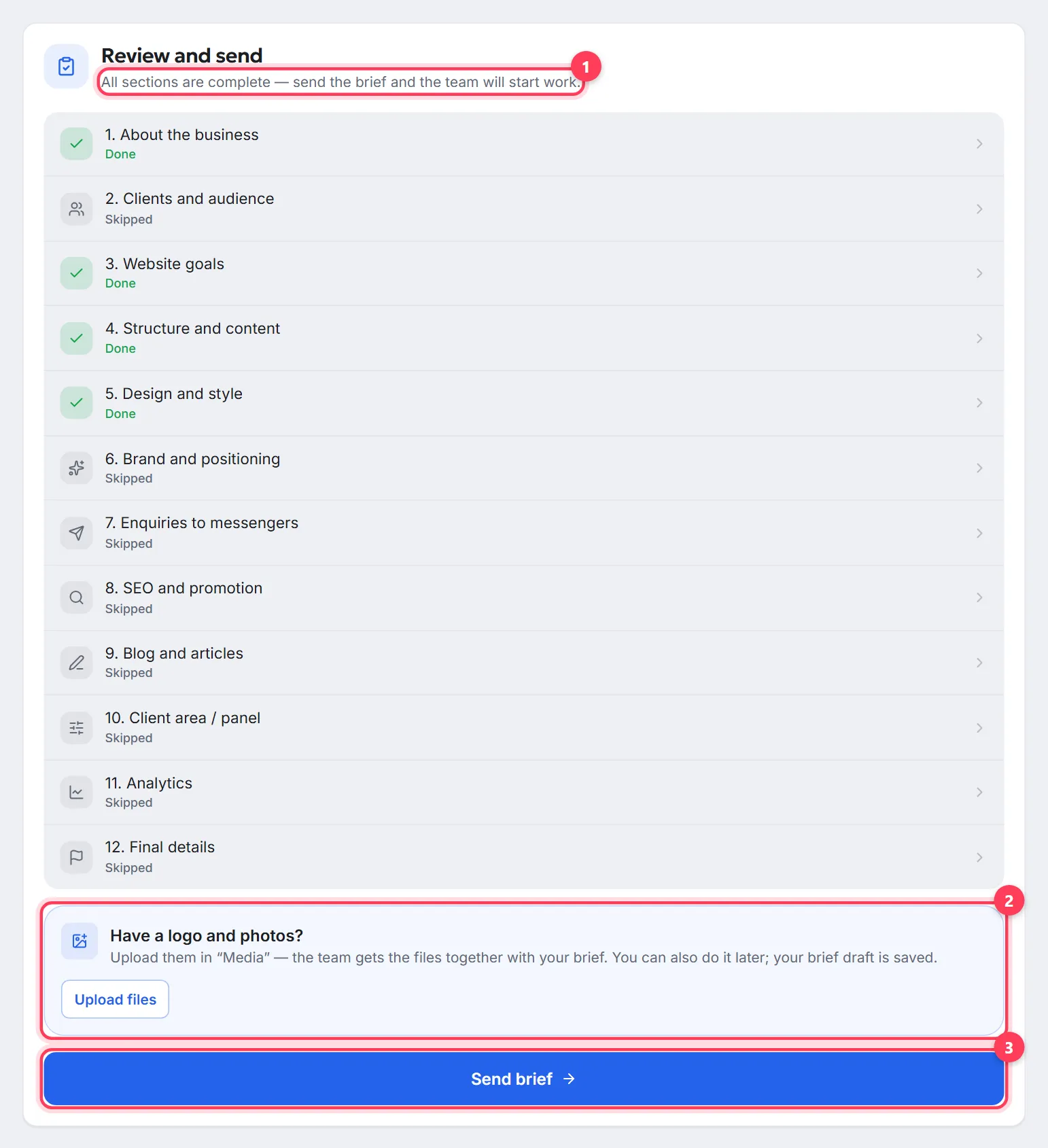
The questionnaire has a “Have a logo and photos?” box with an “Upload files” button that opens the Media section in a new tab. The team gets the files together with your brief; you can also do it later — the draft is kept.
Step 4
Review and send
The last step is “Review and send”. Once every section is done or skipped, the “Send brief” button appears. After sending, the status on Overview changes to “Preparing”, and the Website section shows “Your website is being created” or “Your first version is being prepared”.
Brief sections and what they ask
| Section | What it covers |
|---|---|
| About the business | Name, type of business, address and city, customer phone, WhatsApp / Telegram, a short description, main services or products, opening hours, email |
| Clients and audience | Who your customers are (age, gender, interests — like in an ads manager), where you work, price segment |
| Website goals | Main tasks (enquiries, online booking, sales, trust, customers from Google) and the main visitor action |
| Structure and content | Pages you need (Home, About, Services, Prices, Portfolio, Reviews…), who writes the copy, whether you have photos, your current website |
| Design and style | Mood (minimal, bold, premium, friendly, classic), colour palette, whether you have a logo and brand style, reference websites |
| Brand and positioning | Tone of voice, competitors, proof of trust, how you want to be perceived — appears on the plans that include it |
| Module sections | “Online booking”, “Shop / catalogue”, “Enquiries to messengers”, “SEO and promotion”, “Advertising and traffic”, “Blog and articles”, “Website languages”, “Analytics”, “Automation and CRM” — only for active modules |
| Final details | Preferred launch date and anything else the team should know |
Address, phone and opening hours: how the fields work
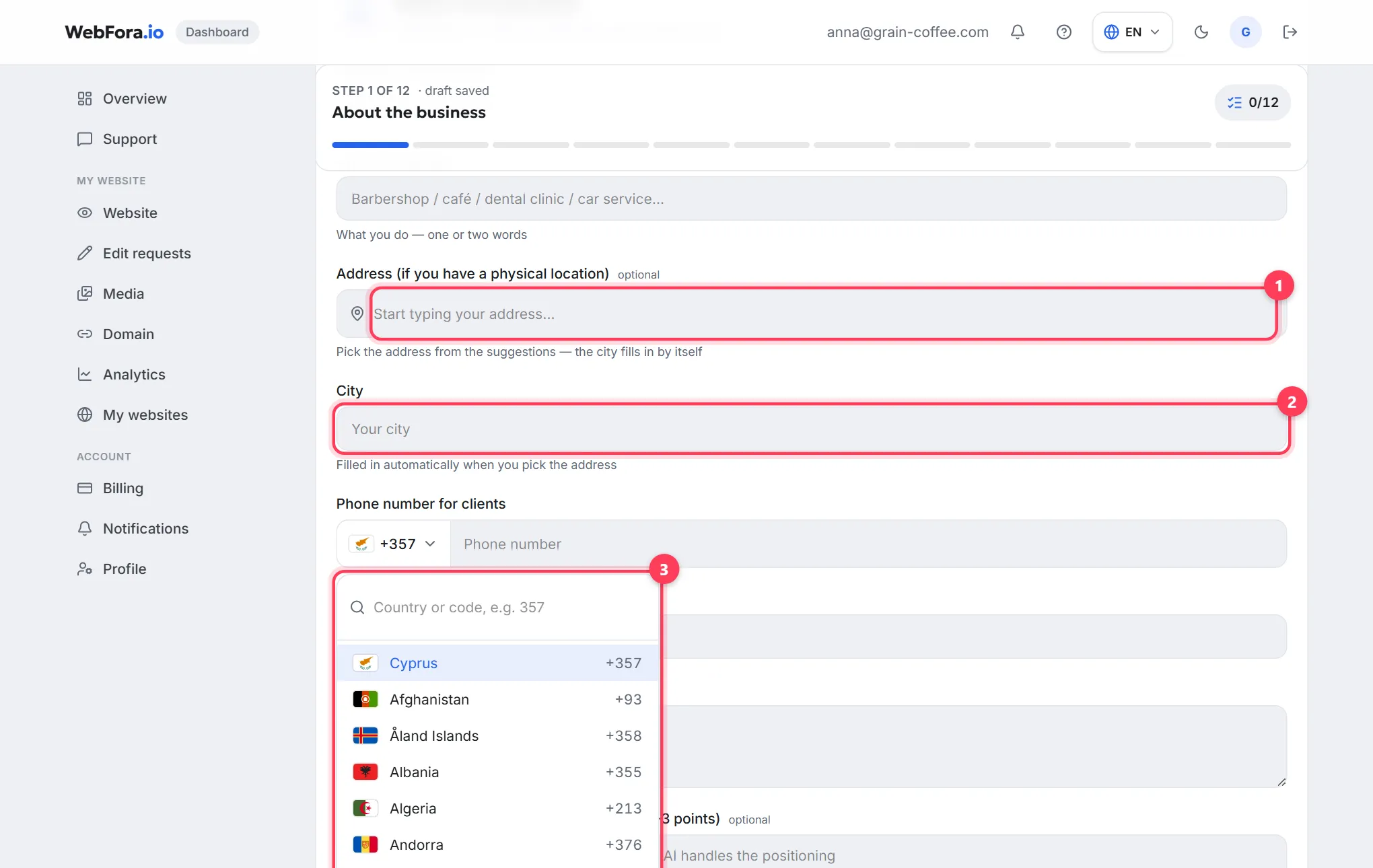
- Address. Start typing and pick a suggestion — the city fills in by itself. With no suggestions you'll see “No suggestions — just type the address”. The field is optional: a business without a physical location can give just the city.
- Phone. A country-code picker sits to the left of the number (“Choose country code”, search by “Country or code, e.g. 357”). The code is preselected from your country, but you can change it.
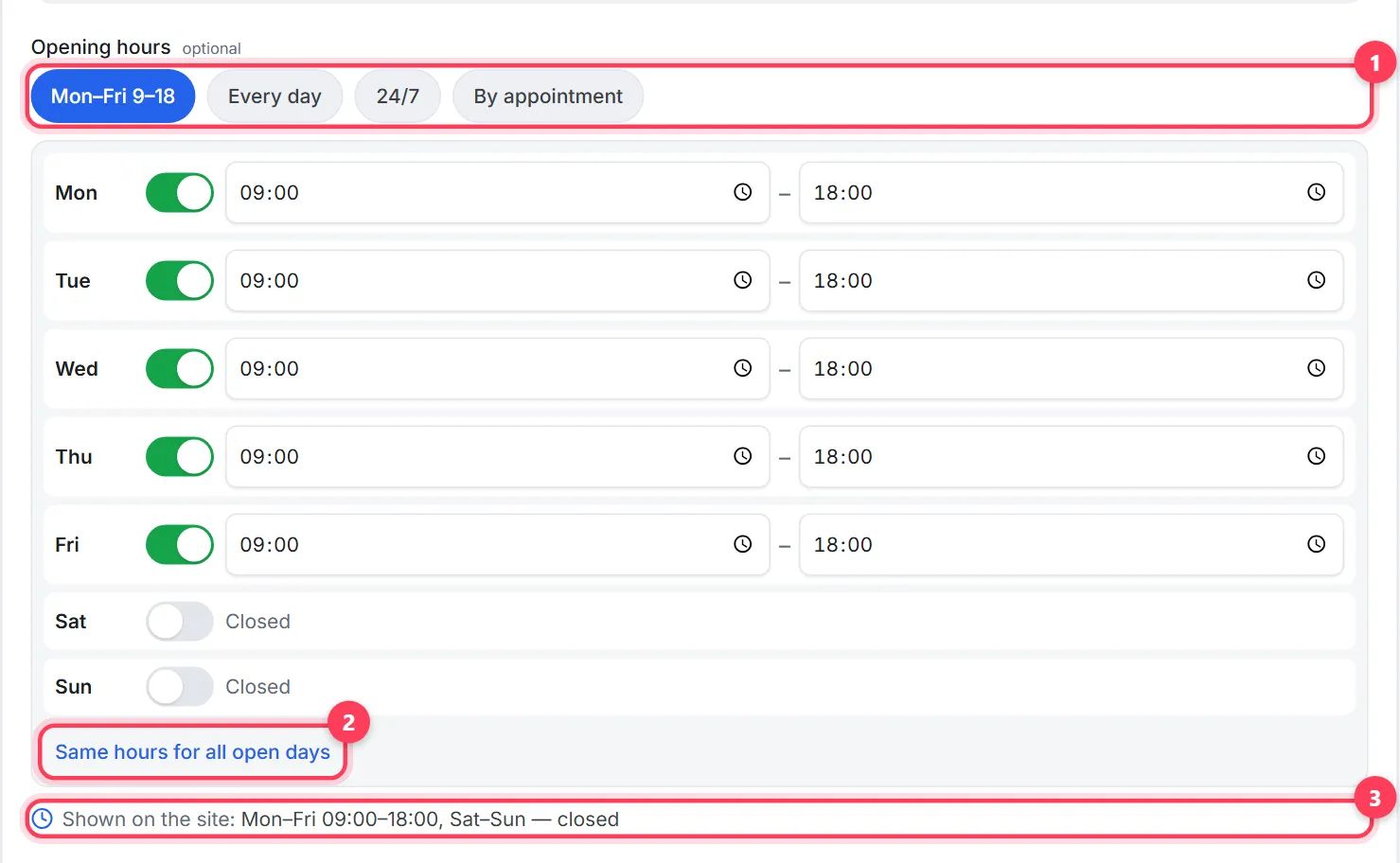
- Opening hours. Presets: “Mon–Fri 9–18”, “Every day”, “24/7”, “By appointment”. Or set each day: “Open”/“Closed” and “from … to …”; the “Same hours for all open days” switch copies one schedule to every day. The “Shown on the site” line previews the result.
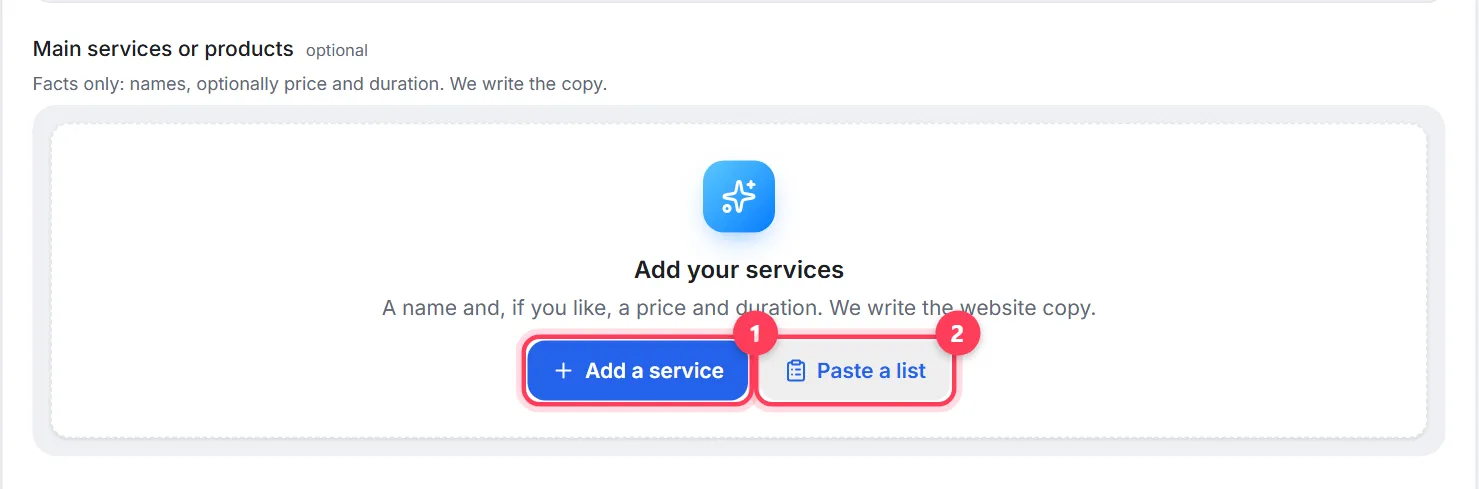
- Services. “Add a service” one by one (name, optionally price and duration) or “Paste a list” if you already have a price list. The team writes the website copy from these facts.
Drafts and autosave
Every answer is saved at once: next to the step number you'll briefly see “saving draft…” → “draft saved”. Close the tab and come back a day later — the questionnaire reopens on your saved answers. If sending fails, the answers stay in the draft: refresh the page and press “Send brief” again, or message your manager in the chat.
What the team does after you send it
From the brief, the team builds the first version of your website and shows it in the “Website” section. Meanwhile Overview shows “Preparing” and the promised dates: “First version of your site — by …” and “Launch — by …”. When the version is ready, the status becomes “Ready for review”, you get a notification, and you can approve it or ask for changes — see the preview and approval guide. If anything needs clarifying, your manager writes in the Support chat.
How to write a brief that gets the website right first time
- Write facts, not website copy: “open since 2015, 3 stylists, booking by phone and WhatsApp” — the team writes the text.
- In “What makes your business special?” give 1–3 concrete points that set you apart from the shop next door, not “quality and a personal approach”.
- Services with prices — even approximate ones: “from €25”. A site with prices brings more enquiries than “call for a quote”.
- For reference websites, say what exactly you like: the colours, the first screen, how prices are shown.
- Pick one main visitor action (“Book”, “Call”, “Message on WhatsApp”) — the first screen is built around it.
- Upload your logo and 5–10 real photos to Media before sending: with your own pictures the first version is much closer to final. Here's how to upload photos and a logo.
FAQ
Why won't the brief open?+
The brief opens after the first invoice is paid and the payment is confirmed. If the invoice is unpaid or the payment is still processing, the dashboard shows Billing with an explanation; once confirmed, you get a notification and the brief becomes available.
How long does the brief take?+
About 10 minutes — it says so under the questionnaire title. The number of sections depends on your plan and modules; sections you don't need can be skipped.
Can I fill in the brief in several sittings?+
Yes. Answers are saved automatically as a draft — close the tab and come back later; the questionnaire reopens where you left off.
What happens if I miss the deadline?+
Three business days after payment the team starts building with the information already in the brief. You can still add to it afterwards, but the first version is built from what's there.
Can I skip a section?+
Yes, with “Not relevant — skip”. To send the brief, every section must be either filled in or skipped.
How do I change my answers after sending?+
Message your manager in the Support chat with what changed — they'll take it into account. Small changes on a finished website are sent as edit requests.
Where do I upload the logo and photos?+
In the Media section — the “Upload files” link is right inside the brief. PNG, JPEG and WebP up to 5 MB are accepted; for each picture you can set where it's used: hero, About, gallery, logo.
What if I don't have priced services or photos yet?+
Enter what you have and, in “Structure and content”, choose that WebFora writes the copy and that you need stock photos or a photo shoot. Prices can be added later as an edit.
Was this guide helpful?
Related guides
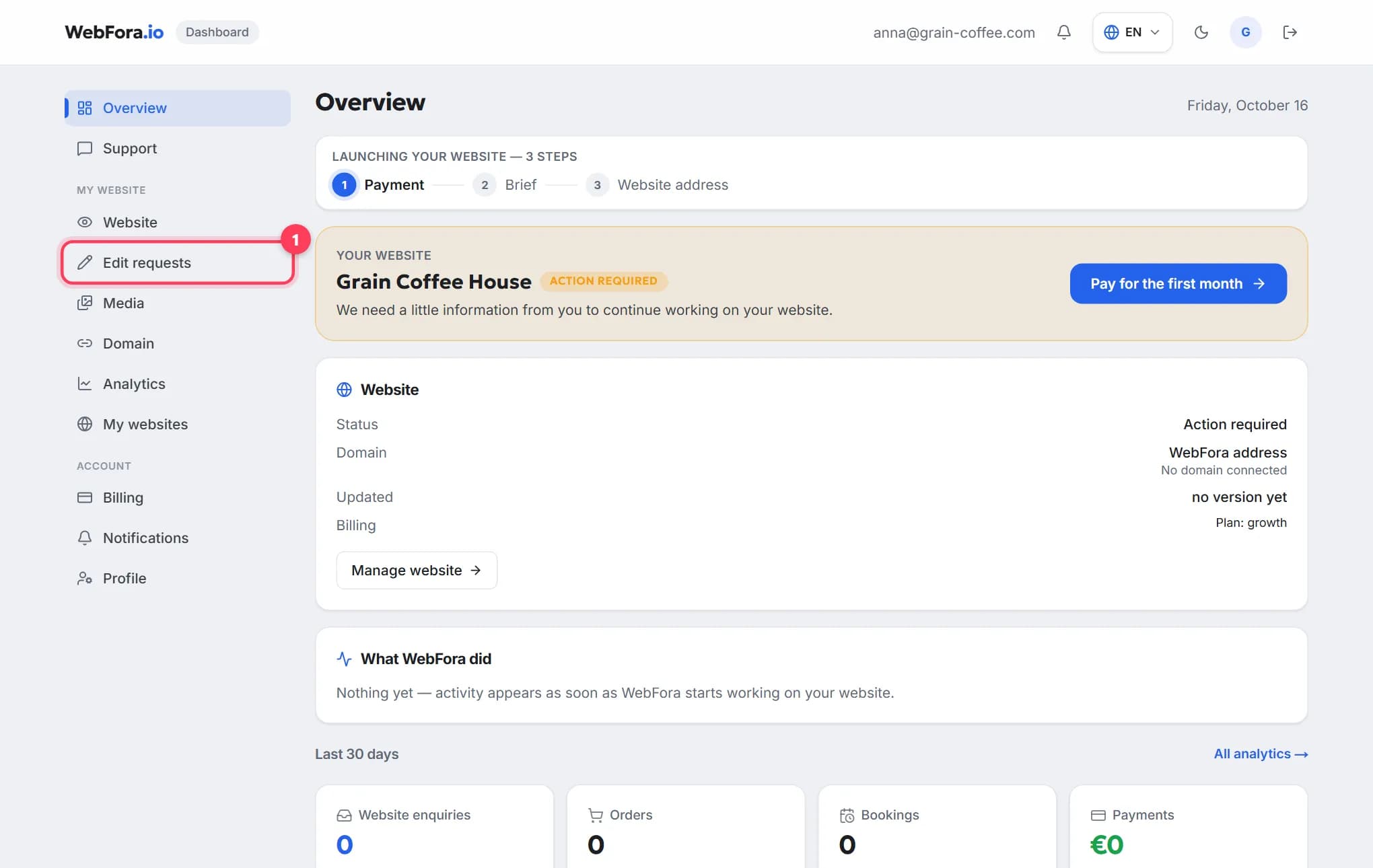
The WebFora client dashboard: what is where
A tour of the WebFora client dashboard: each menu item, the website status block, what the team did, 30-day enquiries and where to message your manager.
6 min read
How to review and approve your website before launch
How to review your website before launch in the WebFora dashboard: check the first version on desktop and phone, then request changes or approve it.
6 min read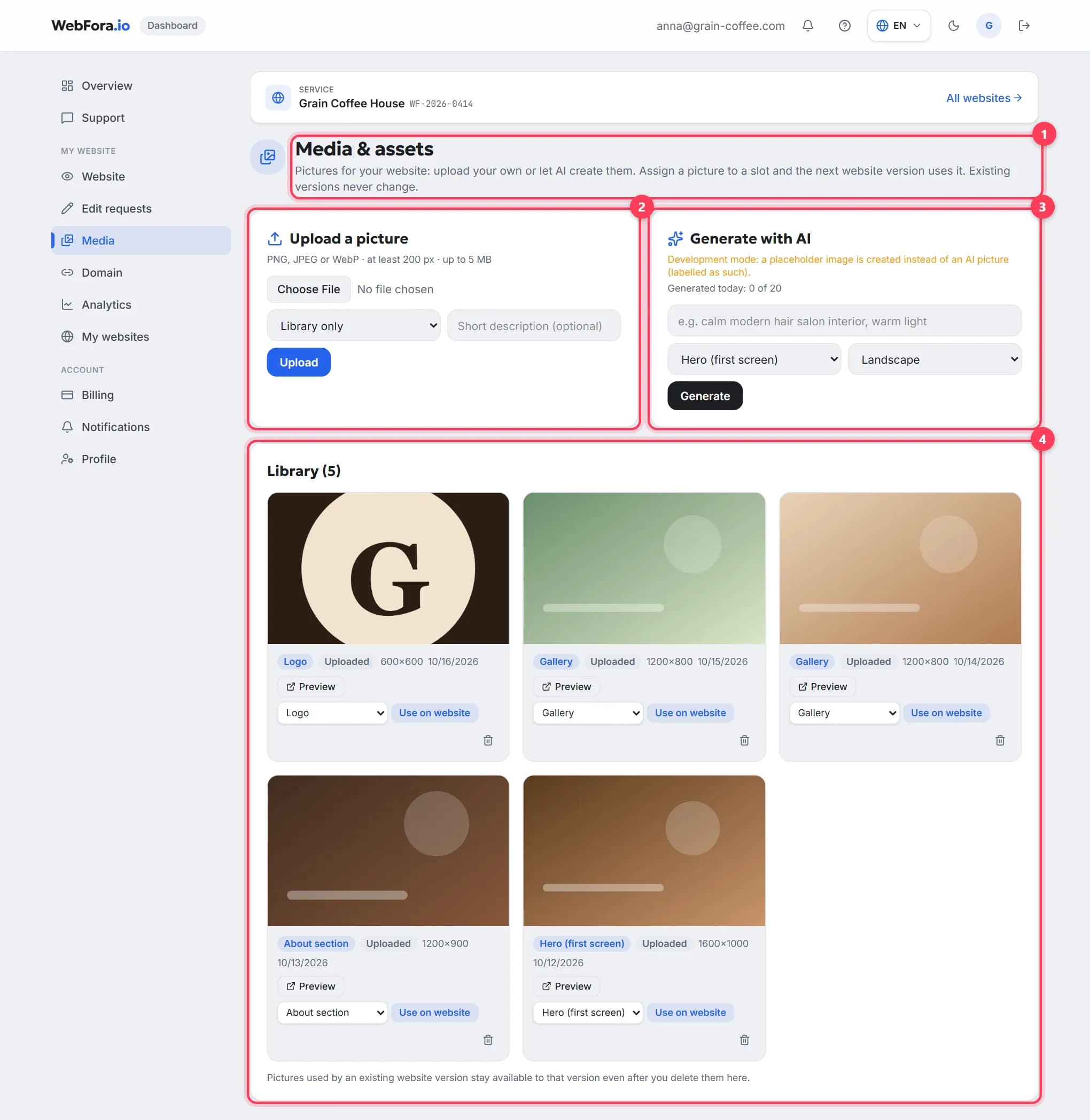
How to upload photos and a logo for your website
How to upload photos to your website in the WebFora dashboard: formats and sizes, hero, gallery and logo slots, AI images and files for your manager.
5 min read