How to message your manager in the chat and get a quick reply
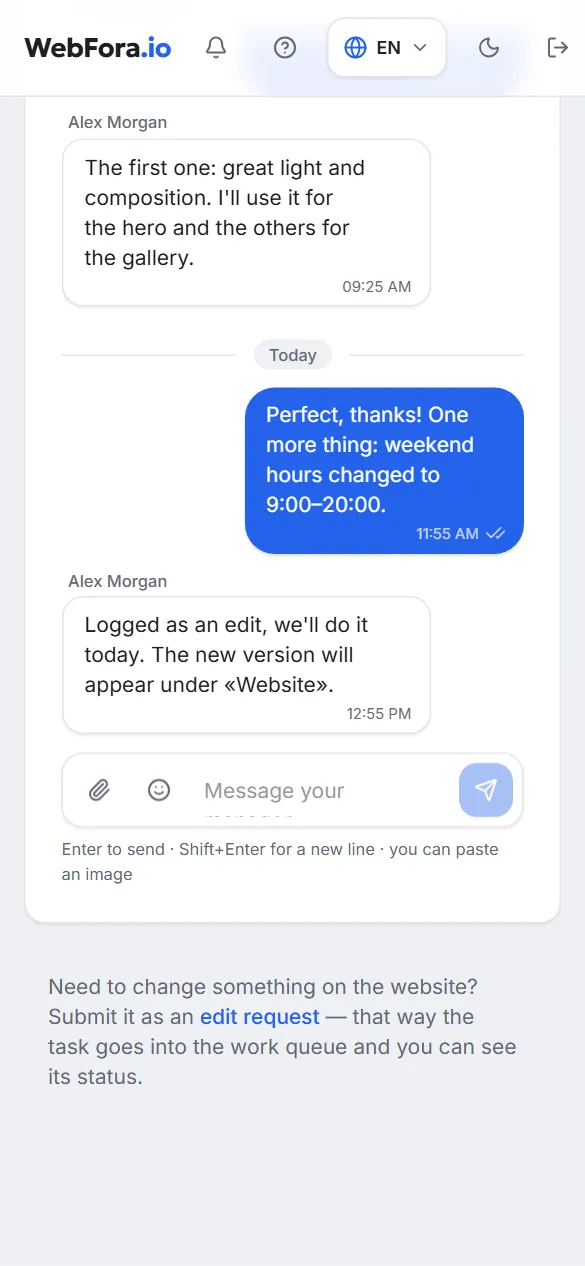
You can message your WebFora manager in the “Support” section of the dashboard — a direct chat about your website, answered during business hours. You can attach photos or a PDF up to 10 MB, reply to a specific message and add a reaction. Questions about a particular edit go into the chat under that edit, and changes to the website are sent as edit requests — so the task enters the work queue with a status.
Where the chat is and who answers
The “Support” section is the second item in the dashboard menu (address /dashboard/support). There's a separate chat per website: with several websites the dashboard first asks “Support for which website?”. Under the title it says: “Direct chat with your manager for ‘…’. We reply during business hours”.
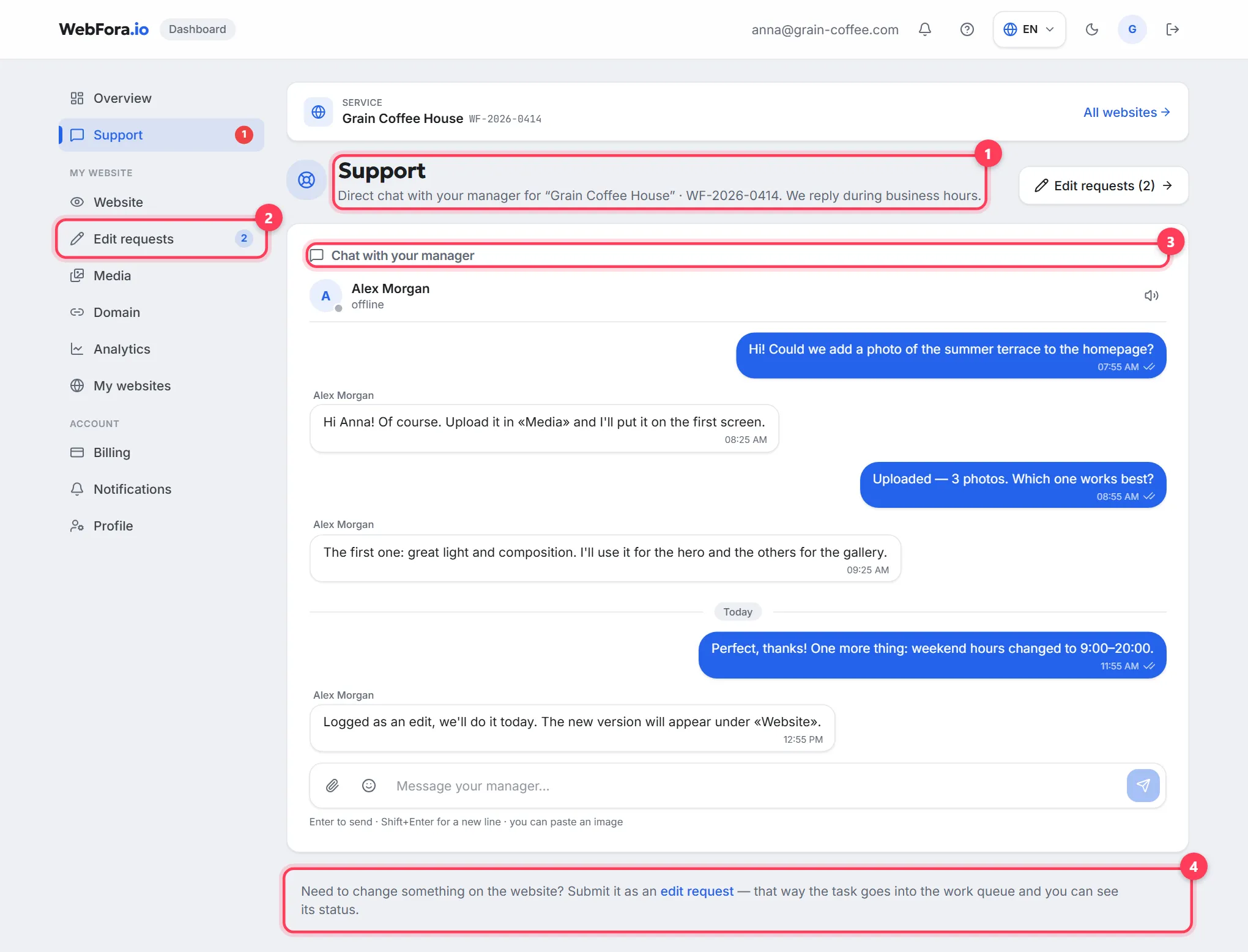
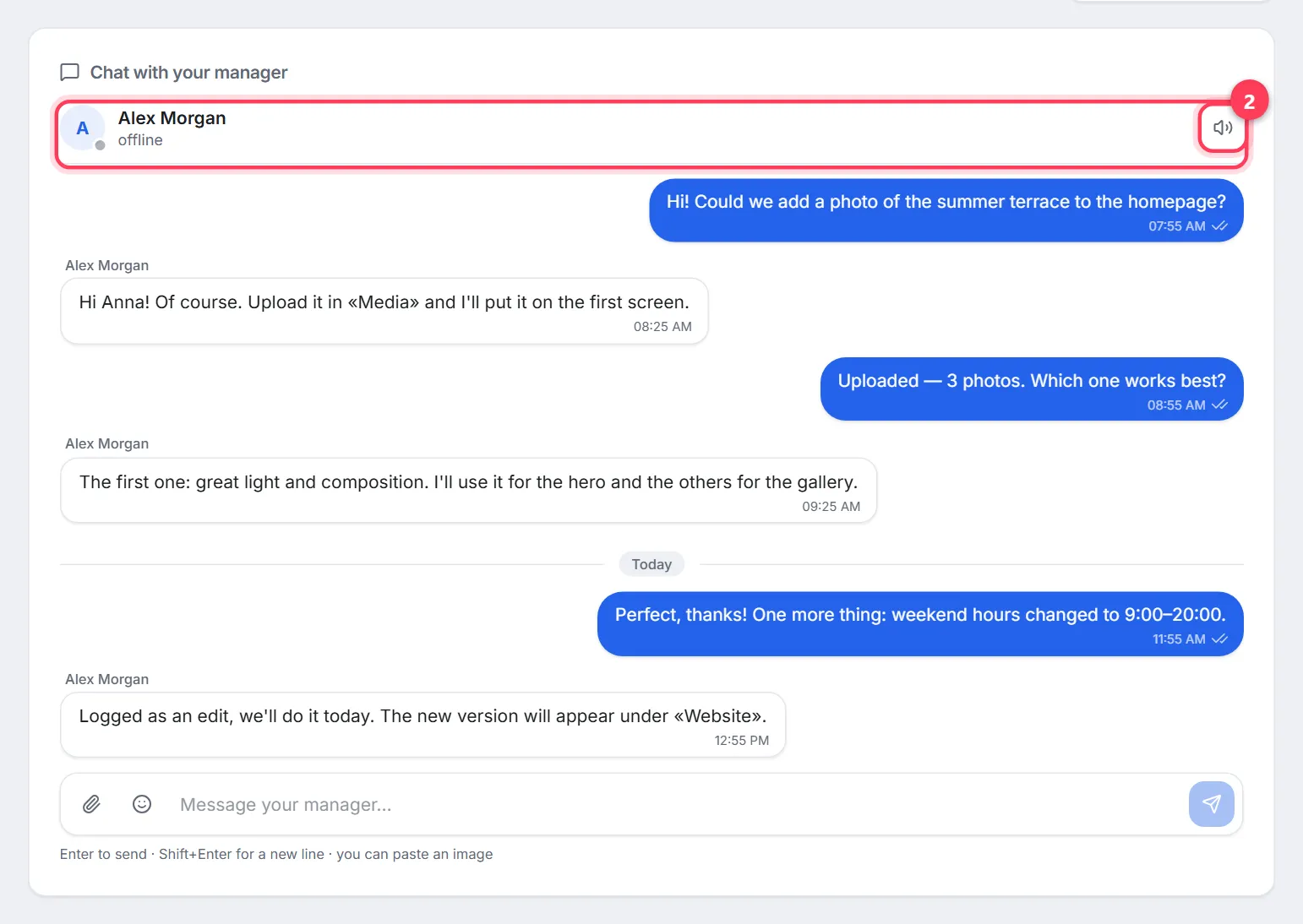
- Your manager replies; the chat header shows their name and status — “online”, “offline”, “last seen …” or “typing…”. If no manager is assigned yet, the other side is labelled “WebFora team”.
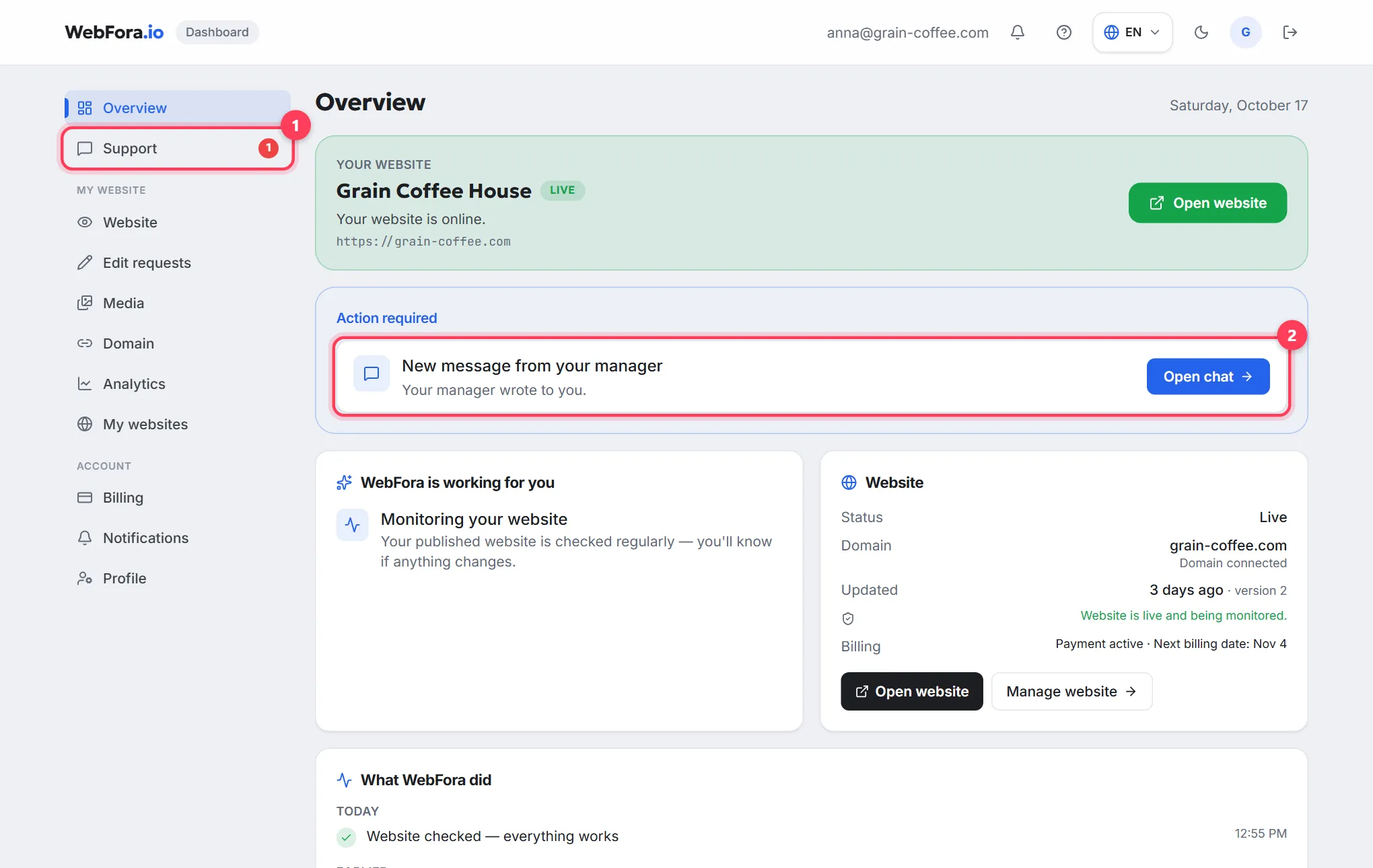
- When your manager writes, the “Support” item in the menu gets a red counter, Overview shows a “New message from your manager” card with an “Open chat” button, and the browser tab lights up with “● New message · WebFora”.
- There is no support phone line — everything is handled in the chat, and the history stays in your dashboard.
How to write: messages, attachments, replies
Step 1
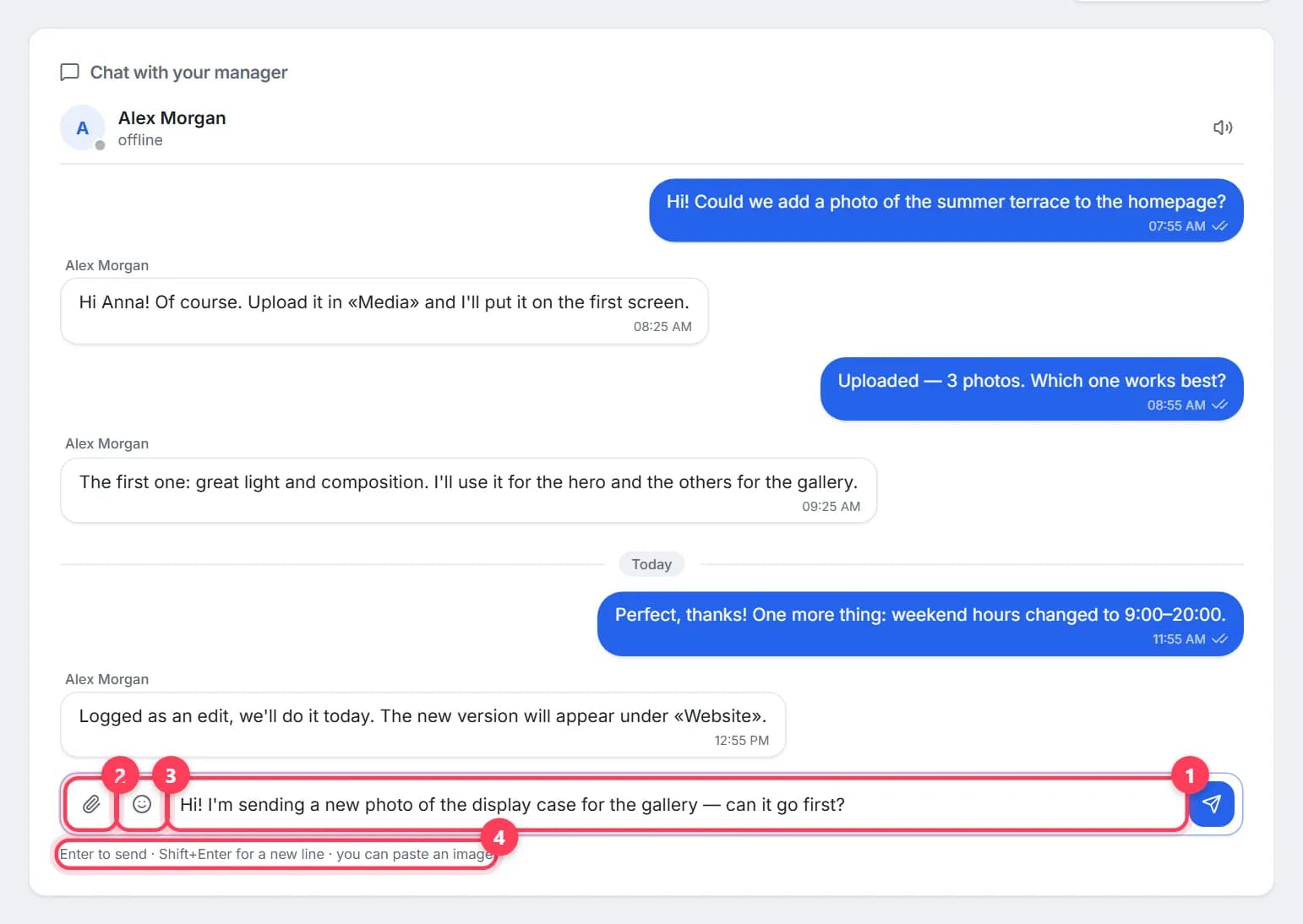
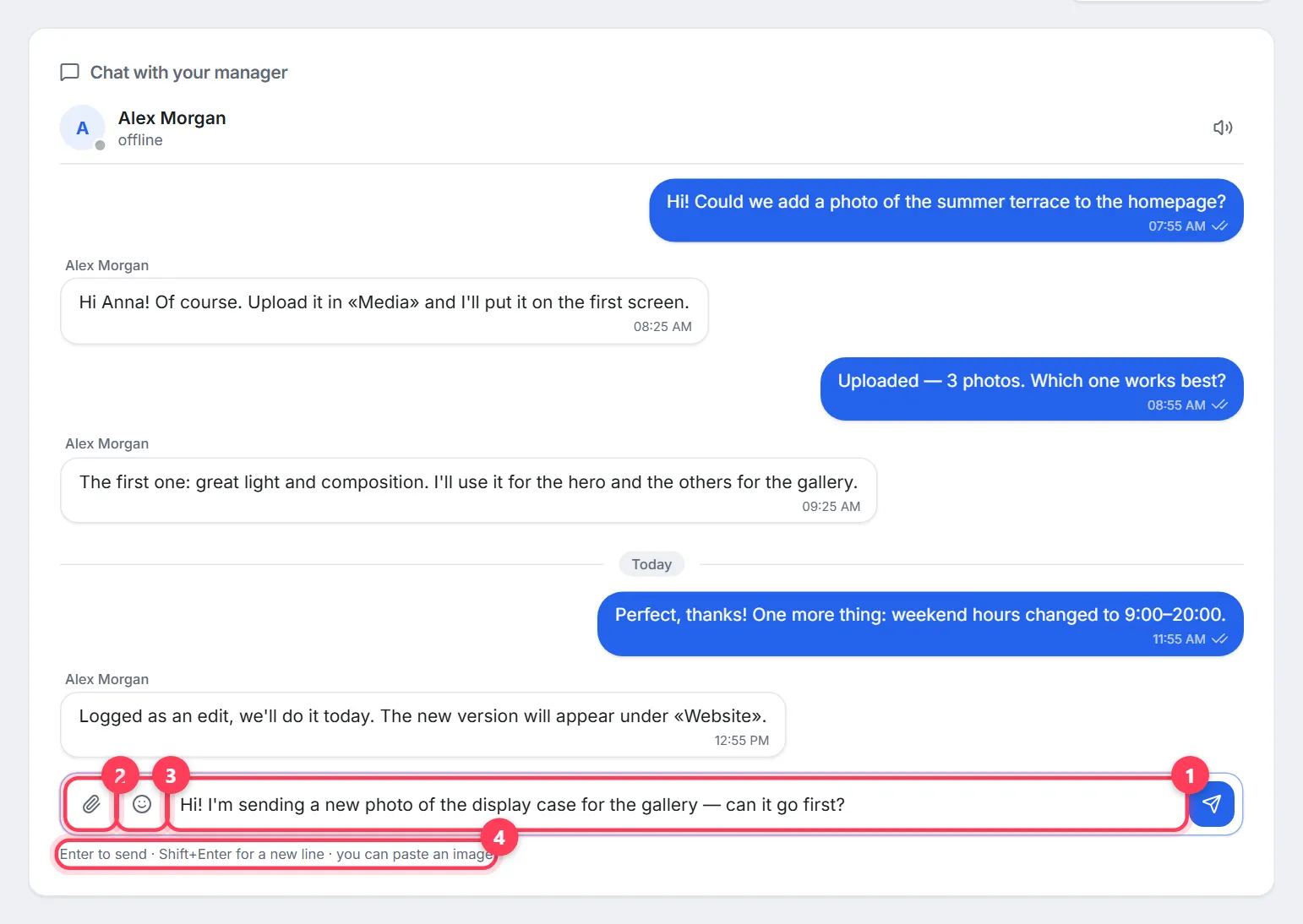
Type in the “Message your manager…” field
Enter sends the message, Shift+Enter starts a new line. The hint above the field lists the same shortcuts.
Step 2
Attach files if needed
The paperclip “Attach a file” button: images (JPG, PNG, WebP, GIF) and PDF up to 10 MB each. You can paste an image from the clipboard (Ctrl+V) or drag a file into the chat window — you'll see “Drop to attach”. Photos meant for the website itself are better uploaded to Media.
Step 3
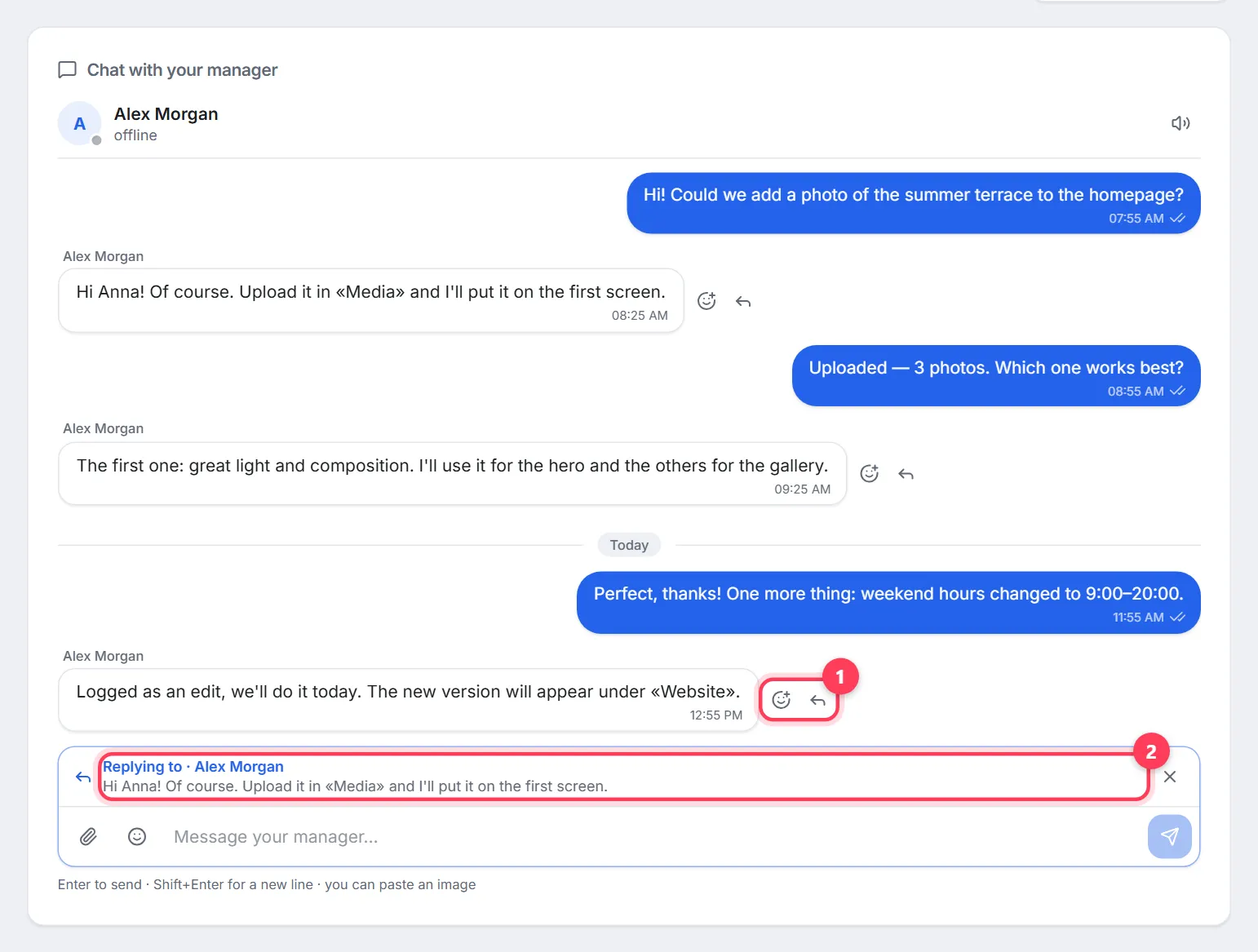
Reply to a specific message
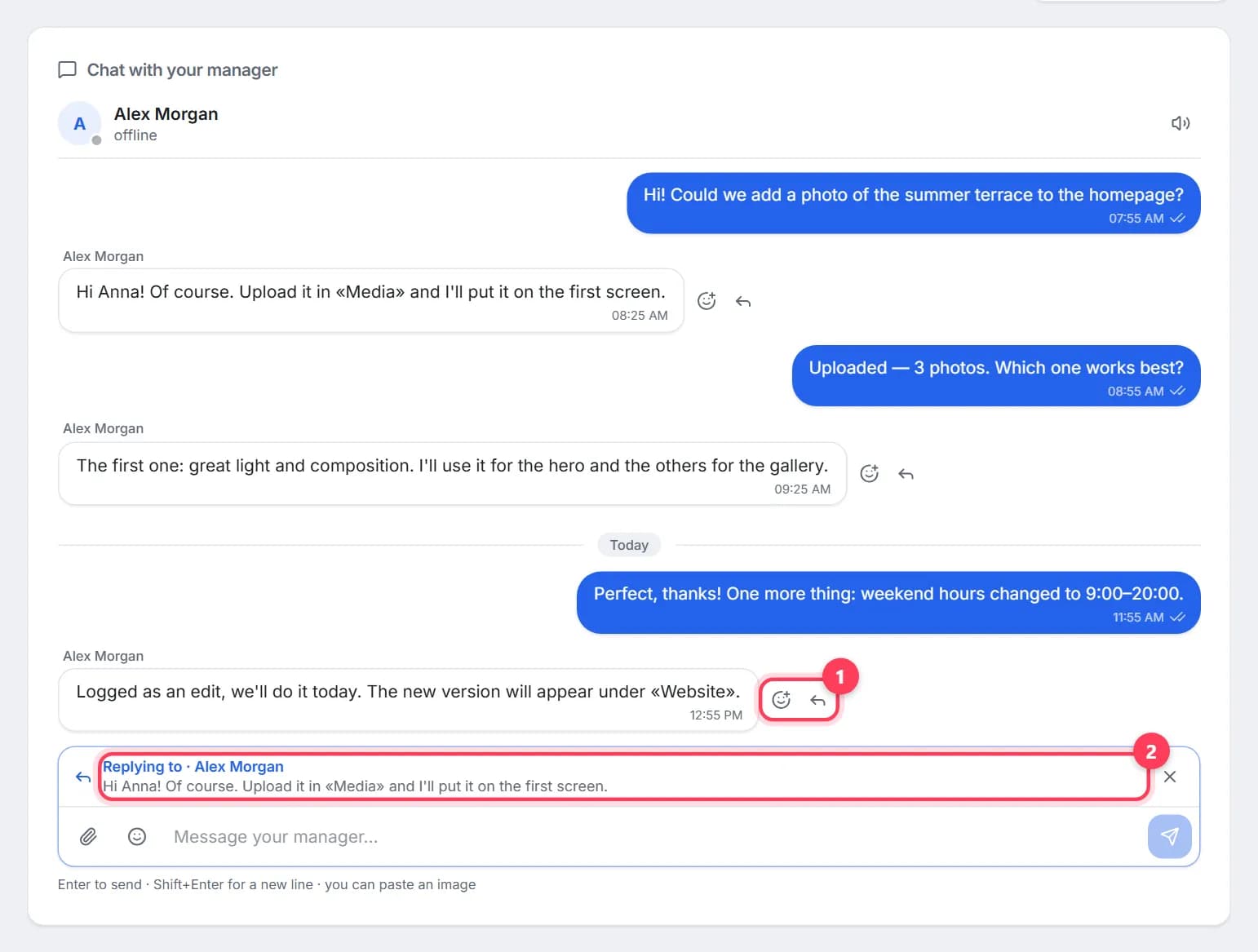
Hovering a message reveals “Reply” (a quote above your answer — handy in a long thread) and “React”. There's an emoji picker, and your own messages can be edited or deleted.
Chats under edit requests: a question about one task
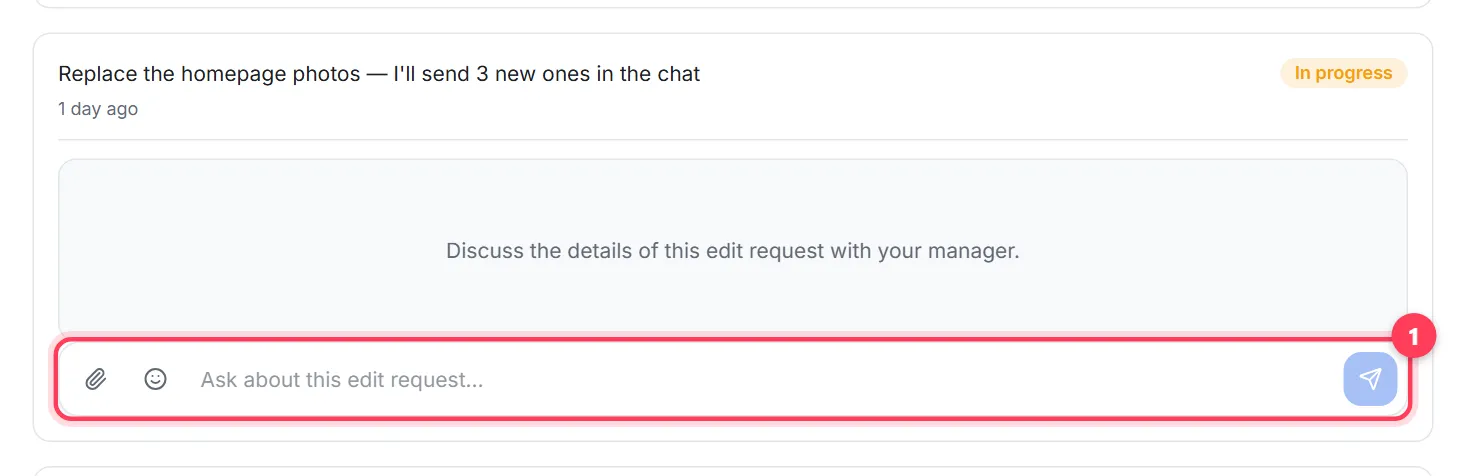
Every edit in “Edit requests” has its own chat (“Ask about this edit request…”) — the team posts clarifications there, and it's the right place to send photos for that task. The general Support chat is for everything else: billing, domain, timing, plan. The “Edit requests” button in the top-right corner of Support shows the number of open edits and leads to the section.
What to write to get a fast answer
- One message, the whole point. Instead of “Hi, I have a question”, go straight to: “On the Prices page, the Haircut block says €20, it should be €25 — please fix”.
- Where and what. The page and block name, and for a website in progress — the version number (“Version 3, first screen”).
- Show it. An annotated screenshot or a photo via the paperclip saves two or three follow-up messages.
- Urgency in words. “Needed by Friday, ads start on Saturday” helps your manager prioritise.
- Billing questions — with the invoice number. It's in Billing under invoice history.
- If there's no reply during business hours for longer than usual, write again in the same chat rather than opening new channels.
FAQ
How fast does WebFora support reply?+
The dashboard says: “We reply during business hours”. It doesn't promise exact response times; your manager's “online” / “typing…” status is shown in the chat header.
Who answers the chat — a person or a bot?+
Your manager — a real person; their name is shown in the chat header. If no manager is assigned yet, the WebFora team answers.
Can I call support?+
There's no phone line. Everything is handled in the Support chat — that way the history and agreements stay in your dashboard.
How do I send a photo or document in the chat?+
With the paperclip “Attach a file” button, by pasting from the clipboard or by dragging into the chat window. JPG, PNG, WebP, GIF and PDF up to 10 MB are accepted.
How do I know my manager has replied?+
A red counter on “Support” in the menu, a “New message from your manager” card on Overview, the highlighted browser tab and a sound if it's on. Email alerts about dashboard events are set in Profile.
What's the difference between the chat and an edit request?+
The chat is for questions and discussion. An edit request is a task with an allowance and a status (“New”, “In progress”, “Done”) that the team picks up. Send website changes as edit requests — each has its own chat for clarifications.
I have several websites — where is the chat for each?+
Open Support — the dashboard asks you to pick a website. You can switch in the bar with the website name at the top of the page.
Was this guide helpful?
Related guides
How to request changes to your website
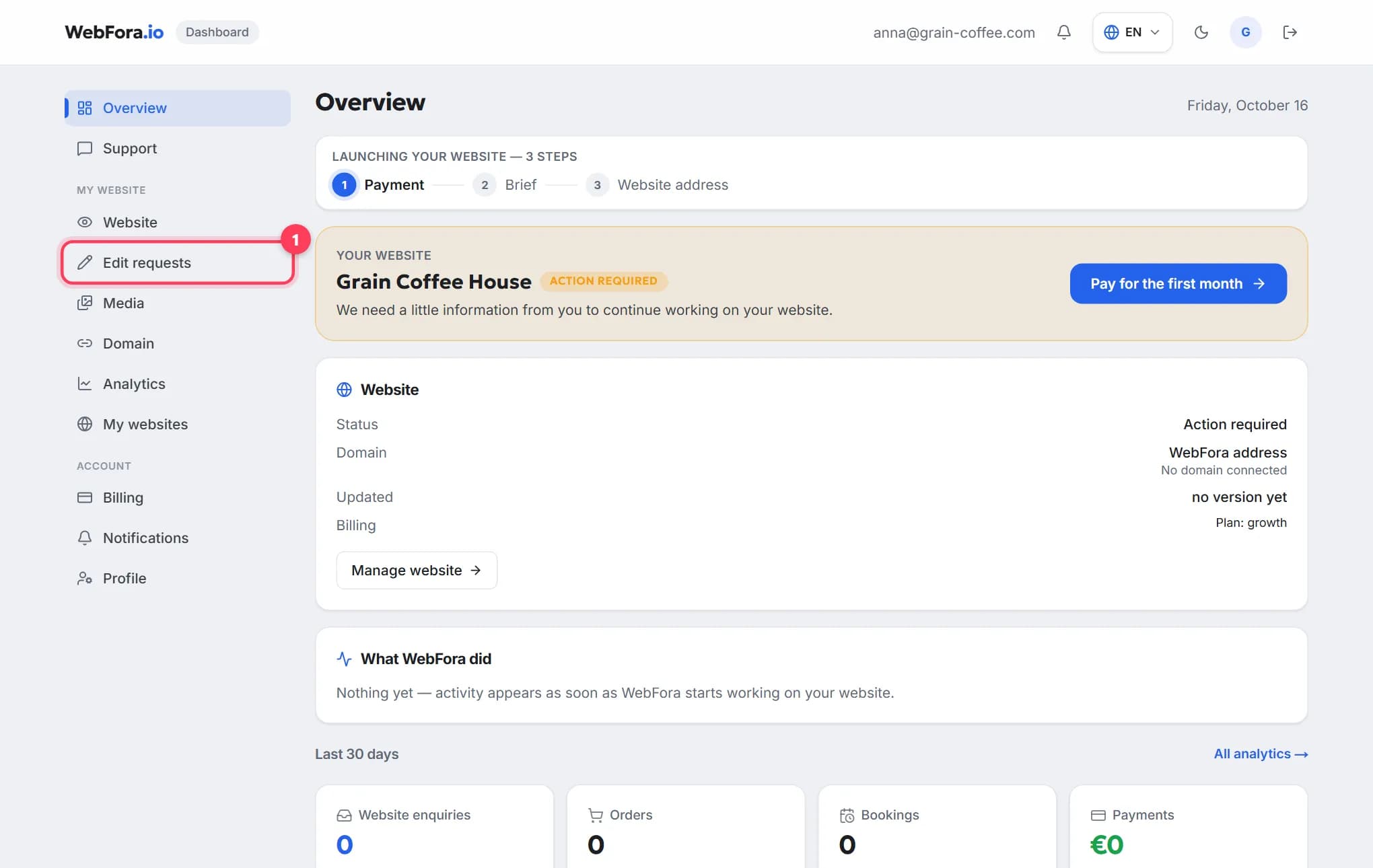
Get text, photos, prices or opening hours changed on your website: send an edit request, see your free edits left, get quotes for custom work, track it.
5 min readThe WebFora client dashboard: what is where
A tour of the WebFora client dashboard: each menu item, the website status block, what the team did, 30-day enquiries and where to message your manager.
6 min read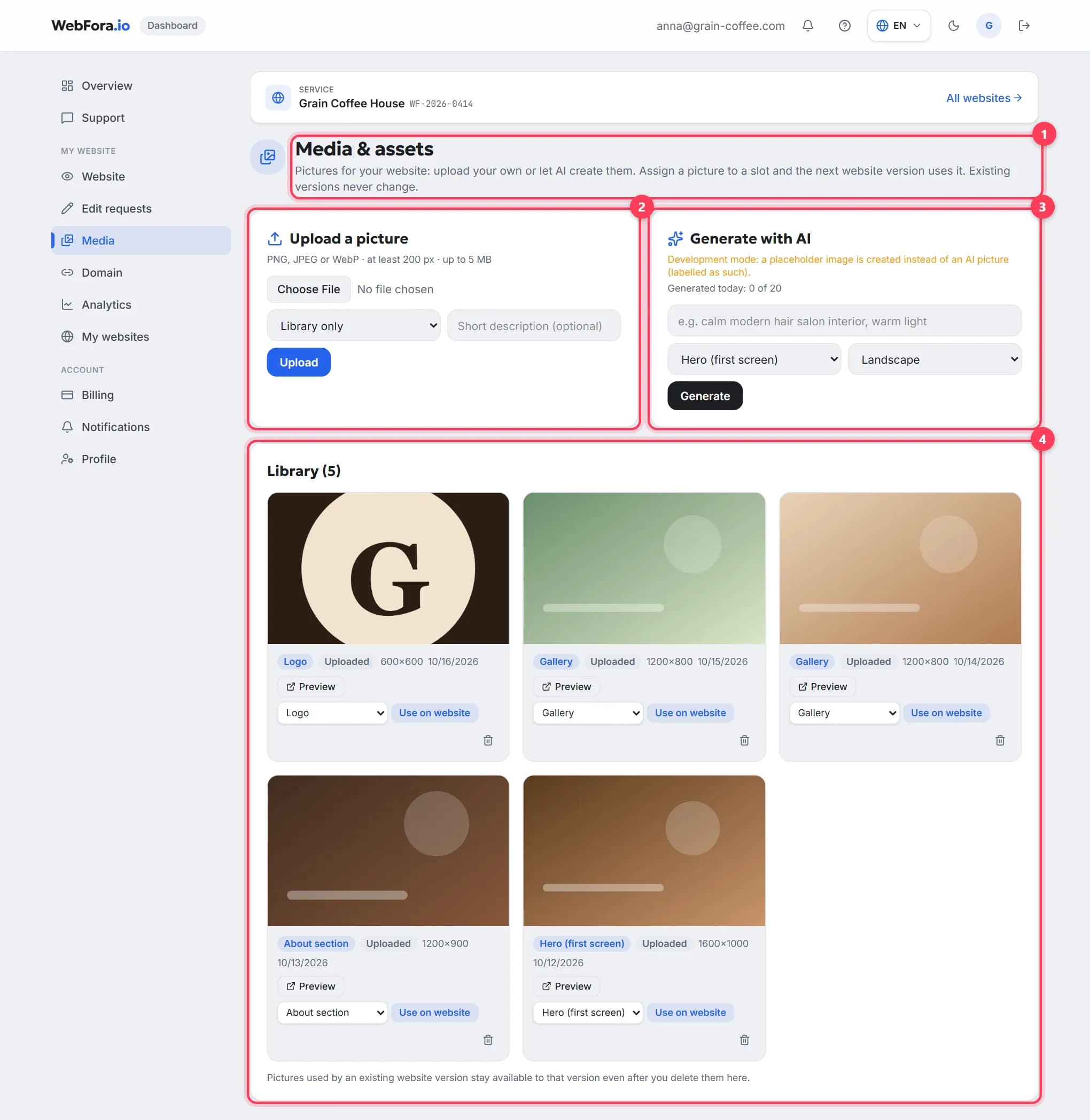
How to upload photos and a logo for your website
How to upload photos to your website in the WebFora dashboard: formats and sizes, hero, gallery and logo slots, AI images and files for your manager.
5 min read