How to upload photos and a logo for your website
To upload photos and a logo for your website, open the Media section of your WebFora dashboard, choose a PNG, JPEG or WebP file (at least 200 px per side, up to 5 MB) and say where to use it: the hero (first screen), the About section, the gallery or the logo. An assigned picture is used by the next website version; existing versions don't change. Other files for your manager — documents, PDFs — are easier to send in the Support chat.
Where the Media section is and what's in it
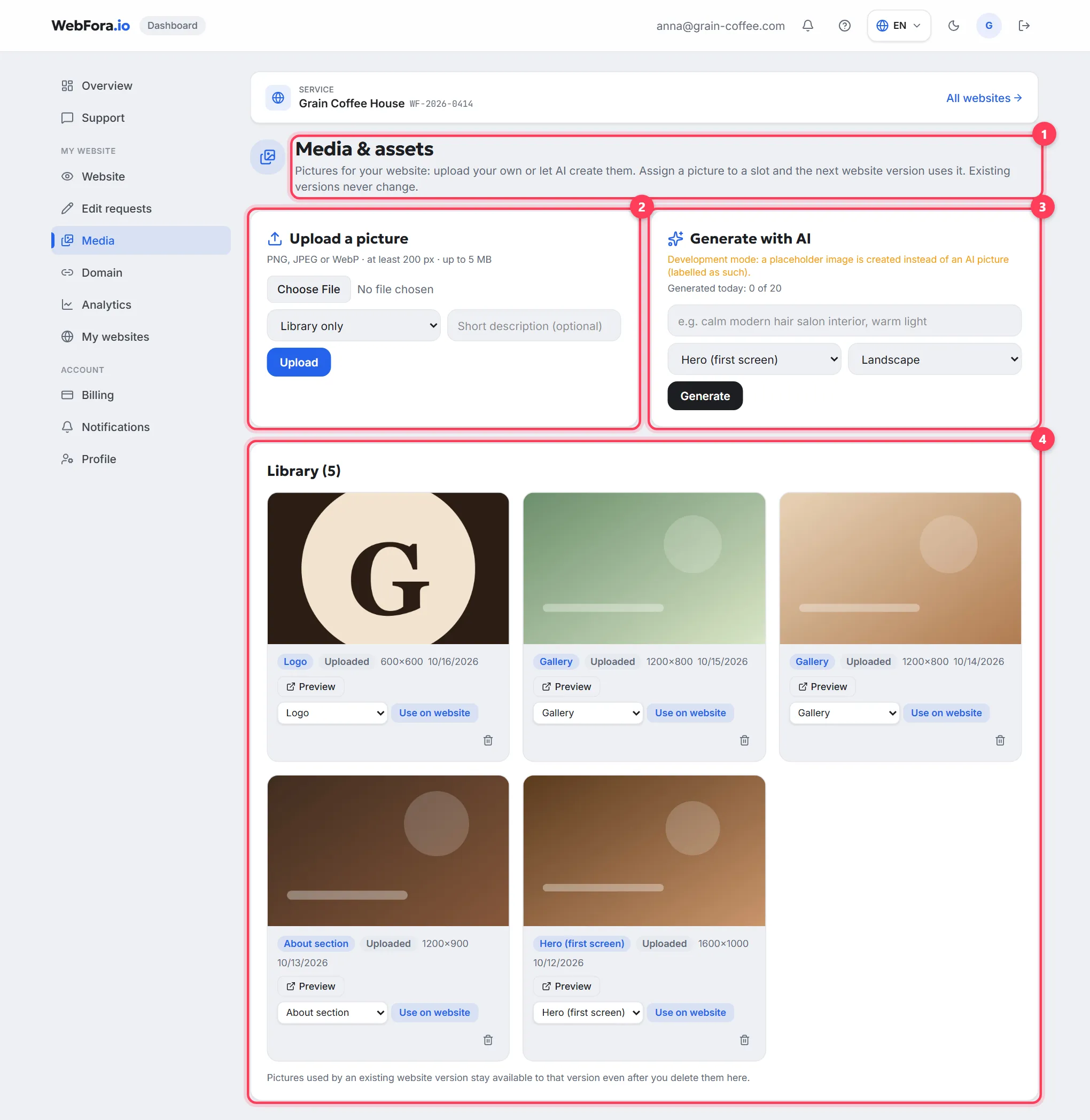
“Media” sits in the dashboard menu under “My website” (address /dashboard/media); the page title is “Media & assets”. With several websites, pick one first — each has its own library. The page has three blocks: “Upload a picture”, “Generate with AI” and “Library (N)” with all your pictures.
How to upload a photo or logo
Step 1
Choose the file
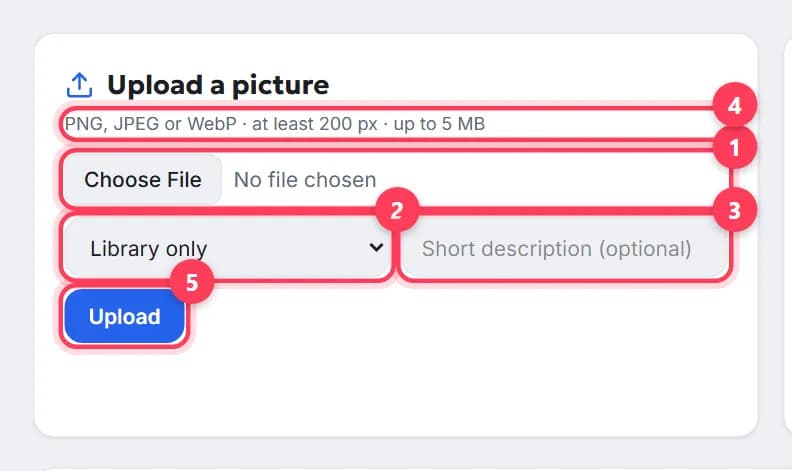
In “Upload a picture”, click the file field. Accepted: PNG, JPEG or WebP, at least 200 px per side, up to 5 MB; oversized images (more than 4096 px per side) are rejected too. The format is checked by the file's content, not its extension.
Step 2
Say where to use it
In the “Use as” list choose the slot: “Hero (first screen)”, “About section”, “Gallery”, “Logo” or “Library only” (just store it, decide later). Next to it is “Short description (optional)”: what's in the picture — it helps the team and search engines.
Step 3
Press “Upload”
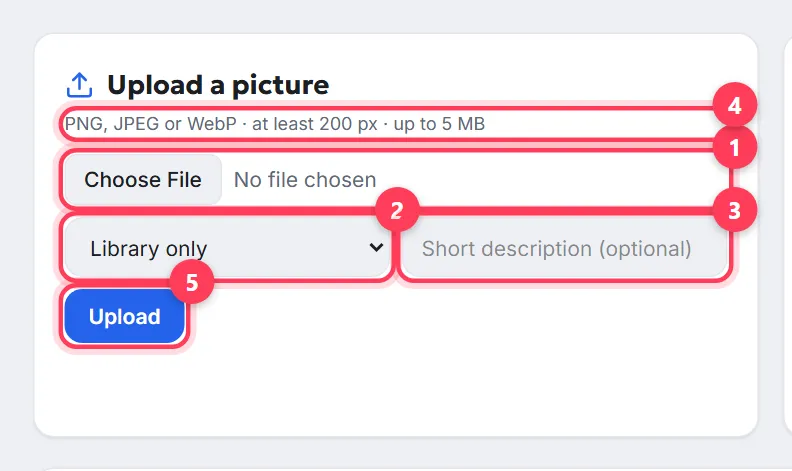
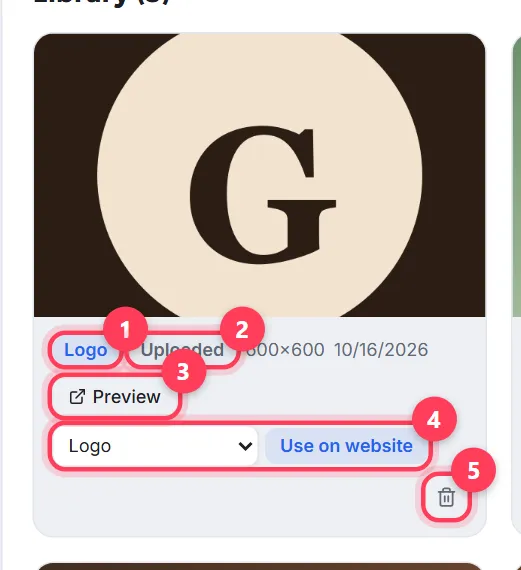
You'll see “Picture uploaded”, and the file appears in the library with the “Uploaded” badge, its size in pixels and the date.

How pictures get onto the website
Every picture in the library has a “Use on website” button with a slot picker: assign “Hero (first screen)”, “Gallery” and so on. The dashboard replies “Assigned: … The next website version will use it”. That's the section's key rule: an assignment affects the next version, and existing versions never change — so an approved website never changes “by itself”.
- Uploaded before sending the brief — the team gets the pictures with the brief and uses them in the first version (the brief has a “Have a logo and photos?” box with an “Upload files” button). More in how to fill in the website brief.
- Uploaded after launch — assign the slot and ask for the change: an edit request in “Edit requests” (“replace the gallery photos with the new ones from Media”) or “Update website” in the Website section. Details: how to request changes to your website.
- “Preview” shows the picture full size; “Delete” removes it from the library — website versions that already use it keep it.
AI-generated pictures
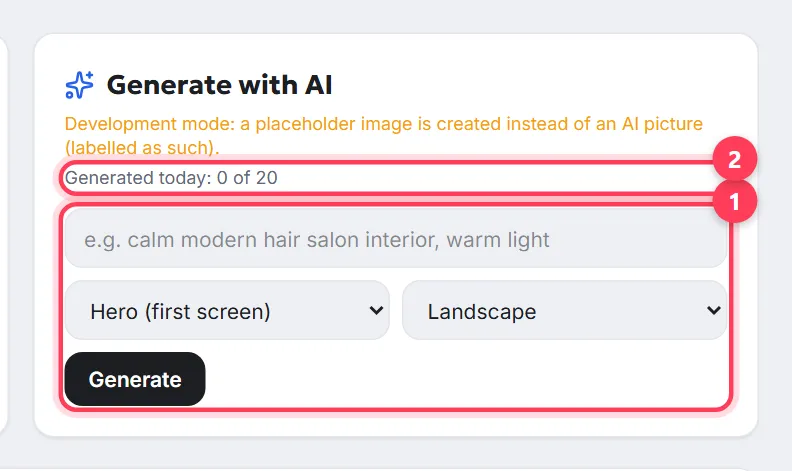
The “Generate with AI” block lets you describe the picture you need (“calm modern hair salon interior, warm light”), choose the slot and the format (“Landscape”, “Square”, “Portrait”) and press “Generate”. The result lands in the library with the “AI generated” badge; there's a daily limit per website, shown as “Generated today: X of Y”. If generation isn't connected on the server, the block says so — the website works perfectly well with your own photos.
How to send files to your manager
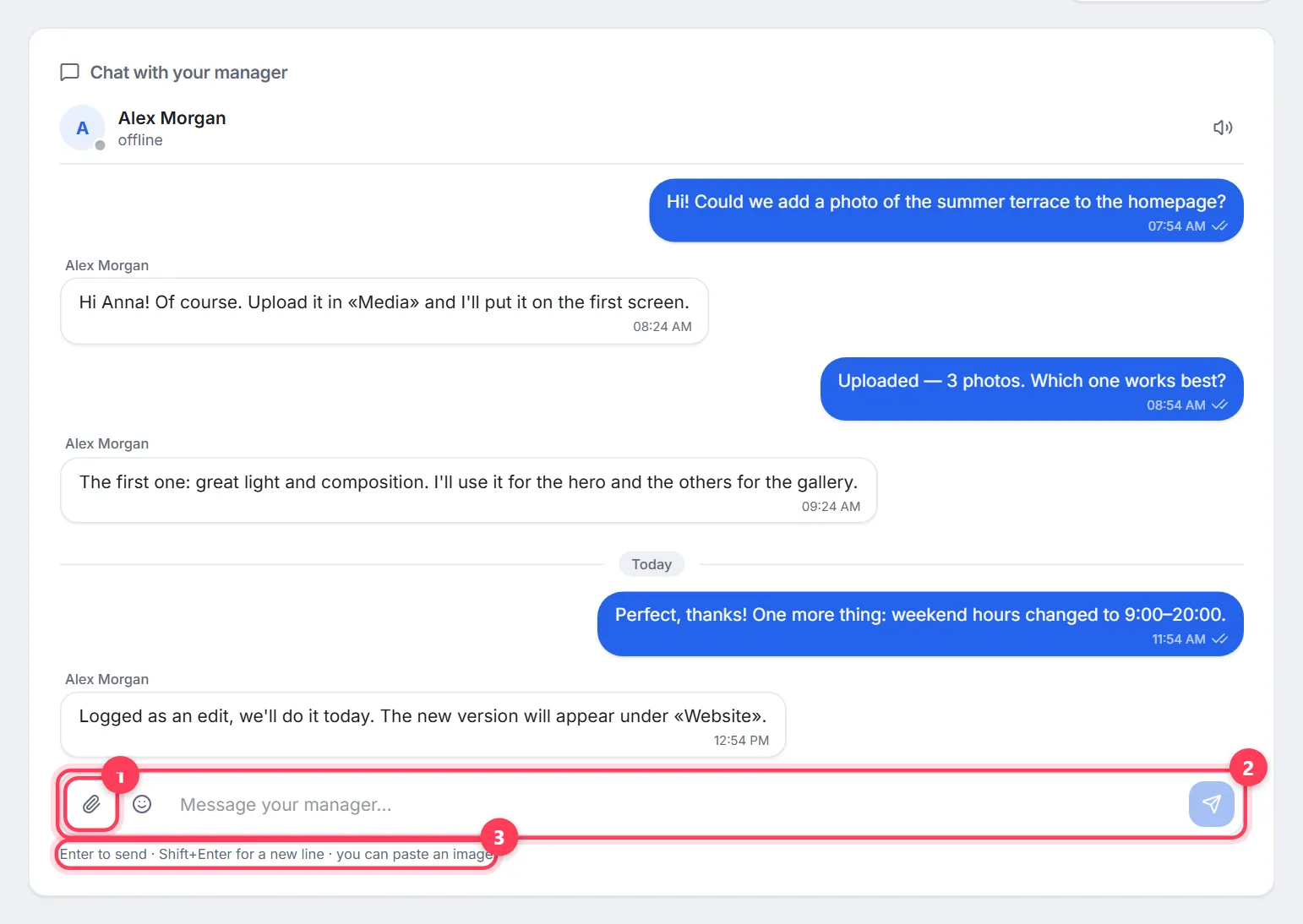
Media is for website pictures only. A price list in PDF, documents, annotated screenshots and “for context” photos go to the Support chat via the paperclip “Attach a file” button: images (JPG, PNG, WebP, GIF) and PDF up to 10 MB are accepted, and you can paste an image from the clipboard or drag a file into the chat window. Files for a specific edit go into the chat under that edit in “Edit requests” — that way they don't get lost.
Which photos work best
- Landscape, real photos of your place, team and work — more convincing than stock.
- For the hero — one strong photo without small details: the headline and button go on top of it.
- The logo — on a transparent background (PNG) in the best quality you have.
- 5–10 photos are enough for the first version; the gallery can grow through edit requests.
FAQ
Which formats and sizes does the dashboard accept?+
PNG, JPEG and WebP; 200 to 4096 px per side; up to 5 MB per file. That's the hint under the “Upload a picture” block.
Why hasn't my uploaded photo appeared on the website?+
An assignment affects only the next website version — existing versions never change. Assign the slot with “Use on website” and ask for the change: an edit request in “Edit requests” or “Update website”.
How do I upload a logo?+
In Media, choose the file and pick “Logo” in the “Use as” list. PNG on a transparent background works best. A logo in SVG or PDF goes to your manager in the chat.
Can I upload many photos at once?+
Uploads go one file at a time — choose the slot and description for each. For large batches, message your manager in Support and attach the files in the chat.
What happens if I delete a picture?+
It disappears from the library, but website versions that already use it keep it — the dashboard warns you about this when deleting.
Can I generate a photo with AI?+
Yes, if AI image generation is connected on the server: the “Generate with AI” block takes a description and a format, with a daily limit per website. If the block says generation isn't connected, upload your own photos.
How do I send my manager a price list or a document?+
In the Support chat via “Attach a file”: images and PDF up to 10 MB. Files for an edit go into the chat under that edit.
Was this guide helpful?
Related guides

How to fill in the website brief
The website brief in your WebFora dashboard: when it opens, sections, address/phone/hours pickers, drafts, the 3-business-day deadline and what comes next.
7 min read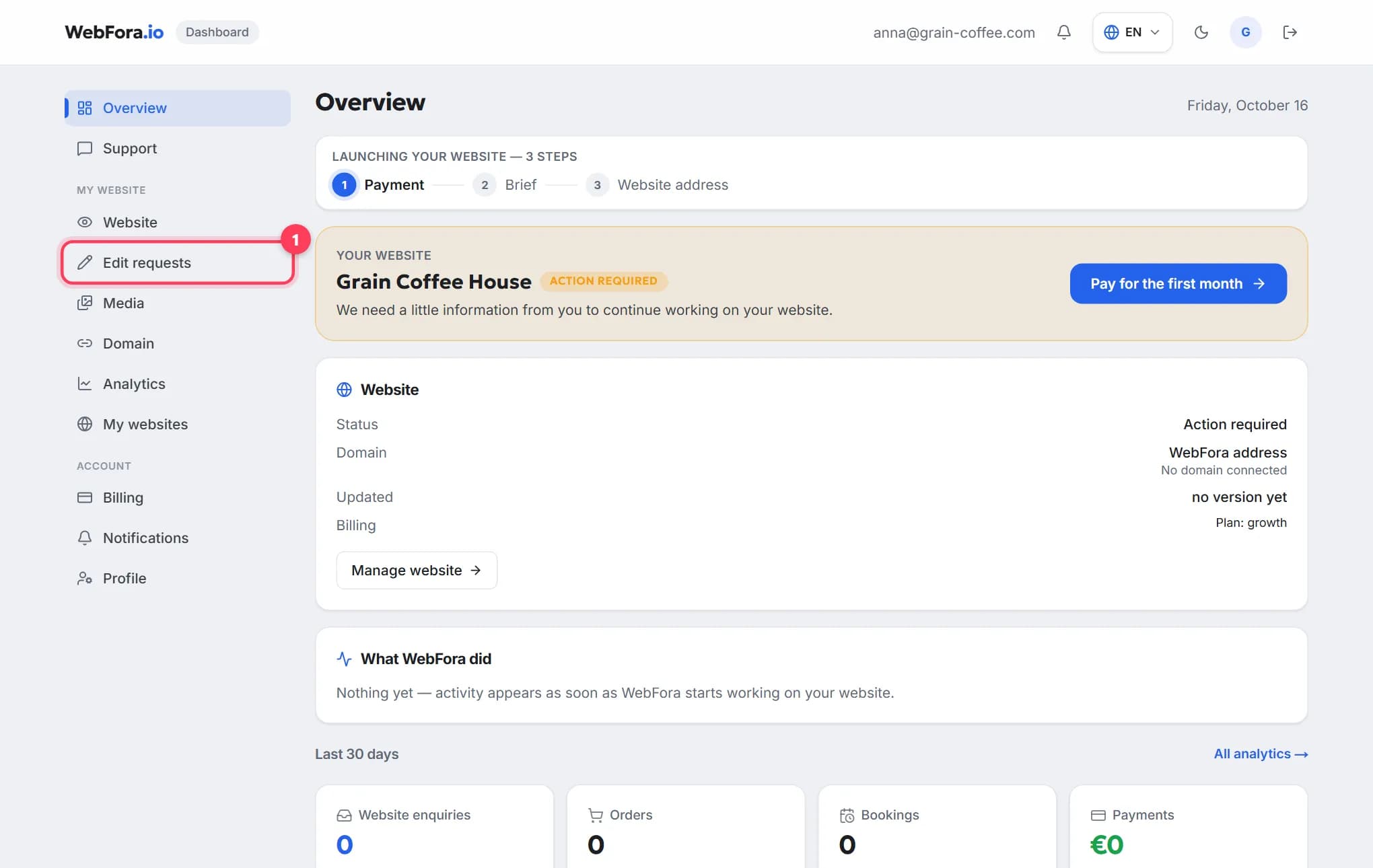
How to request changes to your website
Get text, photos, prices or opening hours changed on your website: send an edit request, see your free edits left, get quotes for custom work, track it.
5 min read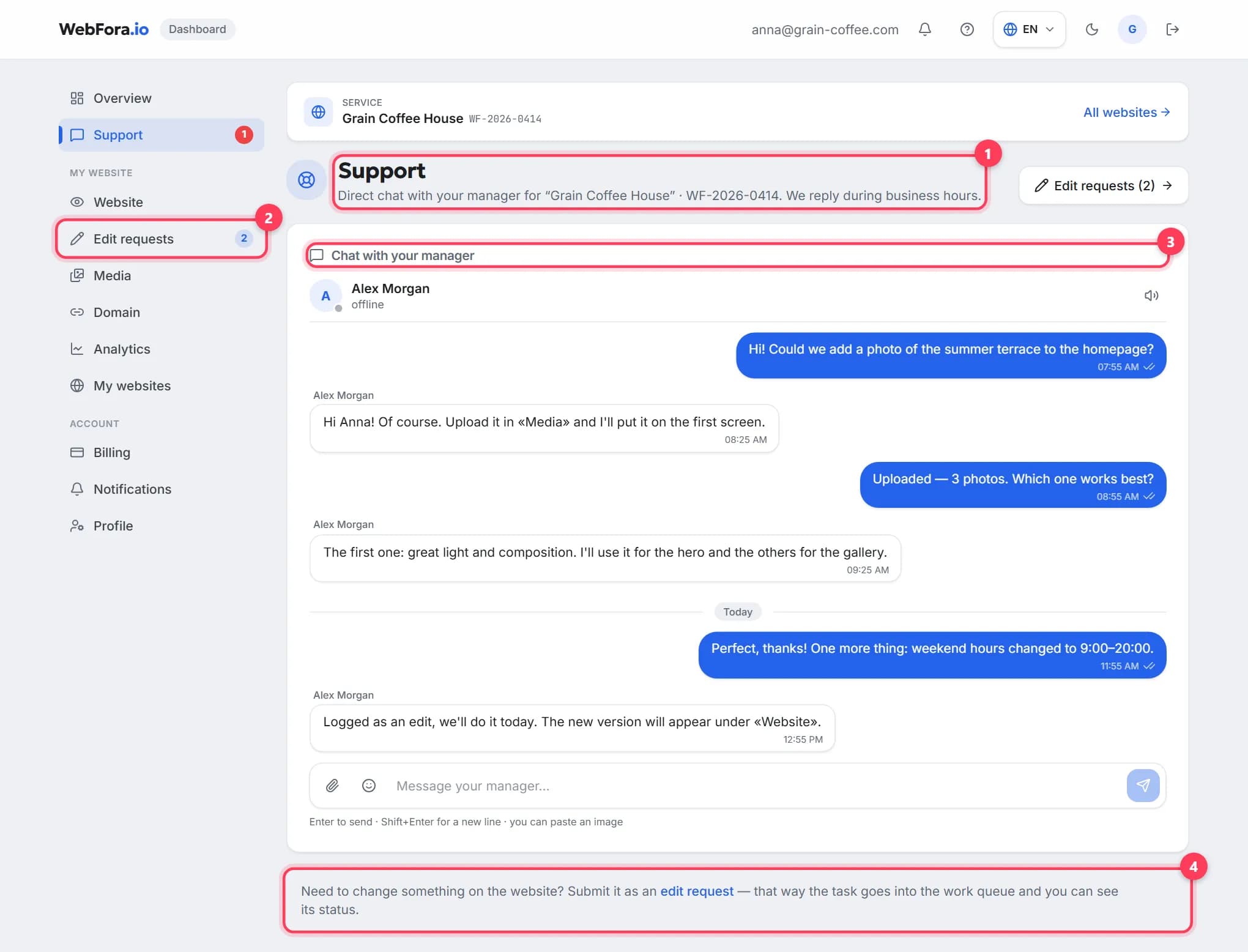
How to message your manager in the chat and get a quick reply
Messaging your WebFora manager: the Support chat, who replies and when, attachments up to 10 MB, chats under edits, what to write for a fast answer.
5 min read