How to review and approve your website before launch
To review your website before launch, open the “Website” section of your WebFora dashboard: it shows the current version in a preview window at desktop, tablet and phone widths. If something is off, describe it in the “I need changes” form and the team prepares a new version. If you're happy, press “Looks good — launch it”: the website is published on a temporary WebFora address, and then your domain is connected.
Where to see the first version of your website
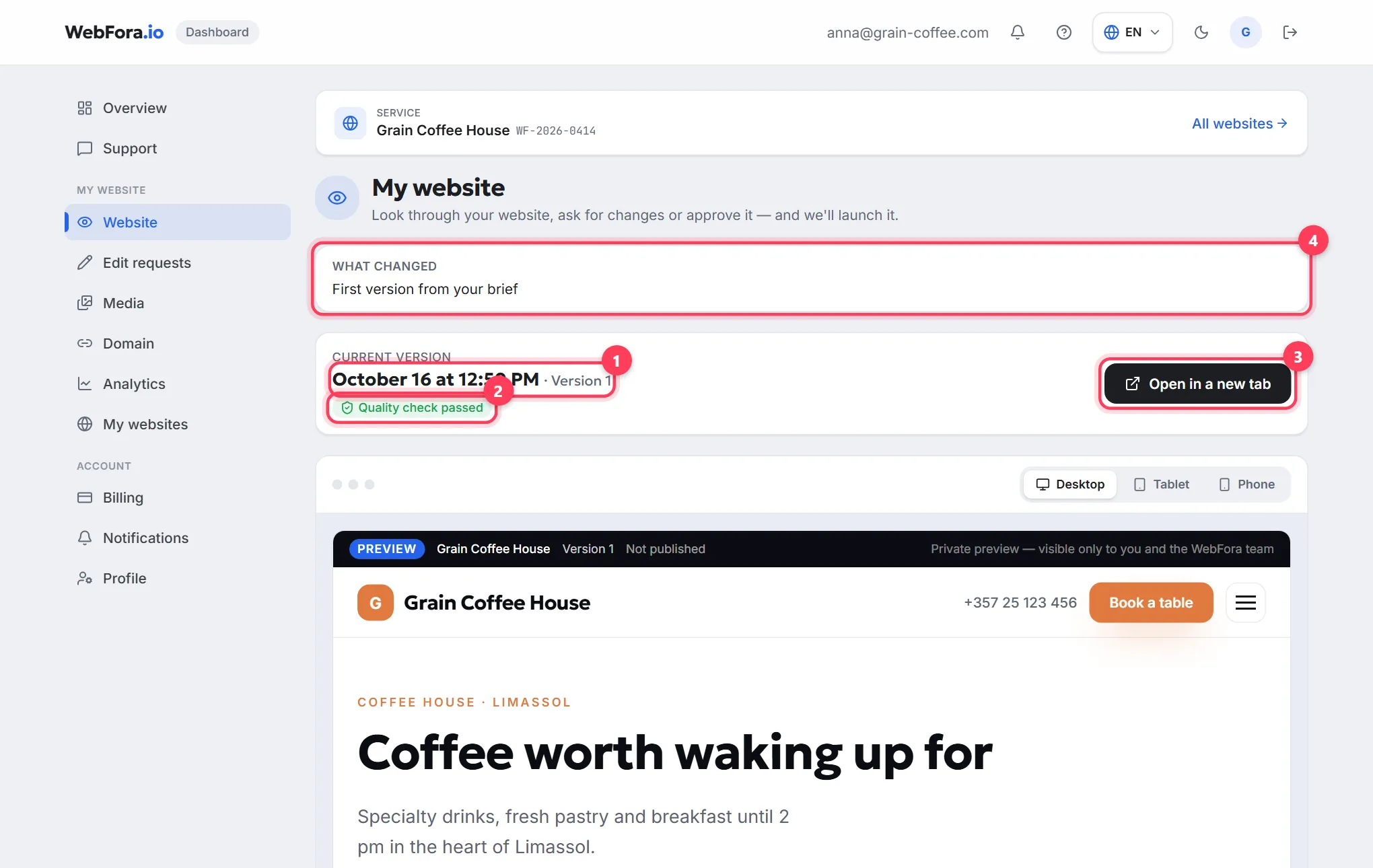
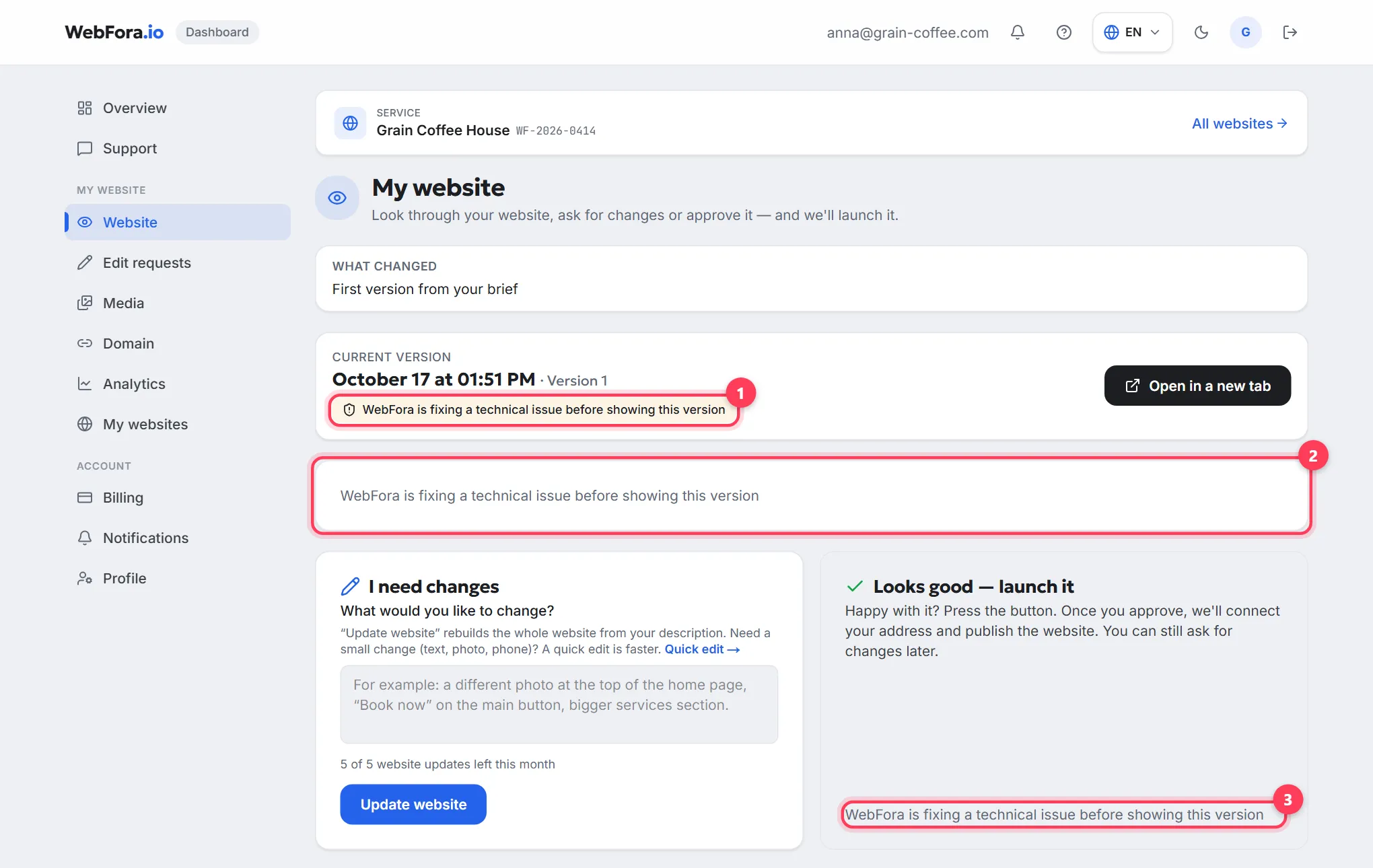
When a version is ready, Overview shows the “Ready for review” status and a “Review website” button; in the menu the section is called “Website” (page title “My website”, address /dashboard/website). Until a version exists, the section tells you honestly where things stand: “Complete your brief”, “Your website is being created”, “Your first version is being prepared” or “Checking”.

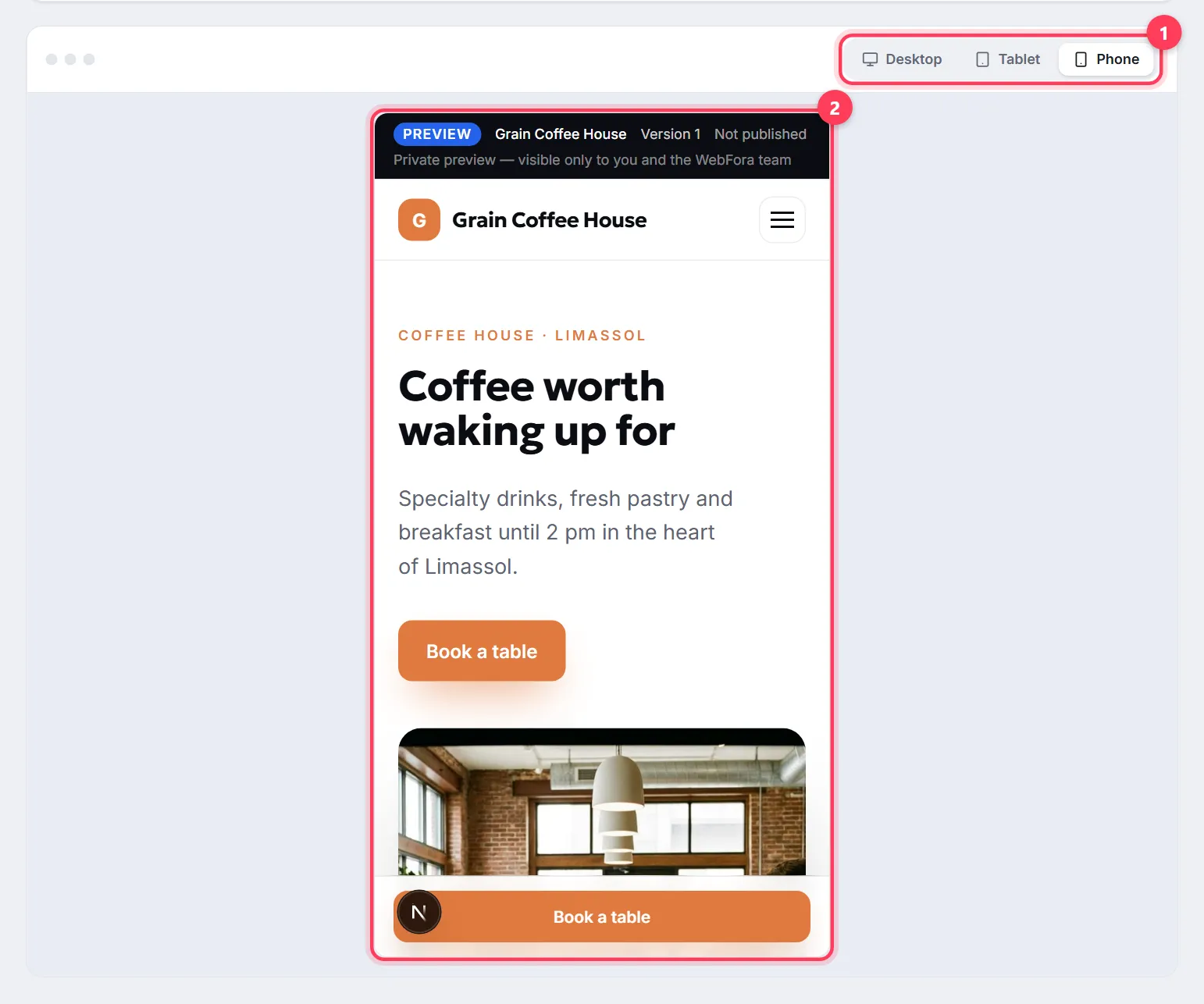
At the top of the page is the “Current version” card with the date and number (“Version 1”, “Version 2”…) and an “Open in a new tab” button. Below it the website is embedded in the page: the “Desktop” / “Tablet” / “Mobile” switches show how it looks on different screens. If the preview didn't load, open the address in a new tab.
How to review a website before launch: what to look at
- Facts. Name, phone, address, opening hours, prices — everything a visitor takes literally. A wrong digit in the phone number is noticed by customers, not by you.
- Phone view. Switch the preview to “Mobile”: most visitors come from a phone. Buttons must be tappable with a finger, text readable without zooming.
- Main action. Is it clear from the first screen what to do: call, book, message on WhatsApp?
- Links and forms. Walk through the menu, tap the phone number and the enquiry button — you'll check the same things the automated check does, but through a customer's eyes.
- Photos and copy. If something is missing, that's a reason for a comment, not for rejecting the version: the website improves with your notes.
Requesting changes: the “I need changes” form
Step 1
Describe what to change
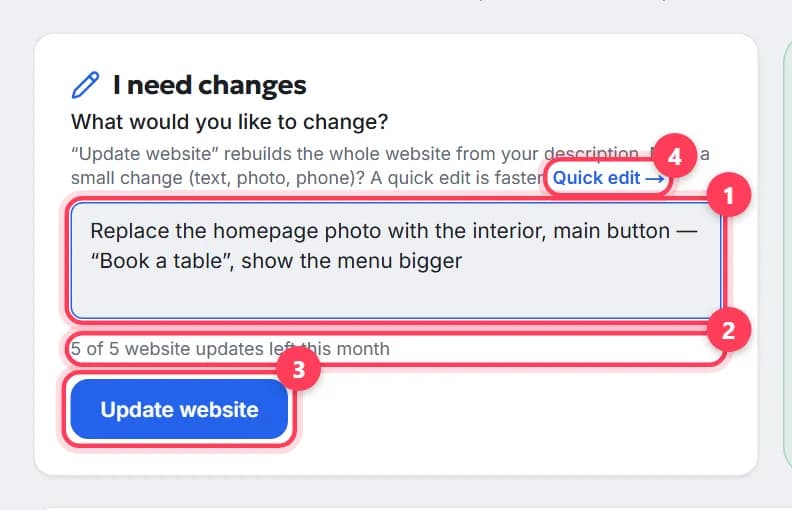
Below the preview on the left is the “I need changes” block asking “What would you like to change?”. Write it in your own words, for example: “a different photo at the top of the home page, ‘Book now’ on the main button, bigger services section”. The field takes up to 600 characters; a few words at minimum.
Step 2
Press “Update website”
You'll see “Got it — we're preparing an updated website based on your comment”. The status changes to “Updating”, the page refreshes by itself, and the new version appears in “Version history” with your comment as its description.
Step 3
Keep an eye on the limit
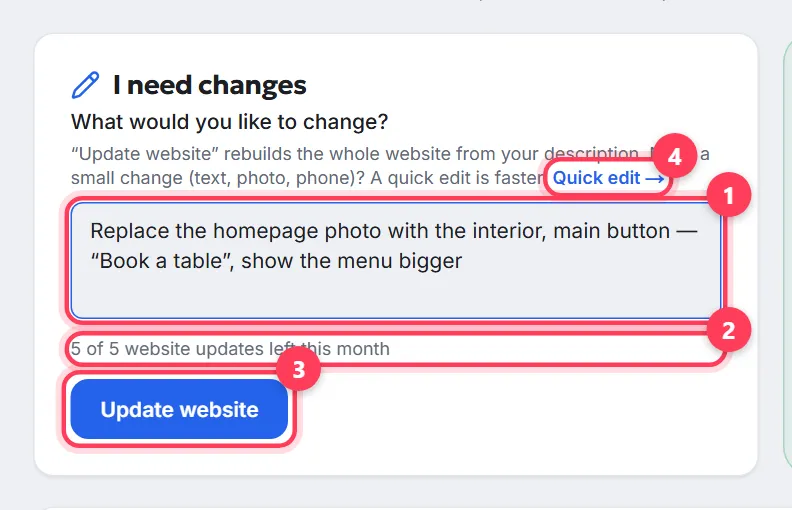
Under the form you'll see how many updates are left: “X of Y website updates left this month” — the number depends on your plan (some plans say “Unlimited”). When the limit is reached, the button is disabled and a “Message your manager” link appears next to it.
What the quality check means
Every version is checked automatically before it's shown: pages open, links work, the mobile layout is fine, contact details are in place. The status is shown in the “Current version” card and in the history:
| Status | What it means |
|---|---|
| Quality check — about a minute | The version was just created and is being checked; the page refreshes by itself |
| Quality check passed | The version can be reviewed and approved |
| WebFora is fixing a technical issue before showing this version | The check found an error. The preview and the approve button are hidden while the team prepares a corrected version — nothing to do on your side |
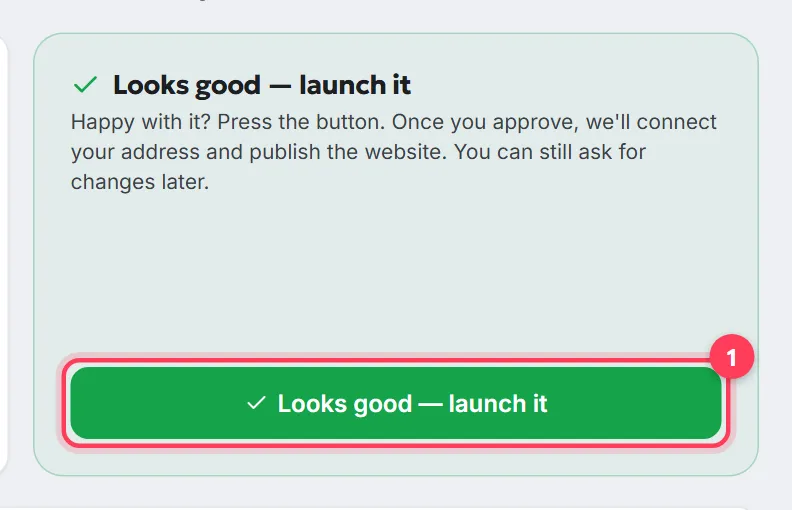
Approving: “Looks good — launch it”
To the right of the changes form is the “Looks good — launch it” block. The button is active only when the version passed the check and no new version is being generated. After you press it, the dashboard asks: “Launch this version of your website? Once you approve, we'll connect your address and publish it”. Exactly this version is approved — its number is on the button.
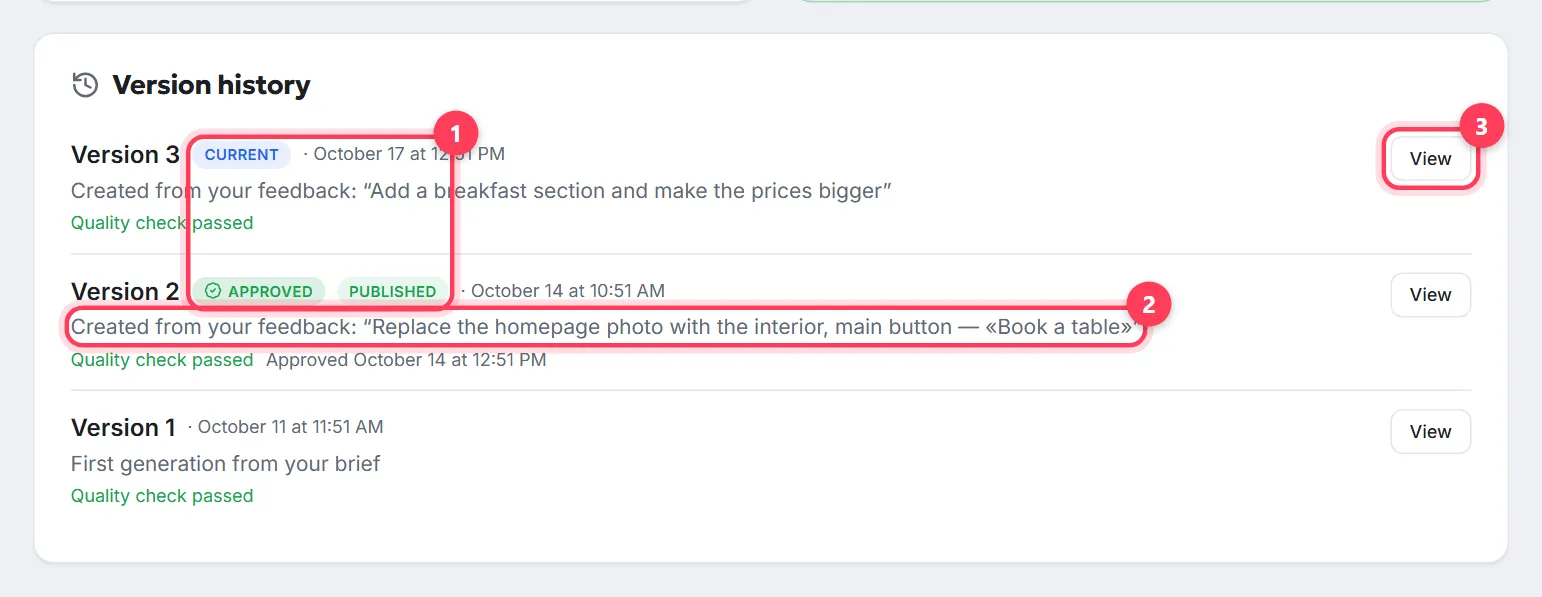
If a newer version appears later, the page notes “Version 2 is approved. Version 3 is newer — review it and approve it if you prefer it”. The approved version carries the “Approved” badge and date in “Version history”.
What happens after approval
- Overview shows “Approved”: “You approved the version — the WebFora team is publishing it. Nothing to do on your side”. The “What WebFora did” feed gets “Website published”.
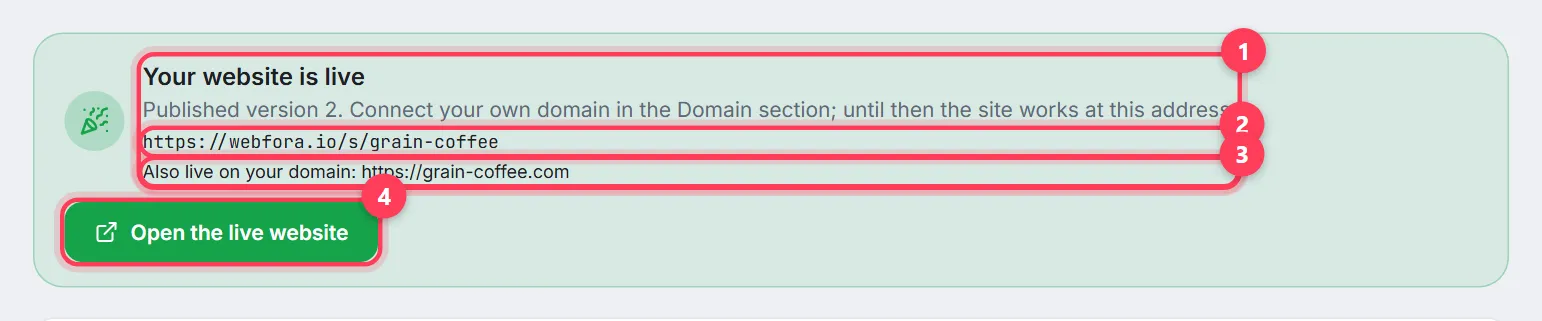
- In the Website section a green “Your website is live” block appears with the temporary WebFora address and an “Open the live website” button. You can already share this link with customers.
- Connect your own domain in the “Domain” section — see the domain connection guide. Once connected, a line “Also live on your domain: …” appears under the address.
- The published website is checked once more live (“WebFora is verifying your website”) and then monitored regularly: “Your website is operating normally” or “WebFora is reviewing a technical issue with your website”.
FAQ
How long until the first version is ready?+
The date is on Overview in the “Your website” block: “First version of your site — by …”. When it's ready, the status changes to “Ready for review” and you get a notification.
How do I view the website on my phone?+
In the Website section, switch the preview to “Mobile”. Or press “Open in a new tab” and open that link on your smartphone.
How many times can I request changes?+
It depends on your plan: the remaining count is shown under the “I need changes” form (“X of Y left this month” or “Unlimited”). When the limit is reached, message your manager — small changes can be sent as an edit request.
Can I show the website to customers before approving it?+
Yes — “Open in a new tab” gives you the preview link for the current version. The website gets its public address after approval.
What if I approved and then found a mistake?+
Send an edit request in “Edit requests” (text, photo, phone) or describe the change in “I need changes”. The published website keeps running while the new version is prepared.
Why is the approve button disabled?+
The version is still being checked (“Quality check — about a minute”), it failed the check (the team is preparing a fix), or a new version is being generated right now. Wait a moment — the page refreshes by itself.
What is “Version history”?+
A list of all website versions with the date, the reason (“First generation from your brief”, “Created from your feedback: …”), the check status and the “Approved” and “Published” badges. Any version can be opened with “View”.
The website is published but doesn't open on my domain — why?+
The domain is connected as a separate step in the “Domain” section. Until then the website works only on the temporary WebFora address; the domain status is shown in the “Website” card on Overview.
Was this guide helpful?
Related guides

How to fill in the website brief
The website brief in your WebFora dashboard: when it opens, sections, address/phone/hours pickers, drafts, the 3-business-day deadline and what comes next.
7 min read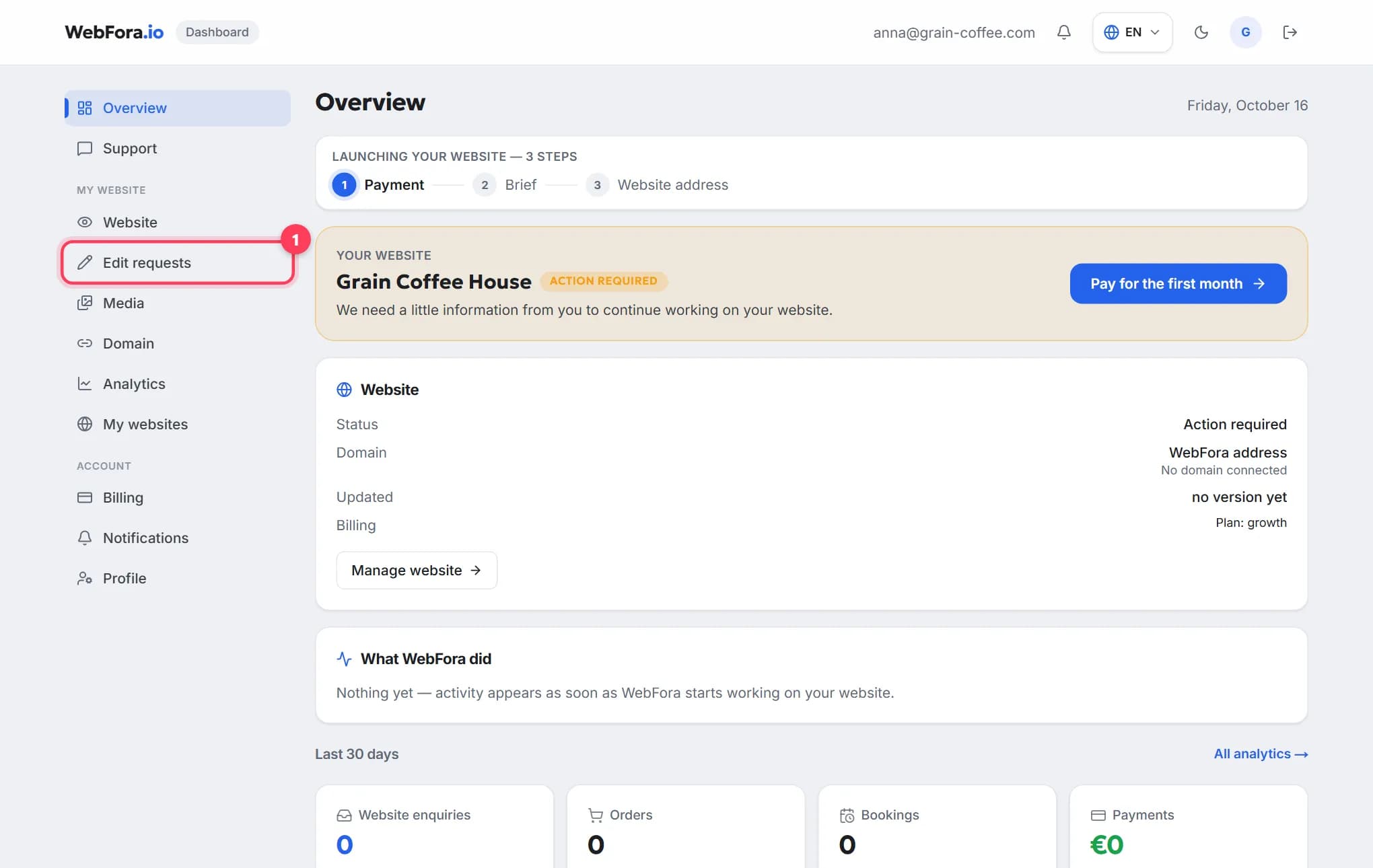
How to request changes to your website
Get text, photos, prices or opening hours changed on your website: send an edit request, see your free edits left, get quotes for custom work, track it.
5 min read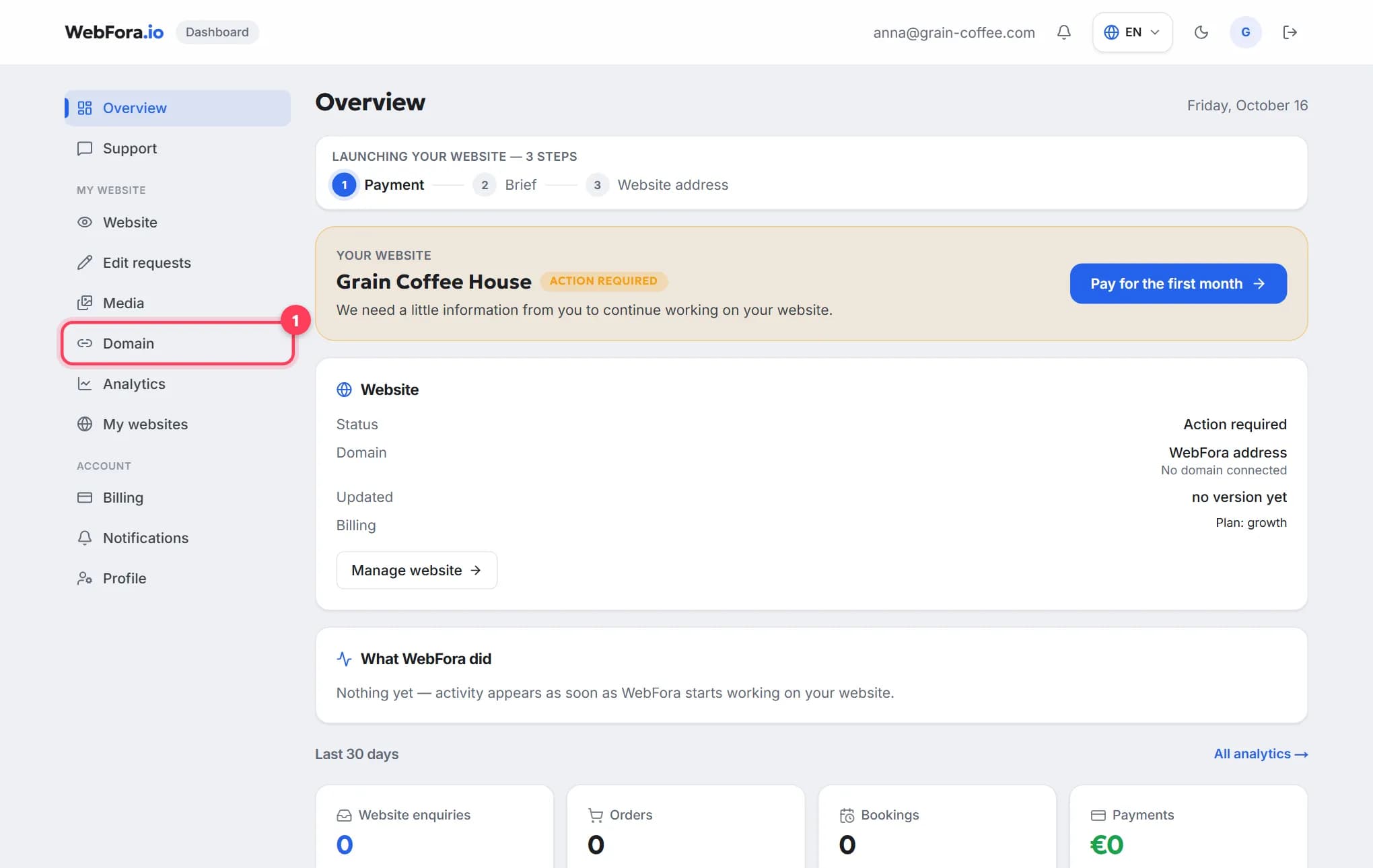
How to connect your own (custom) domain to your WebFora website
Connect your own domain to your WebFora website in 5 minutes: enter it in the dashboard, set two nameservers at your registrar — we do DNS, SSL and HTTPS.
6 min read