Website enquiries: where they land and how to get notified
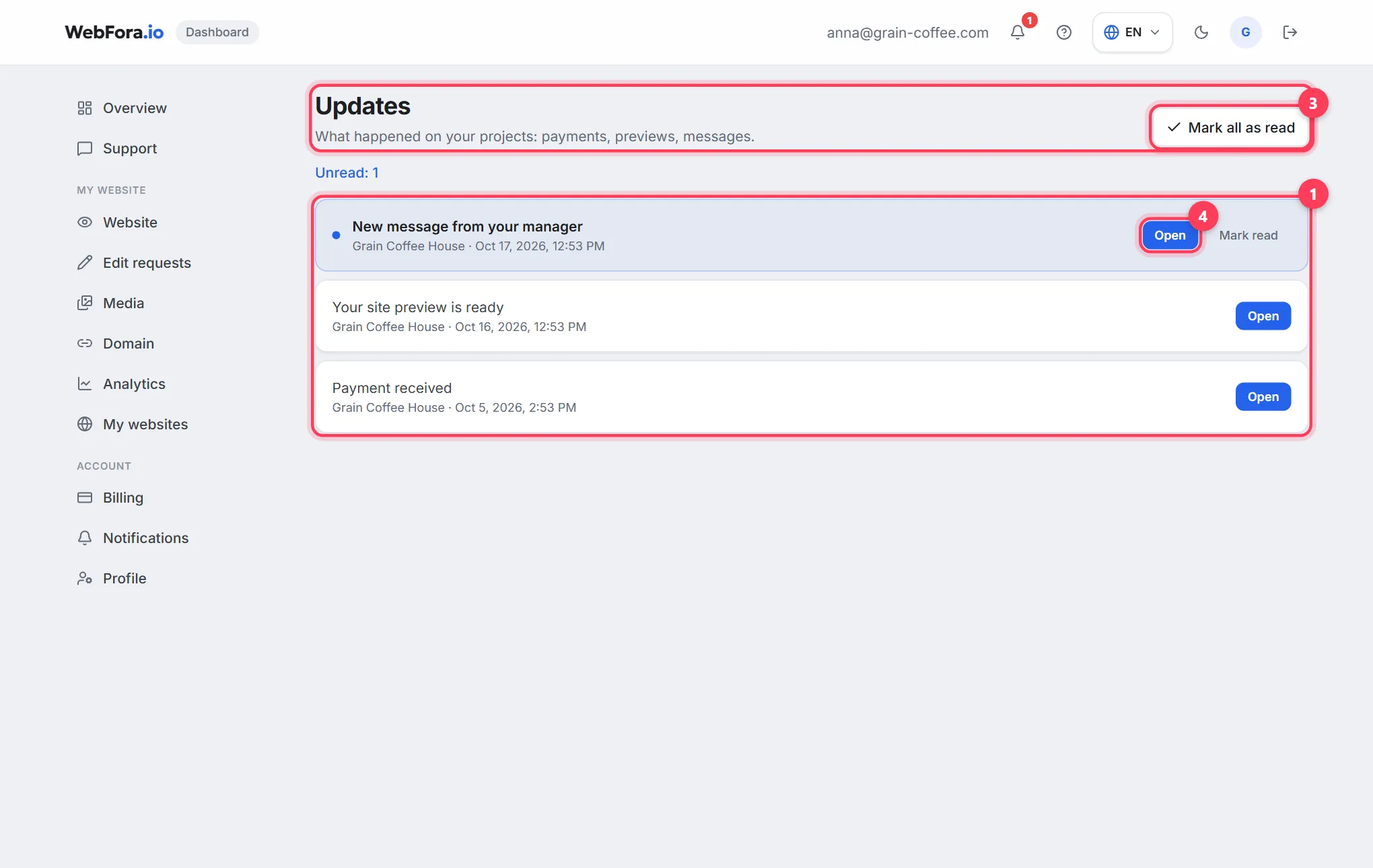
Enquiries from your website land in your WebFora dashboard: the counter and latest ones are on Overview, the details in Analytics, and the “New → Contacted → Handled” stages in the CRM pipeline. So you never miss one, connect Telegram (via the WebFora bot in one step), email or WhatsApp in the Notifications section — and send a test notification.
Where website enquiries go
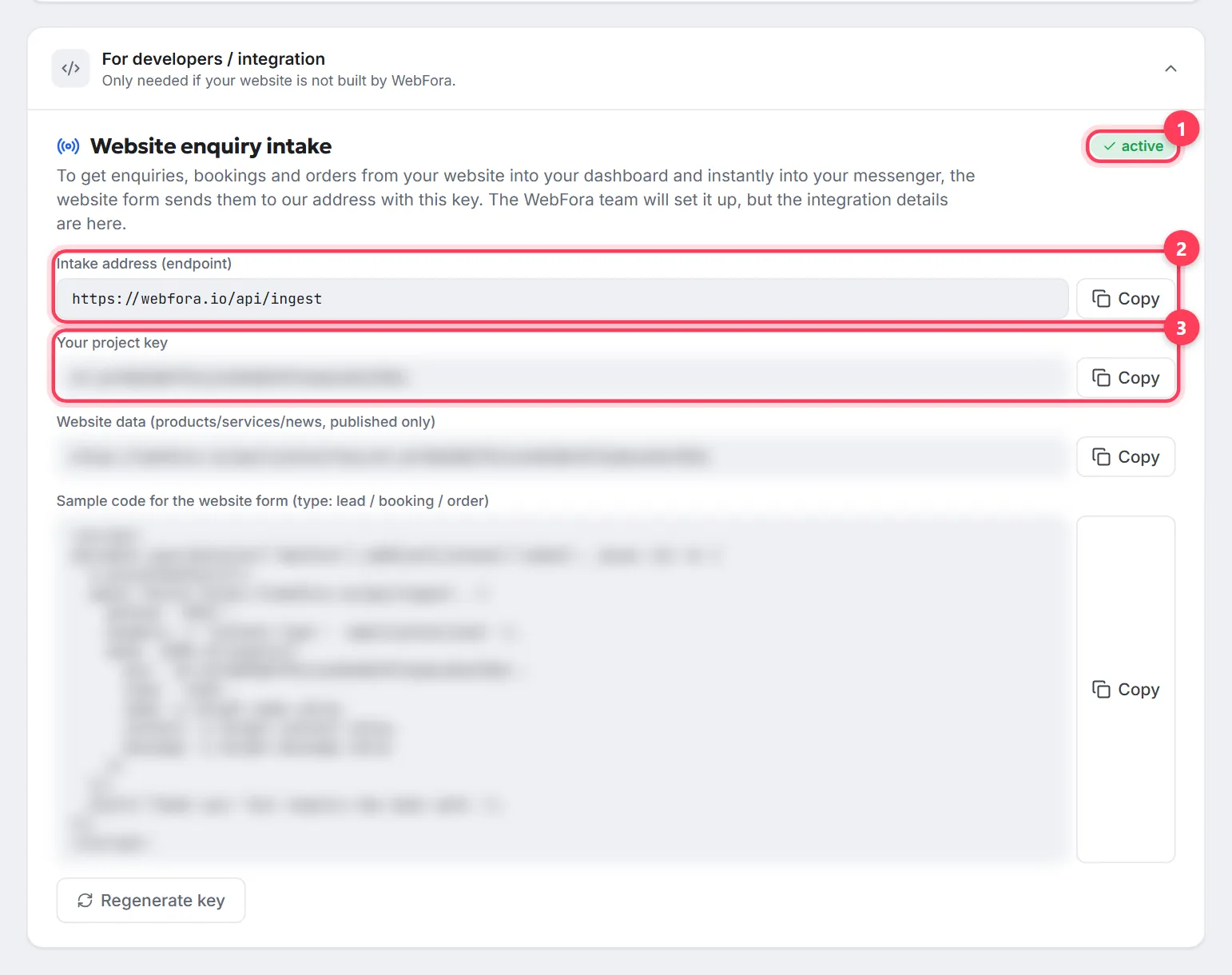
The form on your website sends every enquiry, booking or order to your dashboard. The WebFora team sets up the intake; the integration details (“Endpoint”, “Your project key”, a code sample) sit in the Notifications section under “Website enquiry intake” with the “active” badge. From there an enquiry is visible in several places:
| Where | What you see |
|---|---|
| Overview | The “Website enquiries” card for 30 days, the “Enquiries by day” chart, the “Recent activity” list (name, website, when) |
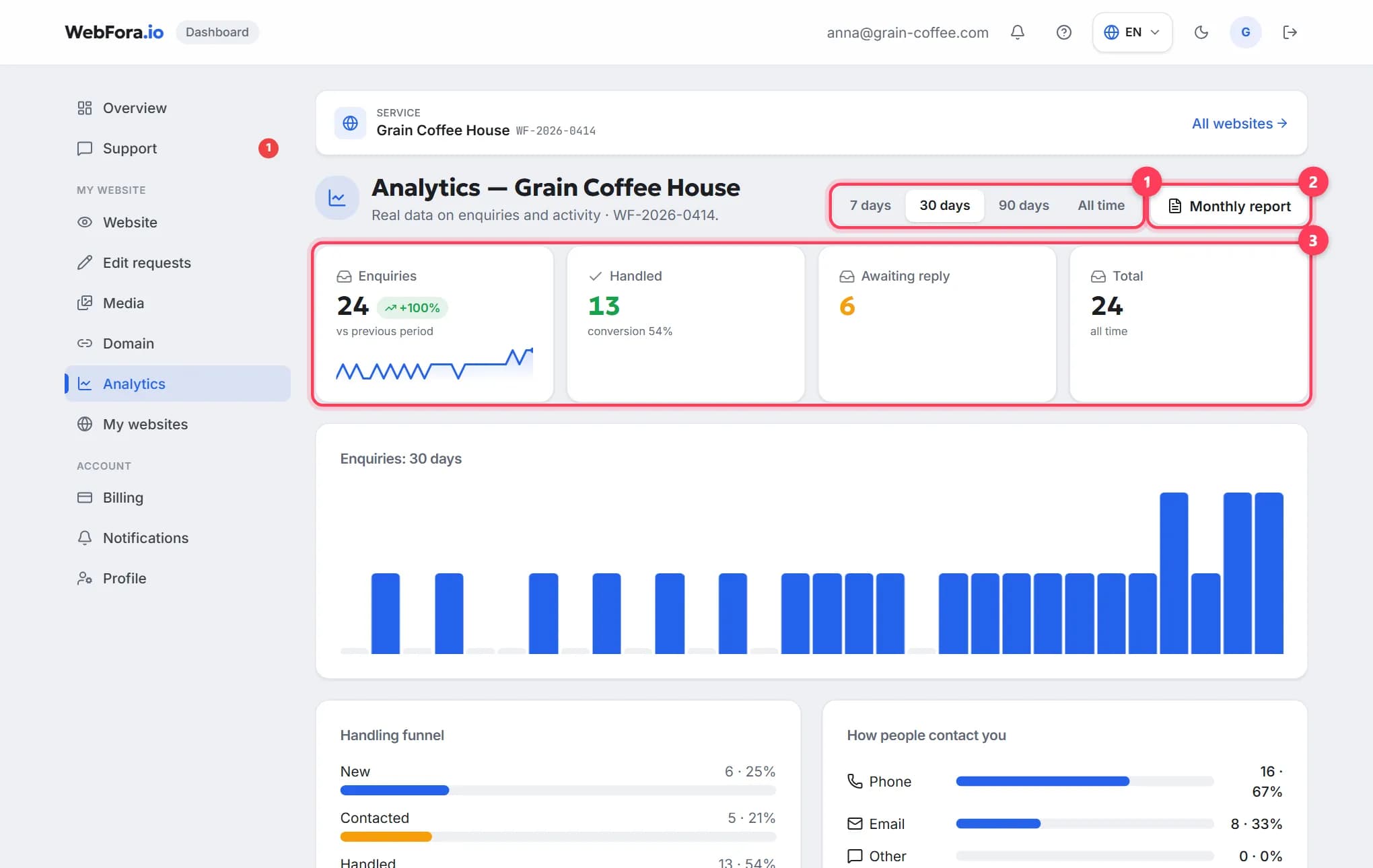
| Analytics | Enquiries by period, handling funnel, contact channels, days of the week and time of day |
| CRM pipeline | Each enquiry as a card: contact, message, note, stage — available with the “Automation + CRM” module |
| Messenger / email | An instant alert according to your Notifications settings |
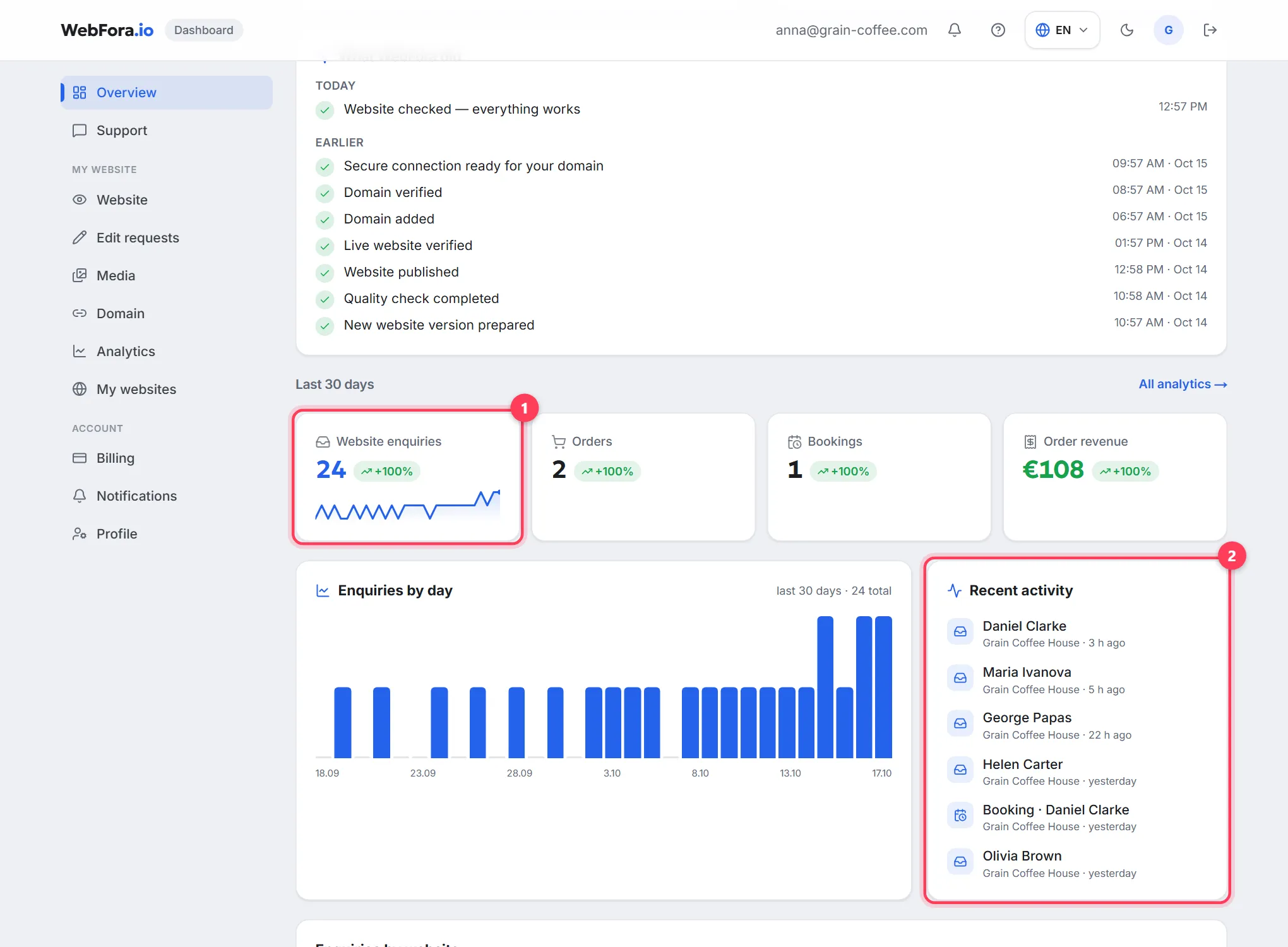
How to read these numbers is explained in website analytics for business owners; where each card sits is shown in the client dashboard tour.
Enquiry statuses: the CRM pipeline
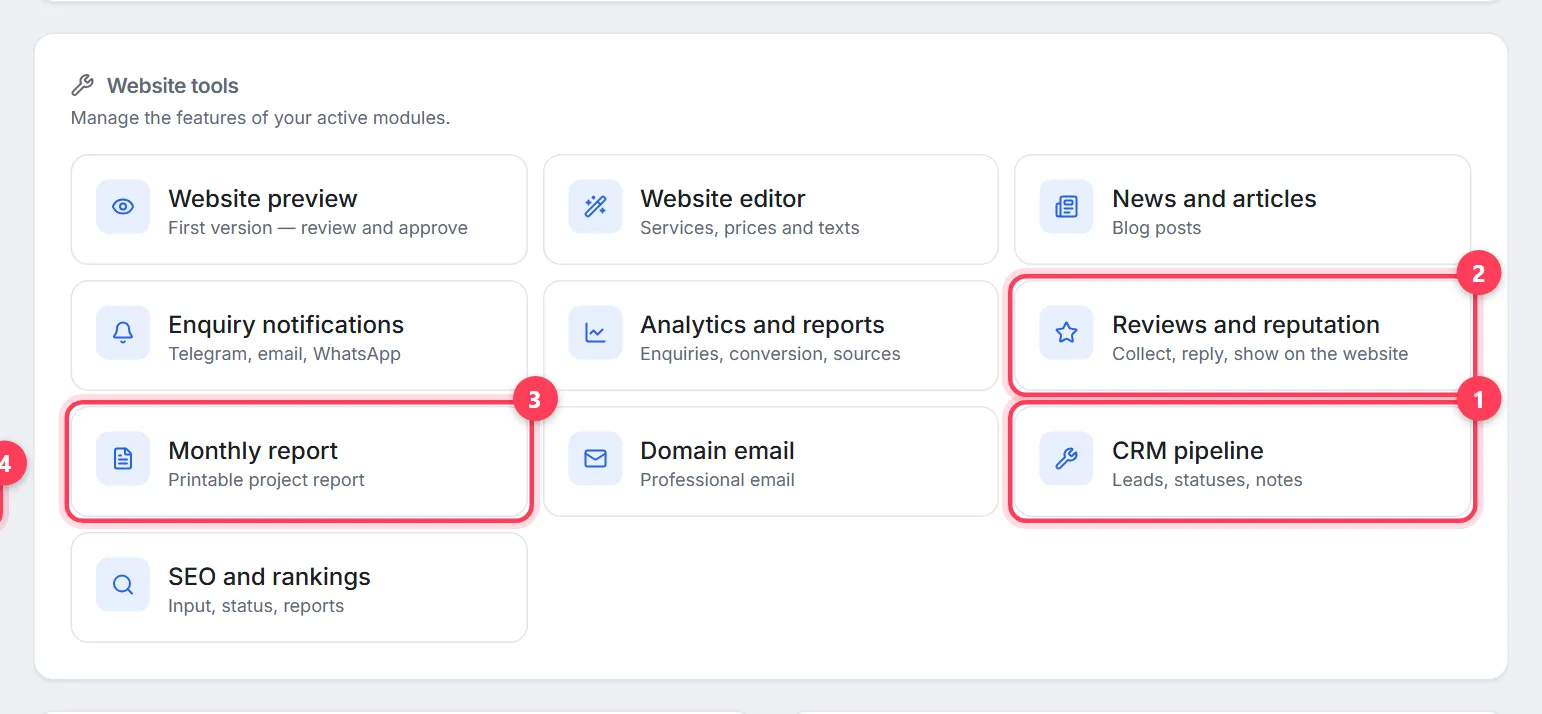
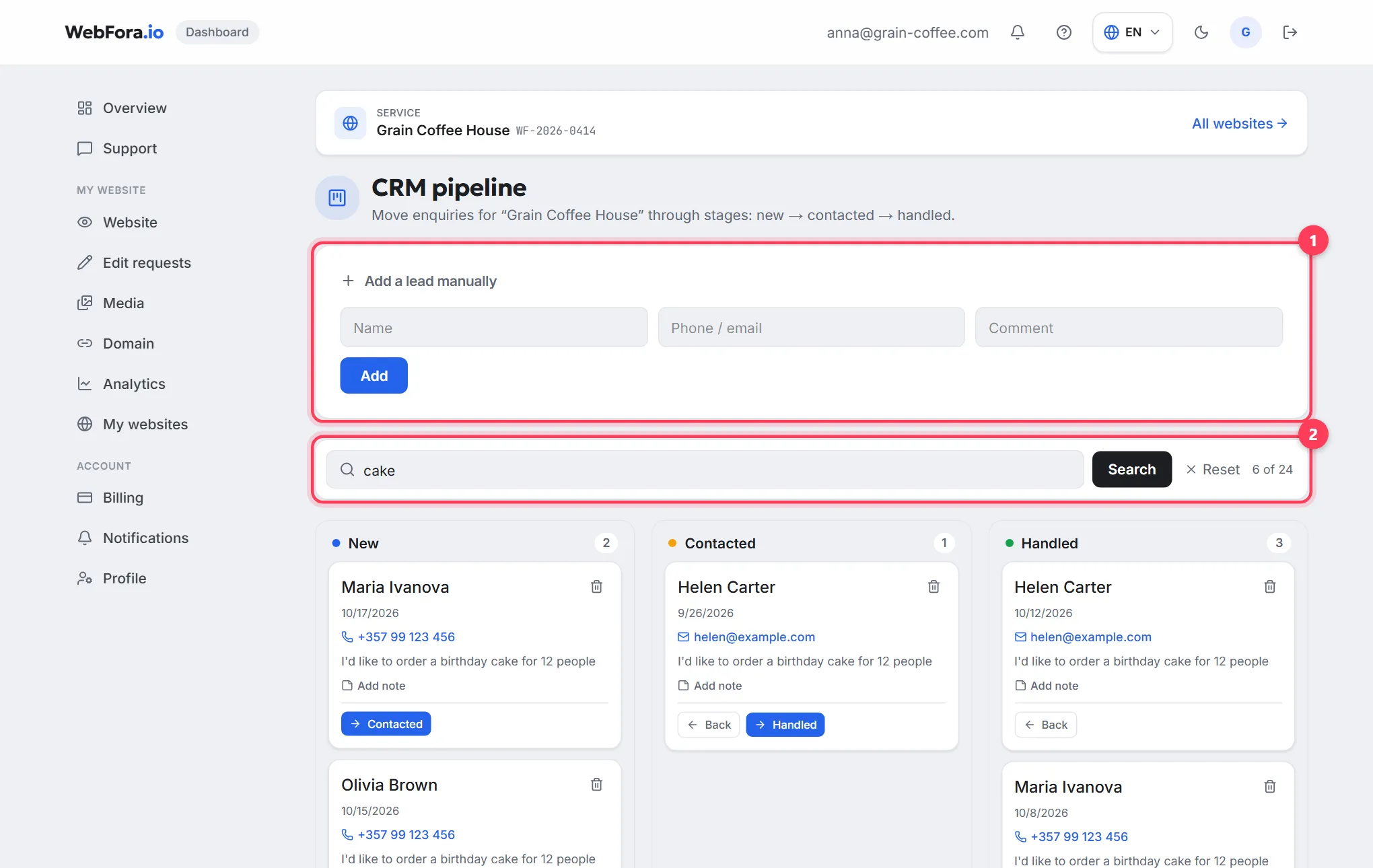
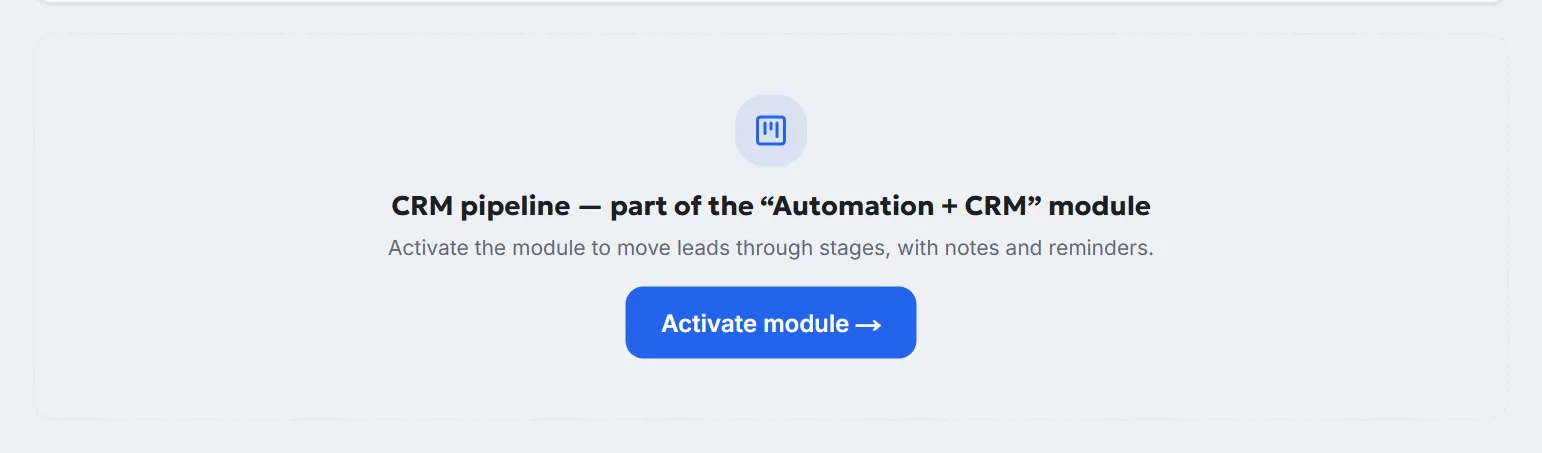
The “CRM pipeline” opens from the website's page: “My websites” → the website → “Website tools” (address /dashboard/crm). It's part of the “Automation + CRM” module; without it the section says “CRM pipeline — part of the ‘Automation + CRM’ module” with an “Activate module →” button.
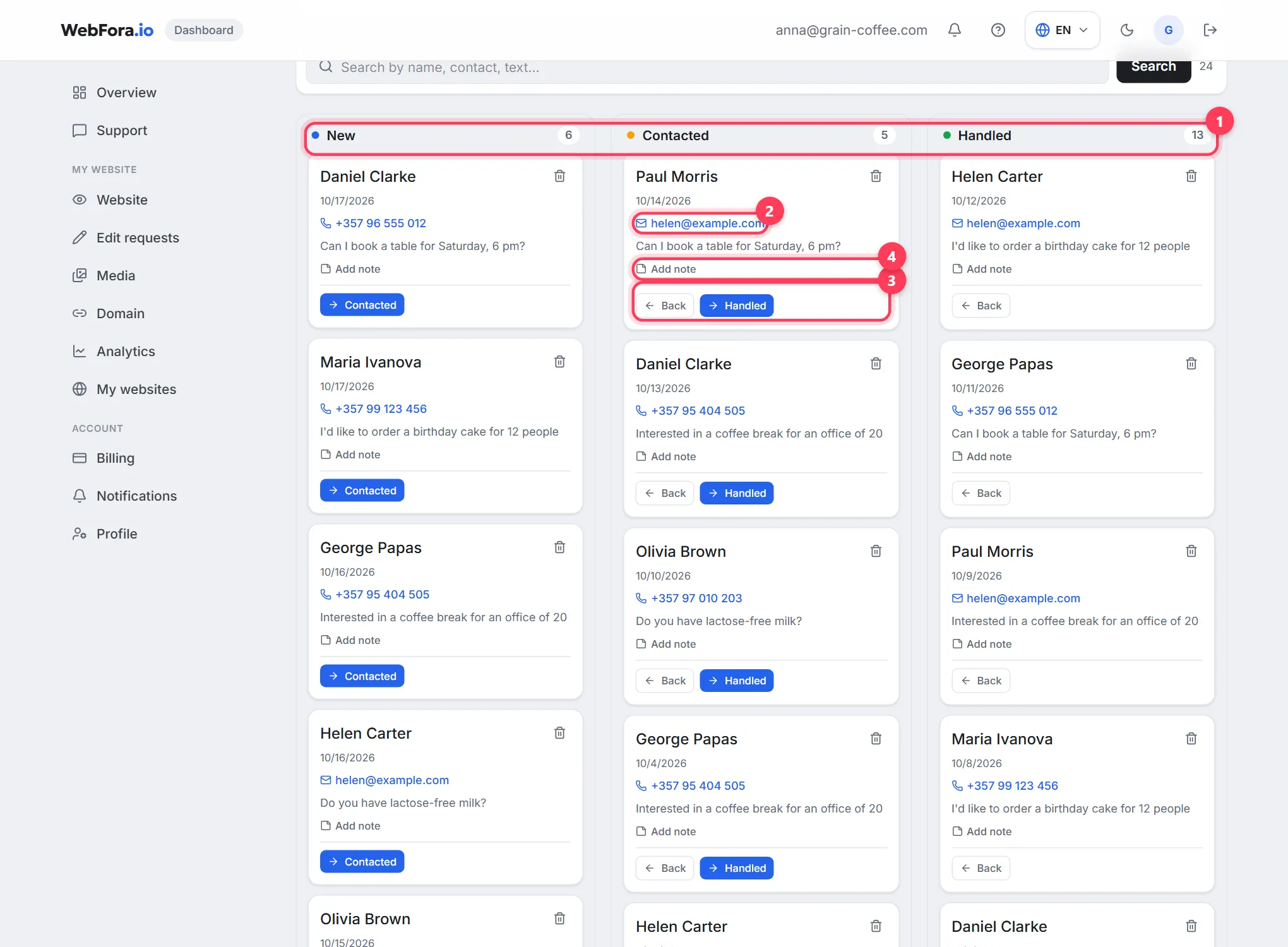
- Three columns: “New” → “Contacted” → “Handled”. The “Contacted” and “Handled” buttons on a card move it forward, “Back” moves it one stage back.
- The contact on a card is clickable: a phone number starts a call, an email opens a message.
- “Add note” — an internal comment about the lead (“call back on Wednesday”); saved with “Save”.
- “Add a lead manually” — for enquiries that came by phone or messenger: name, phone / email, comment — it lands in “New”.
- Search by name, contact and text; a card is deleted with the bin icon after the “Delete this lead?” confirmation.
Setting up enquiry notifications
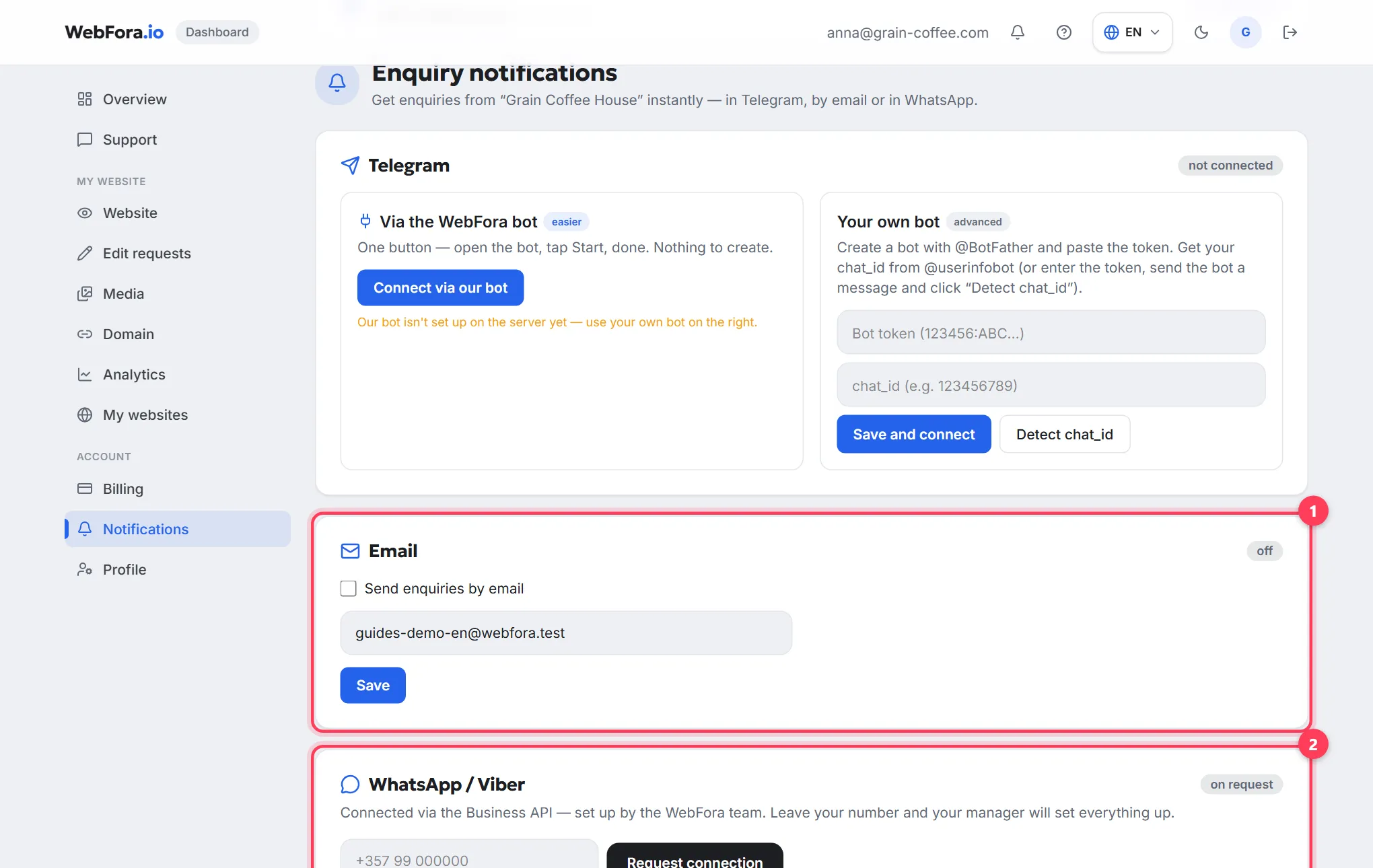
The “Notifications” section in the “Account” group is configured per website (with several websites you pick one first). The page title is “Enquiry notifications”, with three blocks: Telegram, Email, WhatsApp / Viber.
Step 1
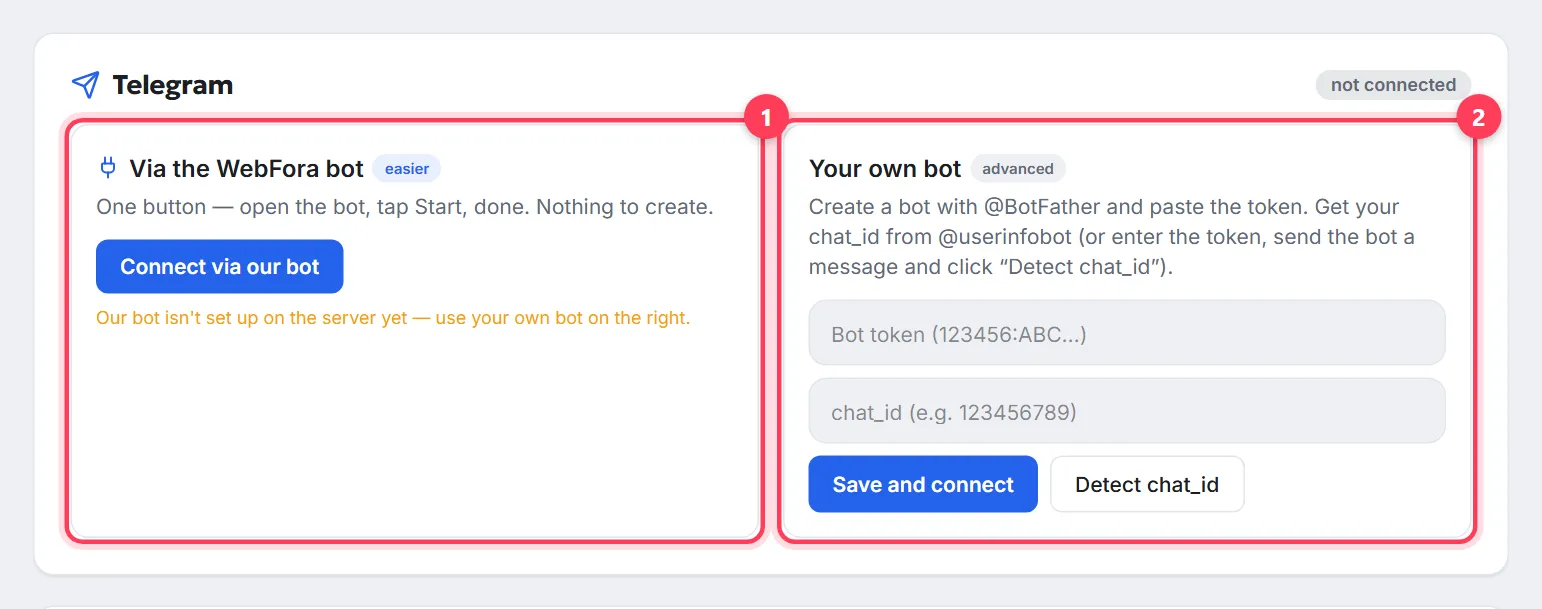
Telegram via the WebFora bot (easier)
In the Telegram block press “Connect via our bot”. You'll see “One step left”: the “Open bot” button — tap “Start” in Telegram, come back to the dashboard and press “I tapped Start — check”. The status changes to “connected”, and the line shows which chat receives the enquiries.
Step 2
Or your own bot (advanced)
The “Your own bot” option: create a bot with @BotFather, paste the token and the chat_id (or enter the token, send the bot a message and press “Detect chat_id”), then “Save and connect”. Enquiries will go to your own bot or group chat.
Step 3
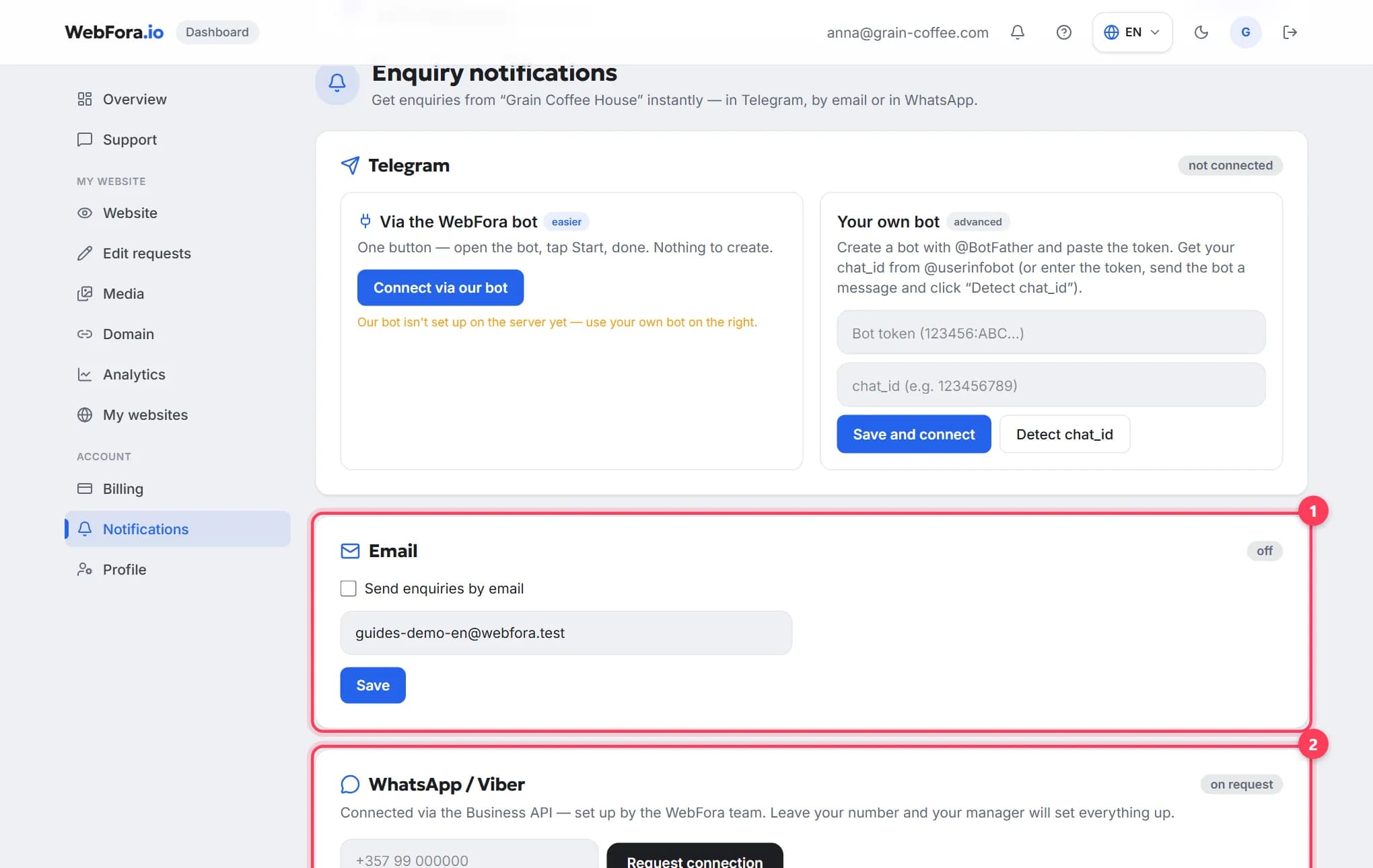
Email
Tick “Send enquiries by email”, check the address (your account email by default) and press “Save”. The block's status changes to “on”.
Step 4
WhatsApp / Viber
Connected via the Business API by the team: enter your number and press “Request connection”. The status becomes “request sent”; your manager sets up the channel and gets in touch.
Step 5
Send a test
A connected Telegram and an enabled Email each have a “Send test” button. The message “Test notification sent — check your messenger/email” means the channel works. Telegram can be switched off with “Disconnect”.
Reviews: collecting and showing them on the website
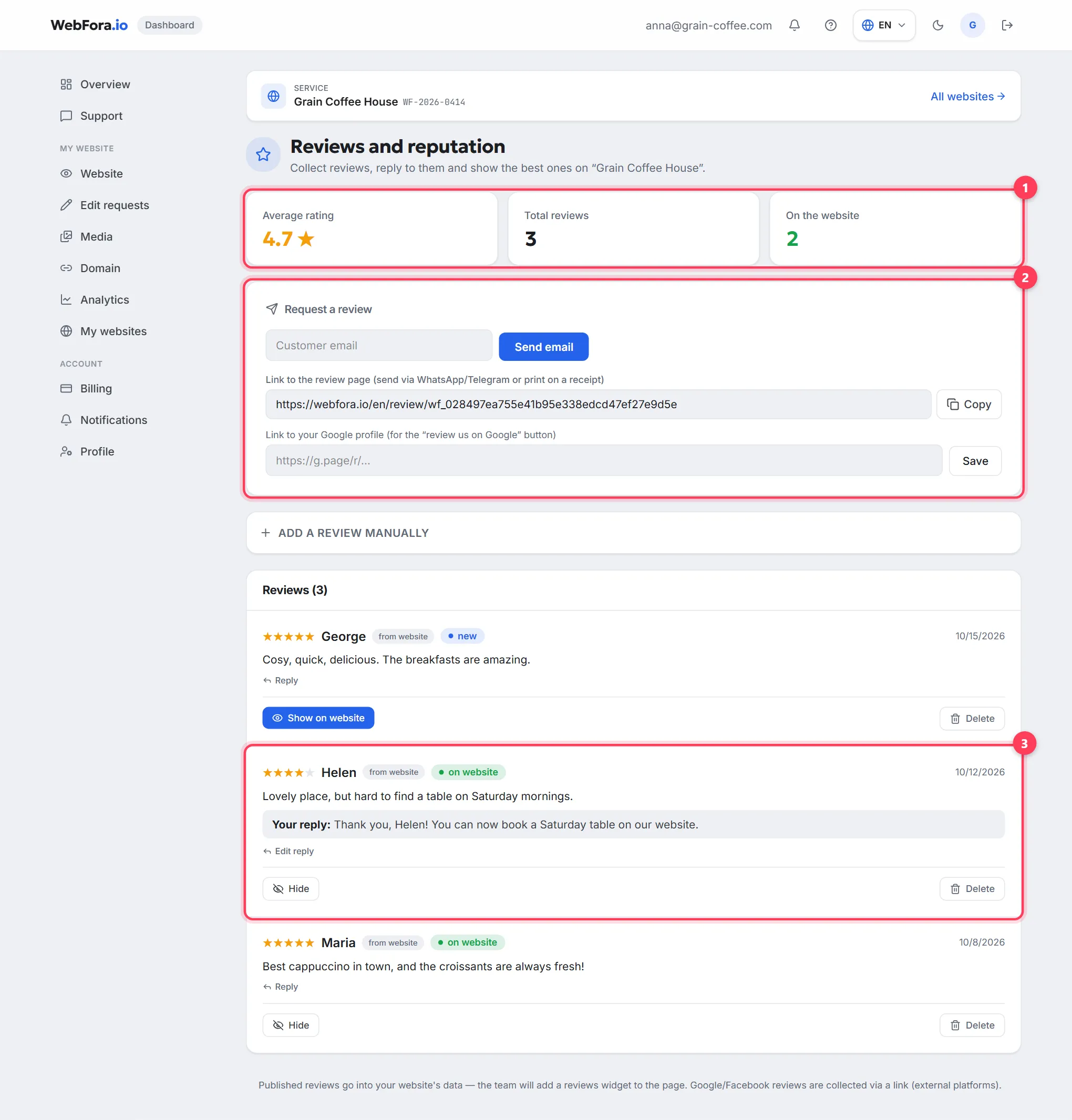
The “Reviews and reputation” section also opens from “Website tools” (address /dashboard/reviews). At the top: “Average rating”, “Total reviews”, “On the website”. Ways to collect reviews:
- “Request a review” — enter the customer's email and press “Send email”: they get a link to the review page.
- “Link to the review page” — copy it and send via WhatsApp/Telegram or print it on a receipt; reviews left there arrive straight into this section.
- “Link to your Google profile” — save it and the review page gets a “review us on Google” button.
- “Add a review manually” — for reviews customers left in person or in a messenger.
Each review has the status “new”, “on website” or “hidden”; the “Show on website” / “Hide” buttons and “Reply” — your reply is published under the review. Published reviews go into your website's data, and the team adds a reviews widget to the page.
FAQ
Where can I see enquiries from my website?+
On Overview — the 30-day counter and “Recent activity”; in Analytics — all enquiries by period; in the CRM pipeline (with the “Automation + CRM” module) — each enquiry with its contact and stage.
How do I get enquiries in Telegram?+
Notifications → Telegram block → “Connect via our bot” → “Open bot” → tap Start → come back and press “I tapped Start — check”. For a group chat or your own bot there's the “Your own bot” option with a token and chat_id.
Can I receive enquiries on several channels at once?+
Yes: Telegram, email and WhatsApp are configured independently, an enquiry goes to every connected channel, and it always stays in the dashboard.
I'm not getting enquiries — what should I check?+
Press “Send test” in Notifications: if the test arrives, the channel works — check whether the email went to spam. If the test fails, reconnect the channel or message your manager in Support.
What do “New”, “Contacted” and “Handled” mean?+
“New” — you haven't replied yet; “Contacted” — you replied and are waiting for the customer's decision; “Handled” — the enquiry is closed (the customer came or declined). Analytics uses them for conversion and the awaiting-reply count.
How do I add an enquiry that came by phone?+
In the CRM pipeline, use “Add a lead manually”: name, phone or email, comment — the card appears in the “New” column.
How do I collect customer reviews for the website?+
In “Reviews and reputation”, email the customer with “Request a review” or copy the “Link to the review page”. Publish incoming reviews with “Show on website”.
Was this guide helpful?
Related guides
Website analytics: what the numbers mean for a business owner
Website analytics in the WebFora dashboard, in plain words: enquiries, conversion, contact channels, days and hours, traffic, SEO and the Monthly report.
6 min read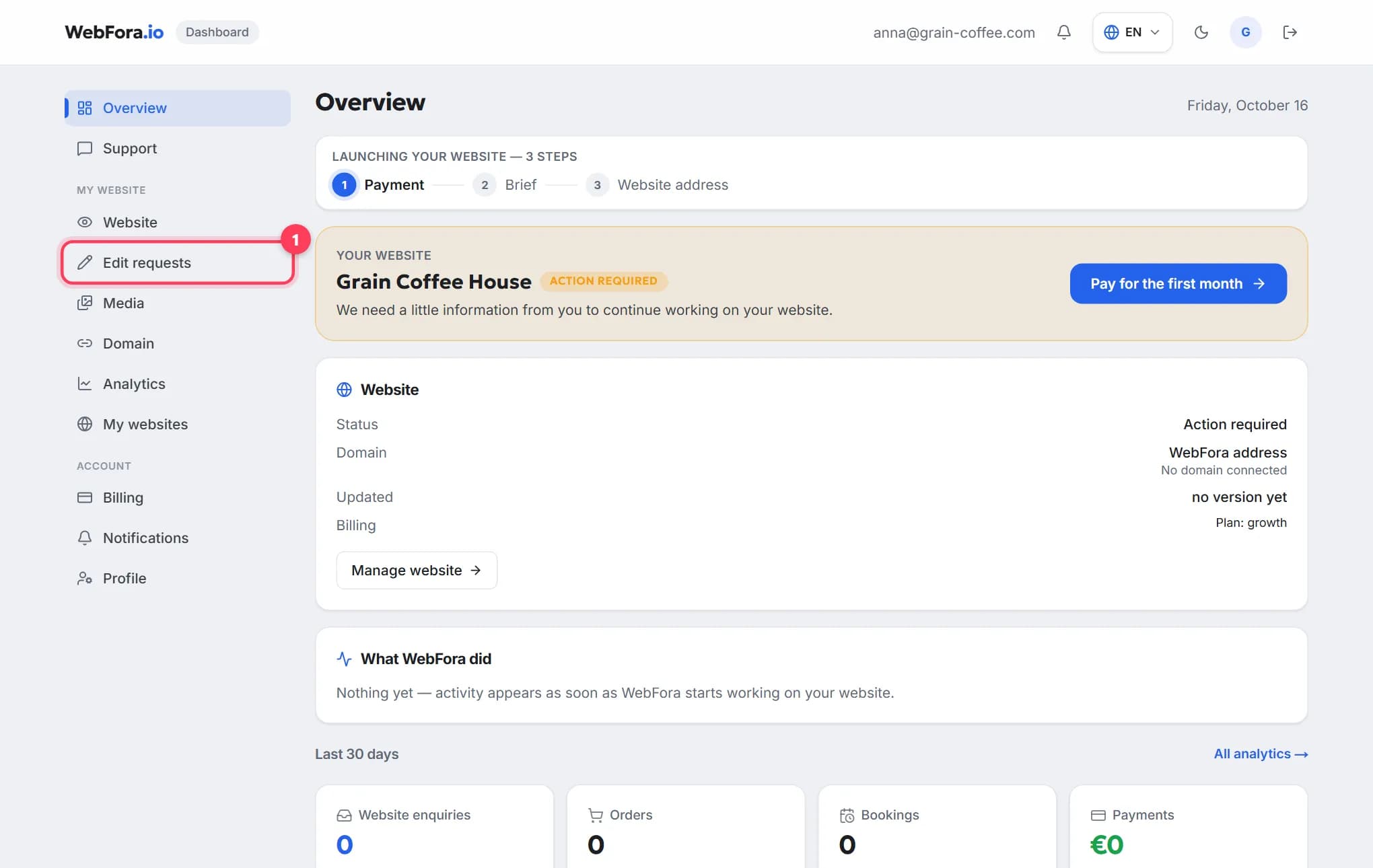
The WebFora client dashboard: what is where
A tour of the WebFora client dashboard: each menu item, the website status block, what the team did, 30-day enquiries and where to message your manager.
6 min read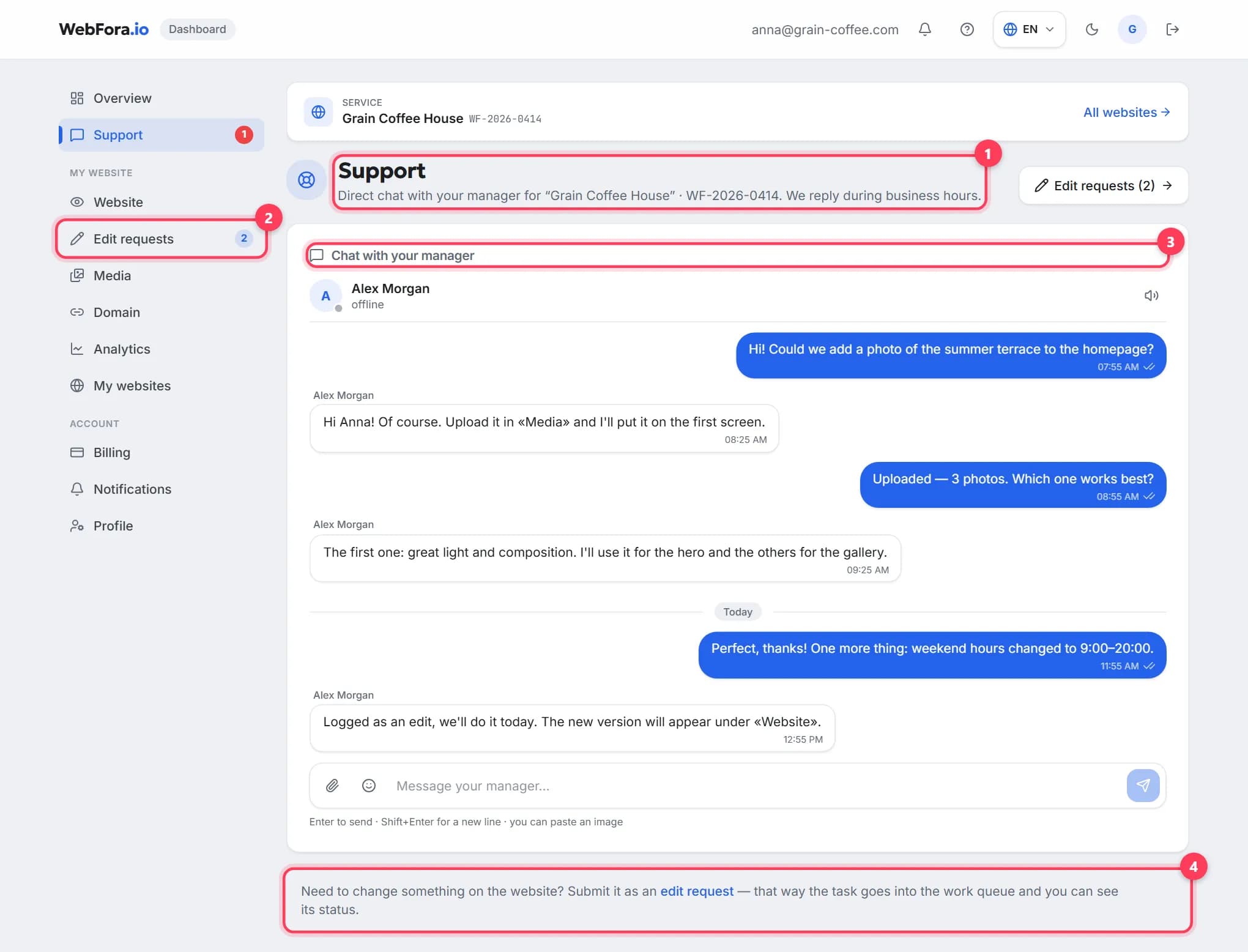
How to message your manager in the chat and get a quick reply
Messaging your WebFora manager: the Support chat, who replies and when, attachments up to 10 MB, chats under edits, what to write for a fast answer.
5 min read