Your domain at Namecheap: change nameservers, DNS records, transfer and renewal
At Namecheap everything about a domain lives under Domain List → Manage. To point the domain to a website you switch the Nameservers drop-down to Custom DNS and paste the two nameservers your website provider gives you; DNS records are on the Advanced DNS tab; the EPP code and the transfer lock are on Sharing & Transfer. This page walks through each screen.
Buying a domain at Namecheap
Namecheap is one of the largest ICANN-accredited RegistrarA registrar is the company you buy and renew a domain from (GoDaddy, Namecheap, IONOS…). Its control panel is where you change nameservers, DNS records and renewal settings.→ and a common choice for small businesses outside the US as well: the panel is in English, cards from most countries work, and WHOIS privacy is included. Search for the name on the homepage, add it to the cart, and at checkout check the renewal price (it is usually higher than the first-year price) and whether auto-renew is on. The general checklist is in How to buy a domain.
Confirm your email and switch on WHOIS privacy
- After the purchase Namecheap sends a contact verification email (an ICANN requirement). If you don't click the link within 15 days, the domain is suspended and the website stops opening — check the spam folder.
- Domain privacy (hiding your name and address from the public WHOISWHOIS is the public lookup that shows who registered a domain, when it expires and which nameservers it uses. Most registrars hide personal details with free privacy protection.→ database) is included free with Namecheap domains; you can see it on the domain's Manage page. Keep it on.
- Two-factor authentication for the Namecheap account is in Profile → Security — turn it on: whoever controls the account controls the domain.
Change nameservers at Namecheap (connect the domain to a website)
This is the step a WebFora client needs. Nameservers (NS)Nameservers are the servers that hold your domain's DNS records. Changing them (usually two addresses like ns1.example.net) hands the whole DNS setup to a new provider — the simplest way to connect a domain to a website.→ tell the internet who manages the domain's settings. Your WebFora dashboard (section “Domain”) shows two addresses like ….ns.cloudflare.com — you paste them here, and we take care of DNS records, SSL and HTTPS. Nothing else needs to be typed — no IP addresses.
Step 1
Open Domain List → Manage
Sign in at namecheap.com. In the left sidebar click Domain List, then Manage next to the domain. How to know it worked: you see the domain's page with the tabs Domain, Products, Advanced DNS, Sharing & Transfer.
Step 2
Find the Nameservers block and pick Custom DNS
On the Domain tab scroll to the Nameservers section. Open the drop-down (it says *Namecheap BasicDNS* by default) and choose Custom DNS. Two empty fields appear.
Step 3
Paste the two nameservers from your WebFora dashboard
Copy each address exactly as shown in the dashboard's domain card — one per field, no
https://, no spaces, no IP addresses (Namecheap itself asks for names only). Click the green ✓ (checkmark) to save. How to know it worked: the block now shows your two addresses and a note that changes may take up to 24–48 hours.Step 4
Wait and check
Namecheap says the change can take up to 24 hours (sometimes longer). WebFora re-checks the domain automatically every 10 minutes and turns on SSL by itself; the status in the dashboard changes from “awaiting DNS setup” to “live”. You can check the current nameservers yourself with the tool below.
Check your domain
Enter a domain to see its current nameservers, where the website points, whether www and email are set up, and which registrar it's with.
DNS records at Namecheap (A, CNAME, TXT) — the fallback method
You only need this if you keep Namecheap's own nameservers (BasicDNS / PremiumDNS) and connect the website with records instead of nameservers — for example because other services already depend on this DNS zone. WebFora shows the exact records to add in the “Connect with an A record” card; copy them from there, this page never lists values.
Step 1
Open the Advanced DNS tab
Domain List → Manage → Advanced DNS. The Host Records section lists existing records.
Step 2
Click Add New Record
Pick the Type (A recordAn A record is the DNS entry that says «this name lives at this IPv4 address». It's how a domain is pointed at a server when you connect by IP instead of changing nameservers.→, CNAME recordA CNAME record makes one name an alias of another — e.g. www.yourdomain.com → yourdomain.com, or shop.yourdomain.com → your shop platform's address. Used for www and subdomains, not for the bare domain.→ or TXT recordA TXT record is a free-text DNS entry used to prove you own the domain (Google, Meta, Microsoft) and to set email rules (SPF, DKIM, DMARC). Harmless to add, essential for verification.→), fill in Host (
@for the domain itself,wwwfor the www version) and Value, leave TTLTTL (time to live) is how long, in seconds, a DNS record may be cached before it's re-checked. It decides how fast changes spread: 300 = 5 minutes, 86400 = a day. Leave the default unless you are planning a move.→ on Automatic.Step 3
Save with the green checkmark
Namecheap says new records usually apply within about 30 minutes. Remove any conflicting URL Redirect, A or CNAME record for the same host — two records for
@of different types will not work together.
EPP code and unlocking the domain for a transfer
A transfer means moving the domain to another registrar. You do not need it to connect a domain to WebFora — nameservers are enough. If you still want to move it, you need the EPP code (auth code)The EPP code (auth code) is a password for your domain that the old registrar gives you when you move it to a new one. Without it a transfer cannot start.→ and the domain must be unlocked.
Step 1
Check the conditions
The domain must be registered more than 60 days ago and not transferred in the last 60 days; it can't be expired or in redemption. Make sure you have access to the registrant email — the code is sent there, not necessarily to your account email.
Step 2
Open Sharing & Transfer
Domain List → Manage → Sharing & Transfer tab. In the Transfer Out section switch off the Registrar Lock (Domain Lock) and request the Auth Code. Namecheap asks for a reason for the transfer — any answer is fine.
Step 3
Enter the code at the new registrar
The new registrar starts the transfer; Namecheap has up to 5 days to release the domain, and you can usually approve it earlier from the same tab. Full process: How to transfer a domain.
Renewal and auto-renew
- Per domain: Domain List → Manage → the Auto-Renew toggle on the Domain tab (there is a separate toggle for Domain Privacy). Or expand the domain's row in Domain List with the caret and toggle it there.
- Several domains: select them in Domain List → Actions → Auto-Renew.
- Namecheap attempts the renewal about 30 days before expiry, first from your account balance, then from a card marked for auto-renewal. PayPal cannot be used for automatic domain renewals — add a card or top up the balance.
- If the charge fails, it retries every 24 hours until the domain expires. An expired domain goes through a grace period and then redemption (restoring it costs extra) — keep a valid card on file.
Namecheap support
24/7 live chat from the Help Center (namecheap.com/support) and tickets from the account; there is no phone line. Searchable knowledgebase at namecheap.com/support/knowledgebase. For anything about connecting the domain to your WebFora website write to your manager in the dashboard chat instead — we see the DNS side.
Namecheap quirks worth knowing
- “Custom DNS” vs “Namecheap Web Hosting DNS” — the drop-down has several options; for WebFora (or any external website) it is always Custom DNS.
- Names only in the nameserver fields: Namecheap rejects IP addresses there even if a provider gave you both.
- Verification email goes to the registrant contact: if you used a different email at checkout, look there.
- Renewal price ≠ first-year price — promo pricing applies to the first year only; check the renewal price in the cart.
- PremiumDNS is a paid add-on — not needed when the domain is on WebFora nameservers.
- EPP code by email — it arrives at the registrant address within minutes; if it doesn't, check WHOIS privacy is not forwarding to a mailbox you no longer read.
FAQ
Where do I change nameservers at Namecheap?+
Domain List → Manage next to the domain → Nameservers section on the Domain tab → choose Custom DNS → enter the nameservers → click the green checkmark.
How long does a Namecheap nameserver change take?+
Namecheap says up to 24 hours, sometimes longer; in practice often 1–2 hours. WebFora re-checks the domain every 10 minutes and switches on SSL automatically once the change is visible.
Do I need to enter an IP address at Namecheap for WebFora?+
No. With the nameserver method you enter only the two nameserver addresses from your dashboard. IP addresses are never needed; Namecheap's nameserver fields don't even accept them.
Where is the EPP code at Namecheap?+
Domain List → Manage → Sharing & Transfer → Transfer Out: disable the Registrar Lock and request the Auth Code. It is emailed to the registrant address.
What's the difference between BasicDNS and Custom DNS?+
BasicDNS means Namecheap's nameservers answer for the domain and you manage records on Advanced DNS. Custom DNS means another provider's nameservers (e.g. the ones WebFora gives you) answer, and records are managed there.
Will my email keep working after changing nameservers?+
If the email records (MX, TXT) are recreated at the new DNS provider — WebFora copies them before the switch. If you manage DNS yourself, add the MX records at the new provider first.
Is WHOIS privacy free at Namecheap?+
Domain privacy is included free with Namecheap domains and is on by default; you can see its status on the domain's Manage page.
Can I transfer a domain away from Namecheap right after buying it?+
No — ICANN rules require 60 days after registration or a previous transfer. You can connect it to a website via nameservers immediately, though.
Was this guide helpful?
Related guides
How to connect your own (custom) domain to your WebFora website
Connect your own domain to your WebFora website in 5 minutes: enter it in the dashboard, set two nameservers at your registrar — we do DNS, SSL and HTTPS.
6 min read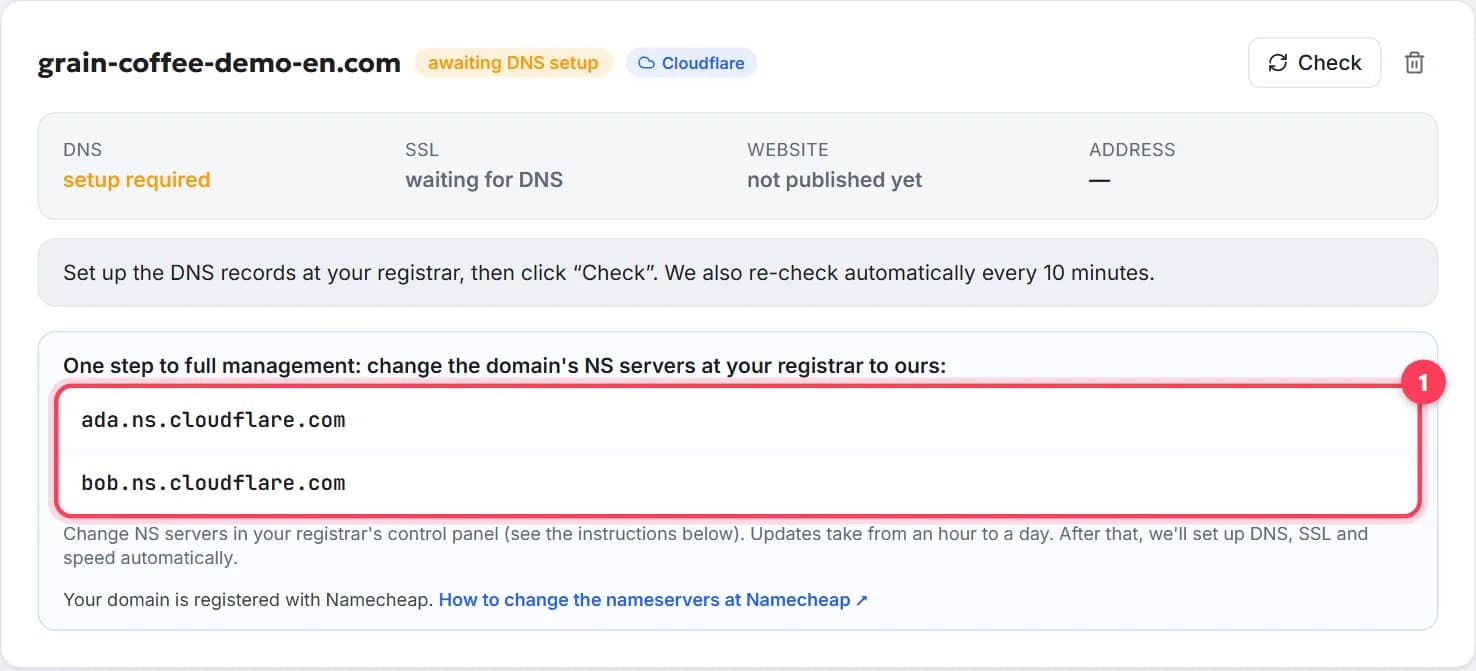
How to change the nameservers of a domain, step by step
Change your domain's nameservers in 5 minutes: what they are, where to click at GoDaddy, Namecheap, Porkbun, IONOS, how long it takes, what about email.
7 min readHow to transfer a domain to another registrar, step by step
Transfer a domain name to a new registrar in 5 steps: unlock, get the EPP/auth code, the 60-day rule, how long it takes, cost, what keeps working.
9 min read