Your domain at IONOS: change nameservers, DNS records, transfer and renewal
At IONOS a domain is managed under Domains & SSL: the gear icon next to the domain → Name Server → Use Custom Name Servers connects it to a website; the same gear → DNS holds A/CNAME/TXT records; the authorization code is on the Renewal & Transfer page under Domains. This page walks through each screen, including the IONOS contract logic that surprises people.
Buying a domain at IONOS
IONOS (formerly 1&1) is the largest European RegistrarA registrar is the company you buy and renew a domain from (GoDaddy, Namecheap, IONOS…). Its control panel is where you change nameservers, DNS records and renewal settings.→ and hosting company, strong in Germany, the UK, Spain and France. Search the name on your country's IONOS site and add it to the cart. Two things to know before paying: the first year is usually heavily discounted and the renewal price is different, and a domain at IONOS is a contract — renewal happens automatically until you cancel it. General checklist: How to buy a domain.
Confirm your email and WHOIS privacy
- Confirm the domain owner's email from the IONOS message after registration (ICANN rule) — otherwise the domain is suspended after 15 days.
- IONOS has discontinued its paid Private Registration add-on under the EU NIS2 rules: private individuals' data is withheld from public WHOISWHOIS is the public lookup that shows who registered a domain, when it expires and which nameservers it uses. Most registrars hide personal details with free privacy protection.→ by law; companies' contact details are published. If you're a sole trader and don't want to be listed as an organisation, leave the Company field of the owner contact empty.
- Turn on two-factor authentication under My Account → login security.
Change name servers at IONOS (connect the domain to a website)
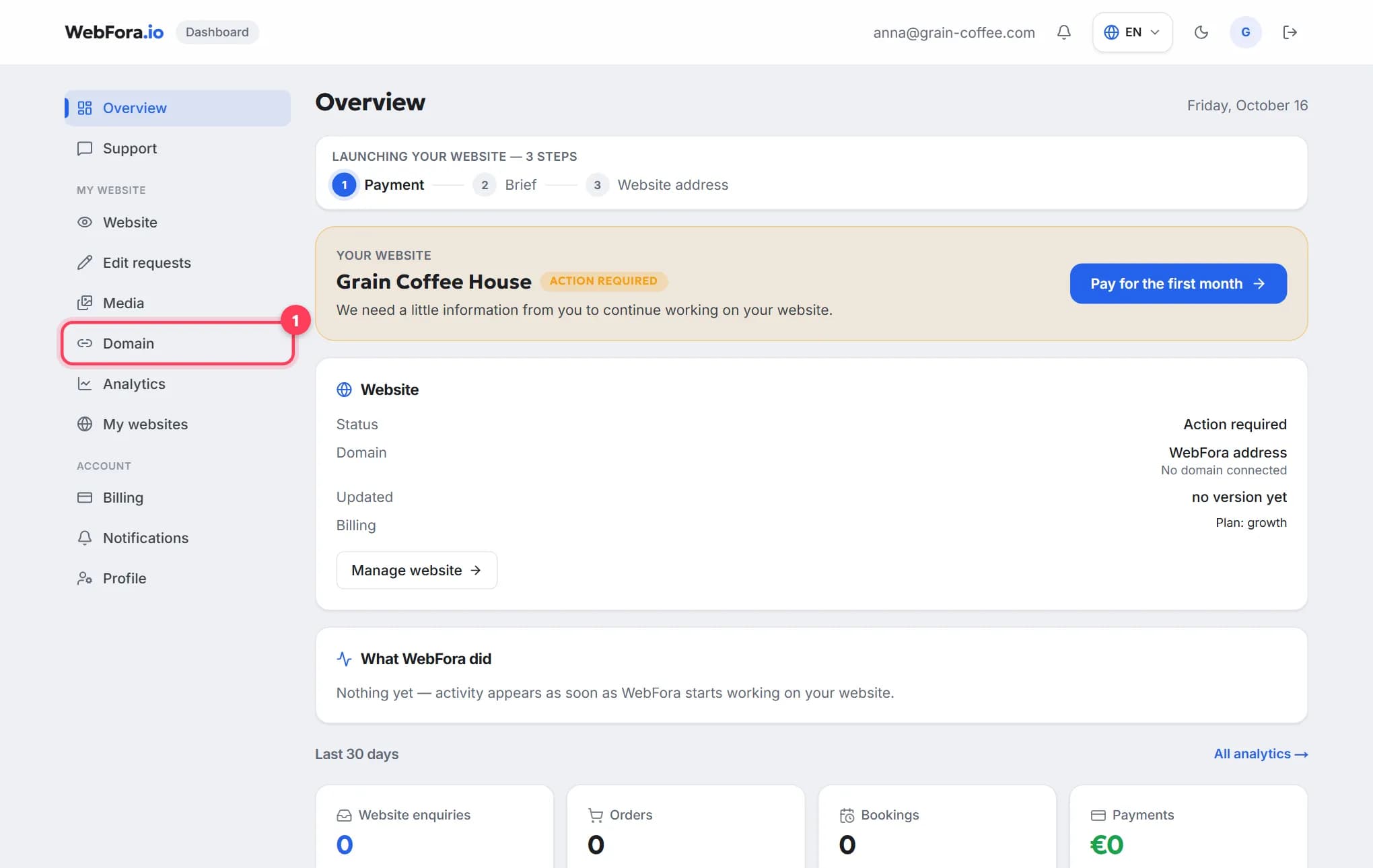
The step a WebFora client needs. Nameservers (NS)Nameservers are the servers that hold your domain's DNS records. Changing them (usually two addresses like ns1.example.net) hands the whole DNS setup to a new provider — the simplest way to connect a domain to a website.→ (IONOS writes it as two words) decide who manages the domain's settings. Your WebFora dashboard (section “Domain”) shows two addresses like ….ns.cloudflare.com — enter them at IONOS and we do DNS records, SSL and HTTPS. No IP addresses needed.
Step 1
Open Domains & SSL
Sign in at ionos.com (or your country's site) → Domains & SSL. You see the list of your domains with an Actions column.
Step 2
Gear icon → Name Server
Next to the domain click the gear icon under Actions and choose Name Server. The current setting is shown (IONOS name servers by default).
Step 3
Use Custom Name Servers and paste the two from WebFora
Click Use Custom Name Servers. Enter the first address in Name Server 1 and the second in Name Server 2 exactly as in the dashboard (Name Server 3 and 4 stay empty). Click Save. How to know it worked: the Name Server entry for the domain now shows your two addresses.
Step 4
Wait and check
IONOS says the change can take up to 48 hours to be visible everywhere; usually it is much faster. WebFora re-checks the domain every 10 minutes and switches on SSL automatically; the dashboard status becomes “live”. Check the current name servers with the tool below.
Check your domain
Enter a domain to see its current nameservers, where the website points, whether www and email are set up, and which registrar it's with.
DNS records at IONOS (A, CNAME, TXT) — the fallback method
Only if you keep IONOS name servers and connect the website with records. The WebFora dashboard shows the exact records in the “Connect with an A record” card — copy them from there; this page lists no values. Note: these records only take effect while the domain uses IONOS name servers.
Step 1
Open the domain's DNS
Domains & SSL → gear icon next to the domain → DNS. The list of records is shown.
Step 2
Add record
Click Add record, choose the type — A recordAn A record is the DNS entry that says «this name lives at this IPv4 address». It's how a domain is pointed at a server when you connect by IP instead of changing nameservers.→, TXT recordA TXT record is a free-text DNS entry used to prove you own the domain (Google, Meta, Microsoft) and to set email rules (SPF, DKIM, DMARC). Harmless to add, essential for verification.→ or (for subdomains only) CNAME recordA CNAME record makes one name an alias of another — e.g. www.yourdomain.com → yourdomain.com, or shop.yourdomain.com → your shop platform's address. Used for www and subdomains, not for the bare domain.→ — fill in Host name (
@or empty for the domain itself,wwwfor the www version) and Points to / Value. Keep the default TTLTTL (time to live) is how long, in seconds, a DNS record may be cached before it's re-checked. It decides how fast changes spread: 300 = 5 minutes, 86400 = a day. Leave the default unless you are planning a move.→. Save.Step 3
CNAME for www
IONOS manages subdomain CNAMEs via gear → Manage Subdomains → gear next to the subdomain → DNS → Add record → CNAME. A CNAME on the root domain is not allowed (and not needed). IONOS applies changes immediately; externally up to an hour.
Authorization code and transfer away from IONOS
A transfer moves the domain to another registrar — not needed to connect it to WebFora. If you want to move it, you need the EPP code (auth code)The EPP code (auth code) is a password for your domain that the old registrar gives you when you move it to a new one. Without it a transfer cannot start.→ (IONOS: Auth-Code) and the domain must not be transfer-locked.
Step 1
Open Renewal & Transfer
Domains → the Renewal & Transfer page → select the domain.
Step 2
Show Authorization Code
Click Show Authorization Code. IONOS requests the code from the registry, so it can take several minutes to appear. Copy it exactly.
Step 3
Start the transfer at the new registrar
Enter the domain and the code there and approve the confirmation email. .de domains move within hours; most others take up to 5 days. Important: the transfer does not cancel your IONOS contract — see renewal below. Full process: How to transfer a domain.
Renewal, auto-renewal and cancellation
- Automatic renewal is on by default for every IONOS domain — the term extends by a year unless you cancel.
- To stop renewal you cancel the domain (Domains → Renewal & Transfer or the cancellation page in My Account) at least 72 hours before the end of the term; reactivating auto-renewal is possible up to 48 hours before the term ends.
- After the term ends the domain enters a ~30-day redemption period and is then deleted at the registry; email and other services on it stop immediately at expiry.
- Cancelling the domain does not end the contract (the hosting/domain package it belongs to) — cancel the contract separately if you don't want further charges. The same applies after a transfer-out.
IONOS support
IONOS offers phone support in each country (24/7 in most), chat, and a help centre at ionos.com/help (and local sites: ionos.de/hilfe, ionos.co.uk/help, ionos.es/ayuda, ionos.fr/assistance). Business customers get a named “personal consultant”. For the WebFora side — name servers from the dashboard, SSL, the website — write to your manager in the dashboard chat.
IONOS quirks worth knowing
- Contract logic — domains sit inside contracts; cancelling or transferring the domain doesn't cancel the contract.
- Two name server fields are enough — leave Name Server 3 and 4 empty for WebFora.
- Reset Settings returns the domain to IONOS name servers in one click — handy if you ever need to roll back.
- The gear/three-dot menu under Actions is where everything hides (Name Server, DNS, Manage Subdomains, Transfer).
- Auth-Code appears with a delay — the code is fetched from the registry; wait a few minutes before assuming an error.
- No paid WHOIS privacy any more (NIS2) — individuals are protected by law, companies are published.
FAQ
Where do I change name servers at IONOS?+
Domains & SSL → gear icon under Actions next to the domain → Name Server → Use Custom Name Servers → enter Name Server 1 and 2 → Save.
How long does an IONOS name server change take?+
IONOS says up to 48 hours worldwide, usually much less. WebFora checks every 10 minutes and switches on SSL as soon as the change is visible.
Do I need an IP address to connect an IONOS domain to WebFora?+
No — only the two name servers from your WebFora dashboard. Records and IPs are our job.
Where is the authorization code at IONOS?+
Domains → Renewal & Transfer → select the domain → Show Authorization Code. It can take a few minutes to appear.
Does transferring my domain away end my IONOS contract?+
No. The contract stays and may keep billing. Cancel the contract separately in My Account if you don't need it.
Is WHOIS privacy available at IONOS?+
The paid Private Registration add-on was discontinued under NIS2. Private individuals' data is withheld by law; companies' contact details are published.
How do I stop a domain from auto-renewing at IONOS?+
Cancel the domain at least 72 hours before the end of its term (Domains → Renewal & Transfer / cancellation in My Account). There is no simple off switch — cancellation is the mechanism.
Will my IONOS Mail keep working after changing name servers?+
Yes if its MX/TXT records exist at the new DNS provider. WebFora copies existing records before the switch — tell your manager you use IONOS Mail so we verify.
Was this guide helpful?
Related guides
How to connect your own (custom) domain to your WebFora website
Connect your own domain to your WebFora website in 5 minutes: enter it in the dashboard, set two nameservers at your registrar — we do DNS, SSL and HTTPS.
6 min read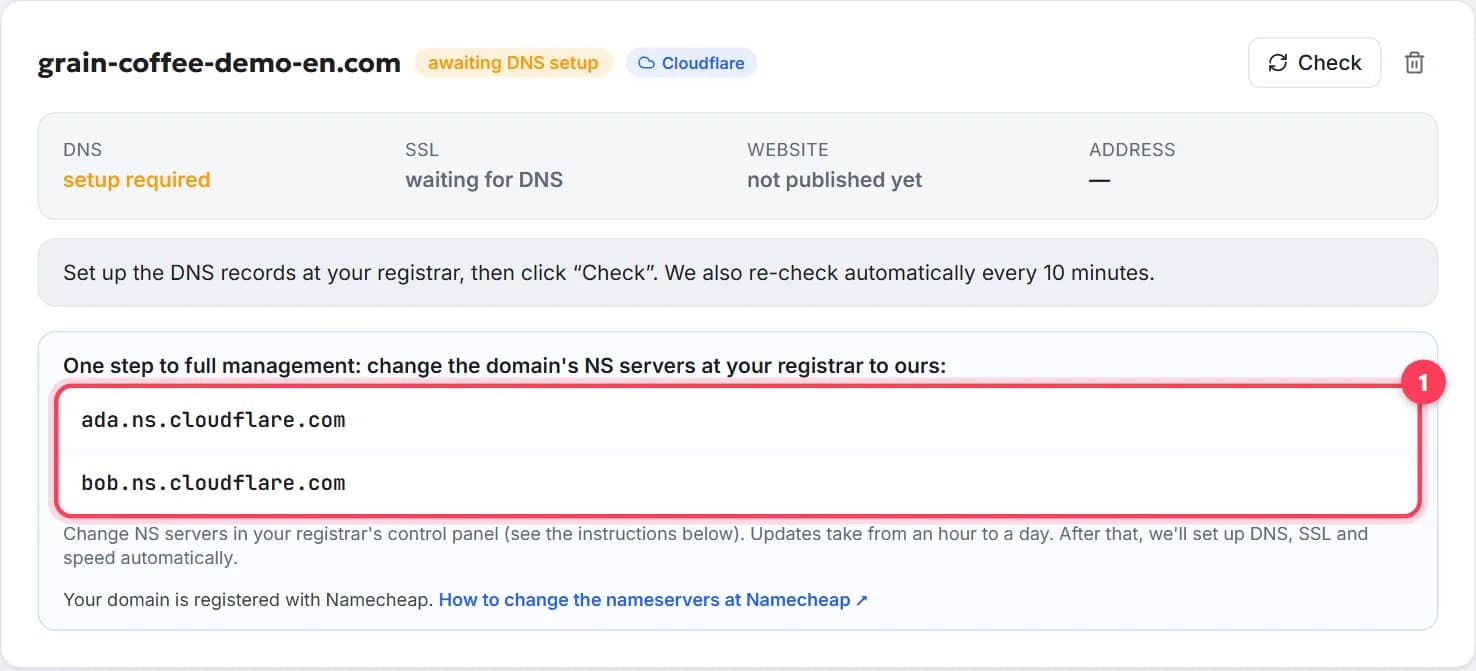
How to change the nameservers of a domain, step by step
Change your domain's nameservers in 5 minutes: what they are, where to click at GoDaddy, Namecheap, Porkbun, IONOS, how long it takes, what about email.
7 min readHow to transfer a domain to another registrar, step by step
Transfer a domain name to a new registrar in 5 steps: unlock, get the EPP/auth code, the 60-day rule, how long it takes, cost, what keeps working.
9 min read