Your domain at GoDaddy: change nameservers, DNS records, transfer and renewal
At GoDaddy a domain is managed from the Domain Portfolio: click the domain → Domain Settings → DNS → Nameservers → “I'll use my own nameservers” to connect it to a website; the DNS tab holds A/CNAME/TXT records; the authorization code is under Transfer → Transfer to Another Registrar. This page walks through each screen and the upsells to skip.
Buying a domain at GoDaddy
GoDaddy is the world's largest RegistrarA registrar is the company you buy and renew a domain from (GoDaddy, Namecheap, IONOS…). Its control panel is where you change nameservers, DNS records and renewal settings.→, with local sites and support in many languages. Search the name, add it to the cart — and then go through the cart carefully: GoDaddy adds optional products by default (website builder trial, email, extra privacy tiers, multi-year terms). Remove everything except the domain, check the renewal price and the term, pay. General checklist: How to buy a domain.
Confirm your email, privacy and Domain Protection
- After the purchase confirm the registrant email from GoDaddy's message (ICANN requirement) — otherwise the domain is suspended after 15 days.
- Basic WHOISWHOIS is the public lookup that shows who registered a domain, when it expires and which nameservers it uses. Most registrars hide personal details with free privacy protection.→ privacy is included with most GoDaddy domains; the paid Domain Protection tiers add change-locks and identity checks. With Domain Protection on, GoDaddy asks for a verification code (SMS, authenticator or one-time email code) before nameserver, auto-renew and transfer changes — keep your phone handy.
- Turn on 2-step verification in the account's Login & PIN settings.
Change nameservers at GoDaddy (connect the domain to a website)
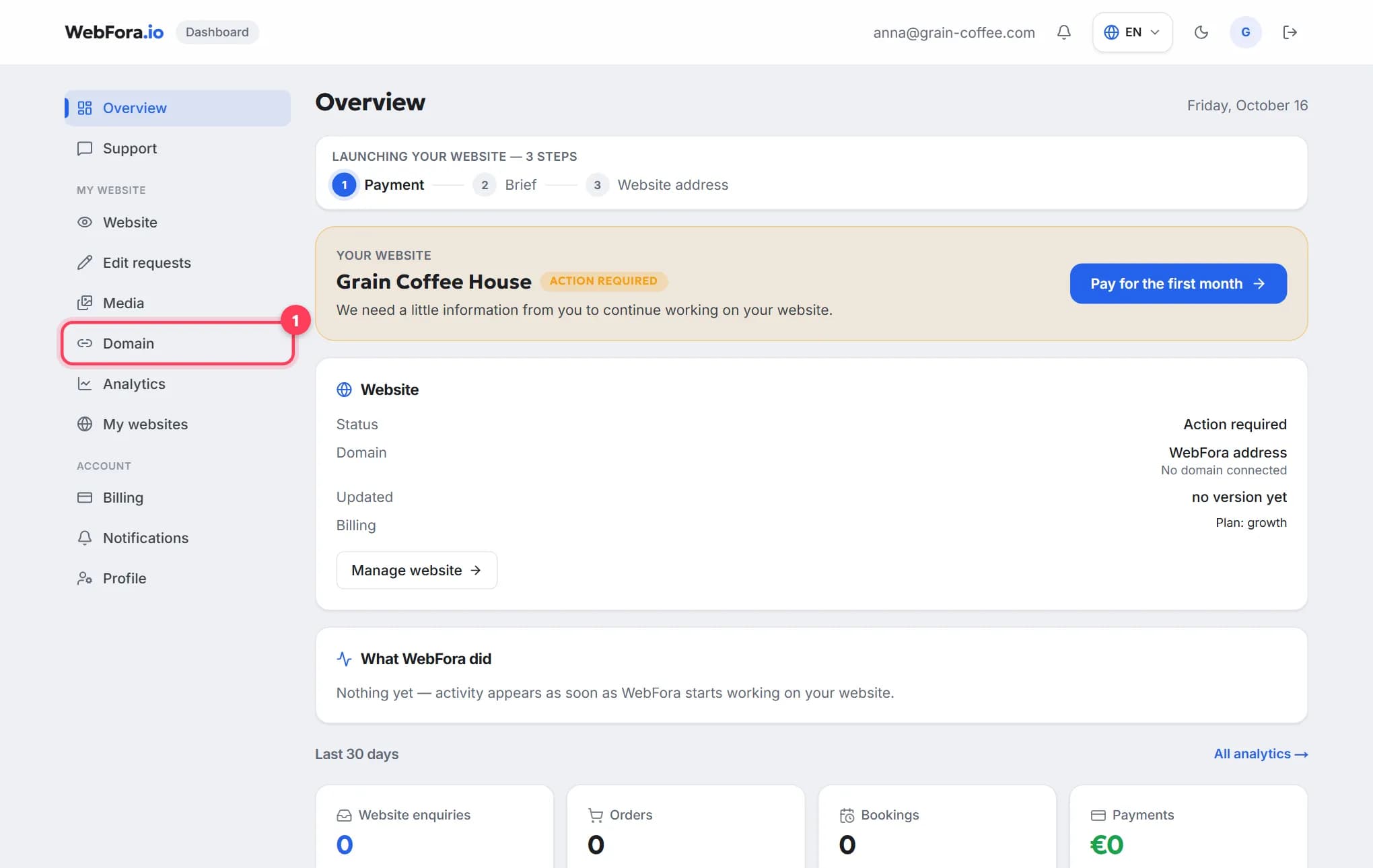
The step a WebFora client needs. Nameservers (NS)Nameservers are the servers that hold your domain's DNS records. Changing them (usually two addresses like ns1.example.net) hands the whole DNS setup to a new provider — the simplest way to connect a domain to a website.→ decide who manages the domain's settings. Your WebFora dashboard (section “Domain”) shows two addresses like ….ns.cloudflare.com — paste them at GoDaddy and we do DNS records, SSL and HTTPS. No IP addresses needed.
Step 1
Open the Domain Portfolio and click the domain
Sign in at godaddy.com → My Products → Domain Portfolio (or go straight to the portfolio). Click the domain name — its Domain Settings page opens.
Step 2
Go to DNS → Nameservers
Select the DNS tab, then Nameservers. You see the current nameservers (GoDaddy's own ones if you never changed them) and a Change Nameservers button.
Step 3
Choose “I'll use my own nameservers” and paste the two from WebFora
Pick I'll use my own nameservers, enter the two addresses exactly as in the dashboard — no
https://, no spaces — and click Save, then Continue. If Domain Protection is on, enter the verification code. How to know it worked: the Nameservers section now lists your two addresses with the note that changes may take up to 48 hours.Step 4
Wait and check
GoDaddy says the change usually takes about an hour but can take up to 48 hours. WebFora re-checks the domain every 10 minutes and switches on SSL automatically; the dashboard status becomes “live”. Check the current nameservers with the tool below.
Check your domain
Enter a domain to see its current nameservers, where the website points, whether www and email are set up, and which registrar it's with.
DNS records at GoDaddy (A, CNAME, TXT) — the fallback method
Only if you keep GoDaddy's nameservers and connect the website with records. The WebFora dashboard shows the exact records in the “Connect with an A record” card — copy them from there; this page lists no values.
Step 1
Open the DNS tab
Domain Portfolio → click the domain → DNS. The records table is shown (GoDaddy may call the page DNS Management).
Step 2
Click Add New Record
Choose Type (A recordAn A record is the DNS entry that says «this name lives at this IPv4 address». It's how a domain is pointed at a server when you connect by IP instead of changing nameservers.→, CNAME recordA CNAME record makes one name an alias of another — e.g. www.yourdomain.com → yourdomain.com, or shop.yourdomain.com → your shop platform's address. Used for www and subdomains, not for the bare domain.→ or TXT recordA TXT record is a free-text DNS entry used to prove you own the domain (Google, Meta, Microsoft) and to set email rules (SPF, DKIM, DMARC). Harmless to add, essential for verification.→), fill in Name (
@for the domain itself,wwwfor the www version) and Value, leave TTLTTL (time to live) is how long, in seconds, a DNS record may be cached before it's re-checked. It decides how fast changes spread: 300 = 5 minutes, 86400 = a day. Leave the default unless you are planning a move.→ default, click Save.Step 3
Remove conflicting records
GoDaddy creates a default A record for
@and a CNAME forwwwpointing at its parking page — edit or delete those first; two records of different types for the same name won't coexist. Changes usually apply within an hour.
Authorization code and transfer out of GoDaddy
A transfer moves the domain to another registrar — not required to connect it to WebFora. If you want to move it, you need the EPP code (auth code)The EPP code (auth code) is a password for your domain that the old registrar gives you when you move it to a new one. Without it a transfer cannot start.→ and the transfer lock off.
Step 1
Open Transfer to Another Registrar
Domain Portfolio → select the domain → Transfer → Transfer to Another Registrar. Review the checklist and click Continue with transfer; complete the identity verification if asked.
Step 2
Reveal and copy the code
Click Click here to see Authorization Code, then Copy to Clipboard. GoDaddy turns domain privacy off at this point and unlocks the domain for the transfer.
Step 3
Enter it at the new registrar
Rules: no transfer within 60 days of registration, a previous transfer or a contact change (if you applied the 60-day lock); .uk domains don't use a code (IPS tag instead). Full process: How to transfer a domain.
Renewal and auto-renew
- Per domain: Domain Portfolio → click the domain → the Renew section → toggle Auto-renew On/Off → Continue (verification code if Domain Protection is on).
- Several domains: tick them → Auto-renew in the action bar (under More on small screens) → Turn On / Off → Continue.
- Auto-renew is on by default; the domain must be in active status to change it, and the change can take up to 90 minutes to show.
- Keep the payment method current — an expired card means no renewal even with auto-renew on. Renewal charges the regular (not promo) price.
GoDaddy support
GoDaddy has phone support in many countries and languages plus chat from the Help Center (godaddy.com/help) — a real difference from Namecheap or Porkbun. Expect the agent to suggest additional products. For the WebFora side (nameservers from the dashboard, SSL, the website) write to your manager in the dashboard chat.
GoDaddy quirks worth knowing
- Upsells everywhere — cart add-ons, pop-ups after login, “your site is not secure” banners. For a WebFora website you need only the domain: SSL, hosting and email records are our job.
- Verification codes for most changes when Domain Protection is on — not a bug, but have your phone with you.
- Default parking records — the
@A record andwwwCNAME point at GoDaddy's parking page until you change nameservers or records. - Renewal price is the regular price; first-year discounts and multi-year bundles in the cart hide it — check before paying.
- Domain privacy is removed on transfer-out automatically — expected, not a problem.
- Regional sites (godaddy.com, .de, .es, .uk…) show the same panel in the local language; menu names translate literally.
FAQ
Where do I change nameservers at GoDaddy?+
Domain Portfolio → click the domain → Domain Settings → DNS → Nameservers → Change Nameservers → “I'll use my own nameservers” → enter them → Save → Continue.
How long does a GoDaddy nameserver change take?+
GoDaddy says usually about an hour, up to 48 hours worldwide. WebFora checks every 10 minutes and switches on SSL as soon as the change is visible.
Do I need an IP address to connect a GoDaddy domain to WebFora?+
No — only the two nameservers from your WebFora dashboard. Records and IPs are handled by us.
Where is the authorization code at GoDaddy?+
Domain Portfolio → select the domain → Transfer → Transfer to Another Registrar → Continue with transfer → Click here to see Authorization Code → Copy to Clipboard.
Why does GoDaddy ask for a code when I change nameservers?+
Because Domain Protection is on for the domain. Enter the code from SMS, your authenticator app or the one-time email — it's a safety check, not an error.
Will my GoDaddy email keep working after changing nameservers?+
Yes if its MX/TXT records exist at the new DNS provider. WebFora copies existing records before the switch — tell your manager you use GoDaddy email so we verify.
How do I turn off auto-renew at GoDaddy?+
Domain Portfolio → click the domain → Renew section → toggle Auto-renew Off → Continue (verification code if Domain Protection is on).
Do I need GoDaddy's SSL, hosting or website builder for a WebFora site?+
No. The subscription includes hosting, SSL and the website; from GoDaddy you only need the domain itself.
Was this guide helpful?
Related guides
How to connect your own (custom) domain to your WebFora website
Connect your own domain to your WebFora website in 5 minutes: enter it in the dashboard, set two nameservers at your registrar — we do DNS, SSL and HTTPS.
6 min read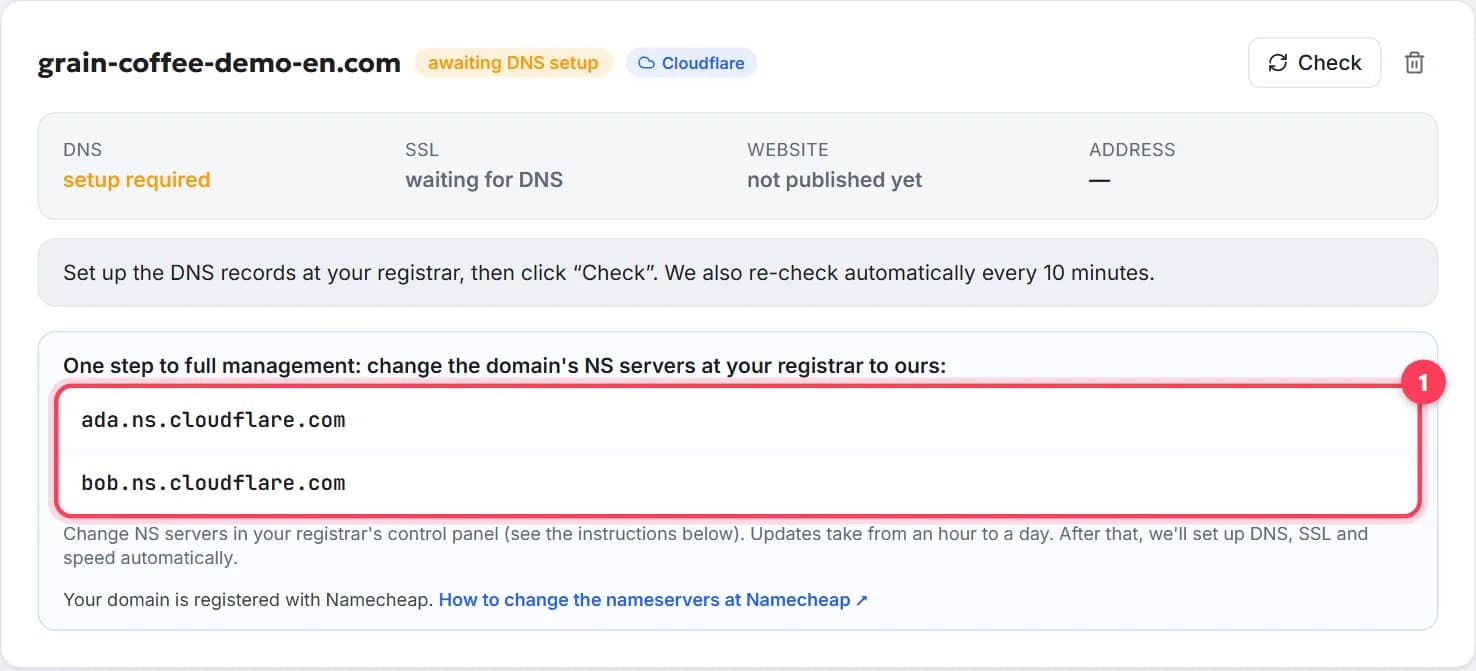
How to change the nameservers of a domain, step by step
Change your domain's nameservers in 5 minutes: what they are, where to click at GoDaddy, Namecheap, Porkbun, IONOS, how long it takes, what about email.
7 min readHow to transfer a domain to another registrar, step by step
Transfer a domain name to a new registrar in 5 steps: unlock, get the EPP/auth code, the 60-day rule, how long it takes, cost, what keeps working.
9 min read